---
title: "Creating a Kit for the Item Catalog"
slug: "creating-a-kit-for-the-item-catalog"
tags: ["Language - English", "Area - Administration", "Area - Estimating", "Industry - Landscaping", "Type - Task (How-To)", "Role - System Admin", "Role - Branch Admin", "Skill Level - 1 (Beginner)"]
updated: 2025-11-06T19:23:08Z
published: 2025-11-06T19:23:08Z
canonical: "guide.youraspire.com/creating-a-kit-for-the-item-catalog"
---
> ## Documentation Index
> Fetch the complete documentation index at: https://guide.youraspire.com/llms.txt
> Use this file to discover all available pages before exploring further.
# Creating a Kit for the Item Catalog
Purpose
In this article, we will talk specifically about *Kits*, which are one of 6 item types you are able to use during the estimating process in Aspire. Watch this video and keep reading to learn more!
[207 Estimating Creating Kits Video](https://fast.wistia.net/embed/iframe/416nz6uig7?web_component=true&seo=true&videoFoam=false)
Kits refer to bundled sets of related items, along with takeoffs, designed for specific services your organization performs. They then produce estimated labor hours or quantity of items based on your takeoff values.
While kits are an item type, they often group other item types like material or labor.
Some examples of kits for landscaping organizations are:
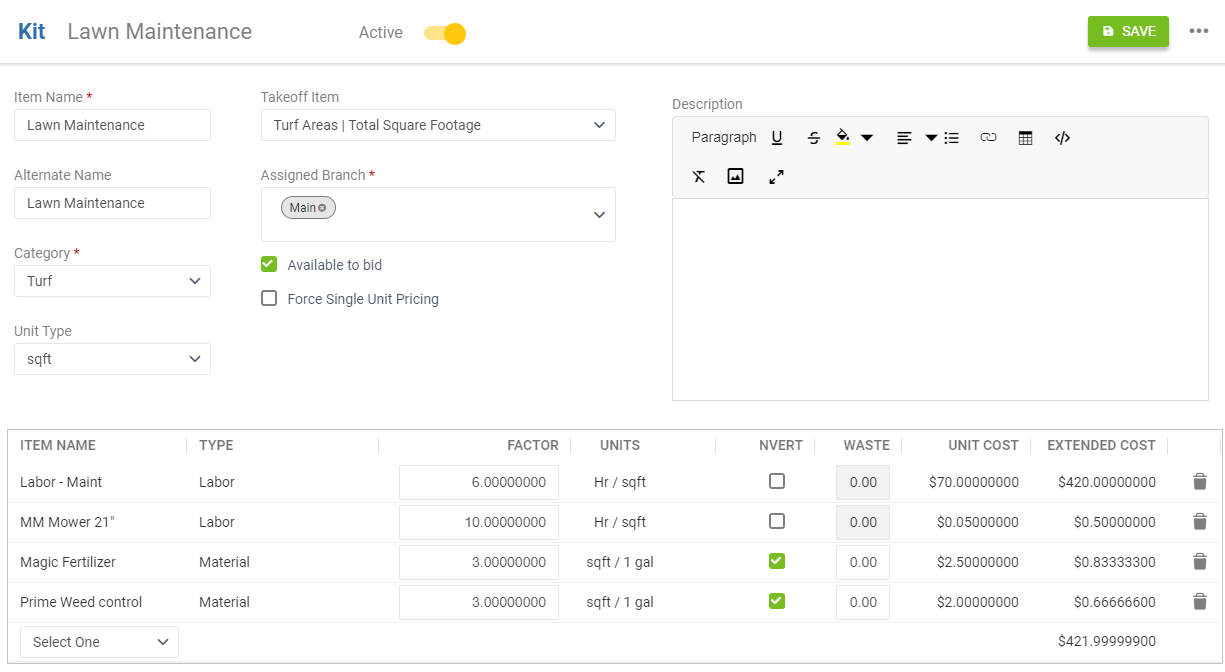
Lawn Care Kits: Bundle your products for lawn maintenance, such as fertilizers, weed control products, and lawn tools.
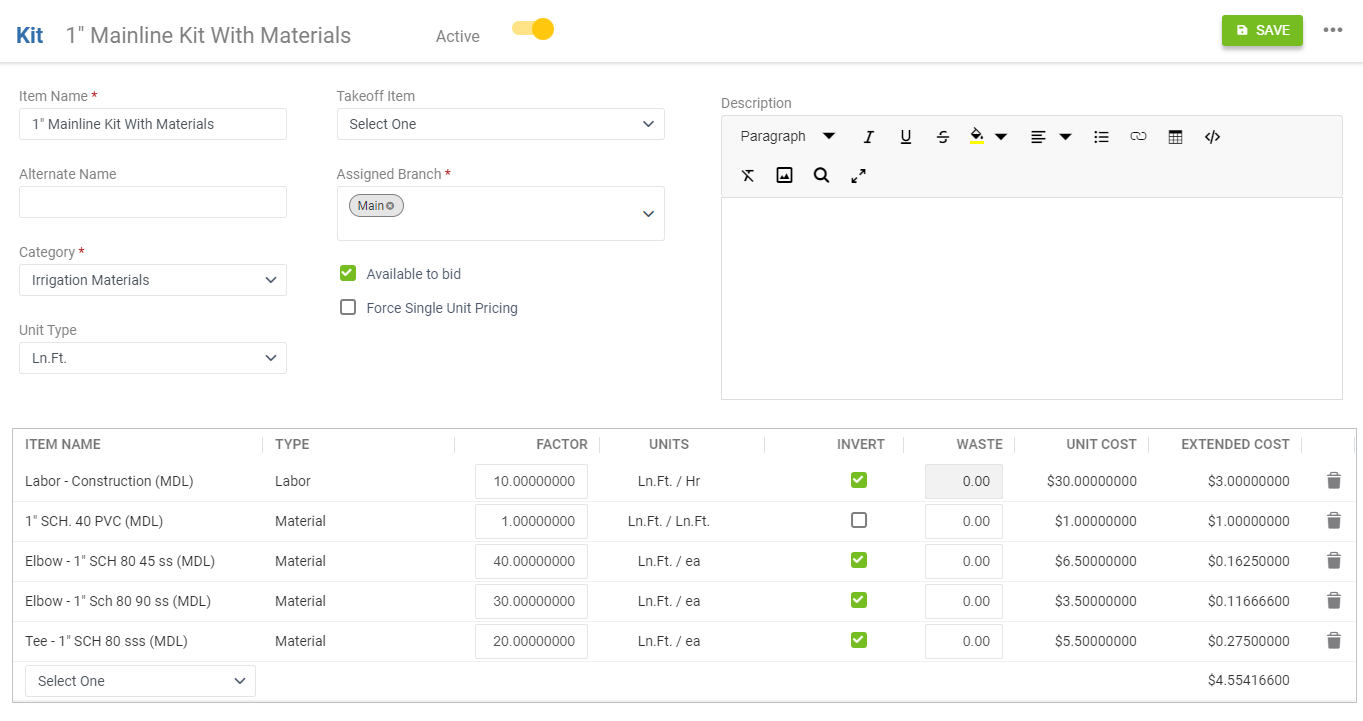
Irrigation Kits: Estimate this type of kit for sets of sprinklers, hoses, timers, and other components for setting up irrigation systems.
🧠 Some *Kit* item examples include: *2" Mulch Install/Weed Fabric 5.0, Basic Granular Application, Beet Tilling and Planting - Large Farm* or *Ice Melt Application.*
Why Should I Use Kits?
Kits can be important to include in an item catalog for several reasons. They are convenient and save time. Kits provide a convenient, one-stop solution for your team by bundling together all the necessary items required for a specific task or project.
By offering pre-packaged kits, you can make sure that customers receive a complete set of compatible products designed to work together seamlessly. This eliminates the guesswork and potential compatibility issues for estimators.
Kits can be used as promotional or marketing tools, offering bundled products at a discounted price. This can attract new customers and encourage repeat business!
When Should I Wait on Using Kits?
🧠 If you do not know your production rates or if you haven’t finalized creation of your other item types, *consider waiting to create your kits.*
Remember, using kits is not mandatory, so give yourself time to enter your other items and their costs, as well as your production rates. Once you have those finished, you can proceed with making your kits.
Requirements
✅ In order to add *Kits* to the *Item Catalog,* you must have *System Admin* or *Branch Admin* permission.
✅ If you have *Branch Admin* permission, you also need *Enhanced Admin Branch Security* added to your user role.
Creating a Kit in the Item Catalog
Before kits can be used on estimates, they must first be created in the item catalog. The item catalog is located in the *Estimating* tab of *Administration* and serves as a record of current or past items that have been created for estimating services.
When it comes to organization, your item catalog structures items logically, making it easy to find what you need when estimating. By adding items to your catalog, you can promote consistent pricing across estimates!
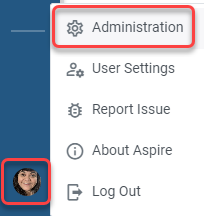
- Go to your *Profile Icon*. Click *Administration.*
**
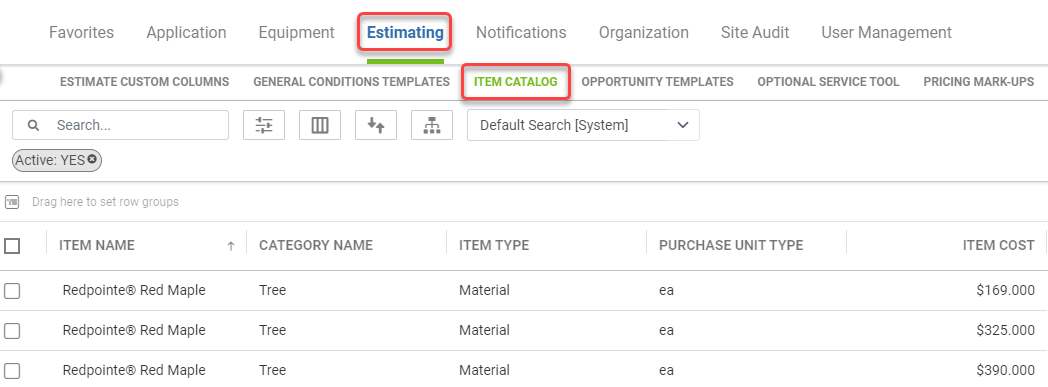
- Next, click the *Estimating* tab. Then, select *Item Catalog*.
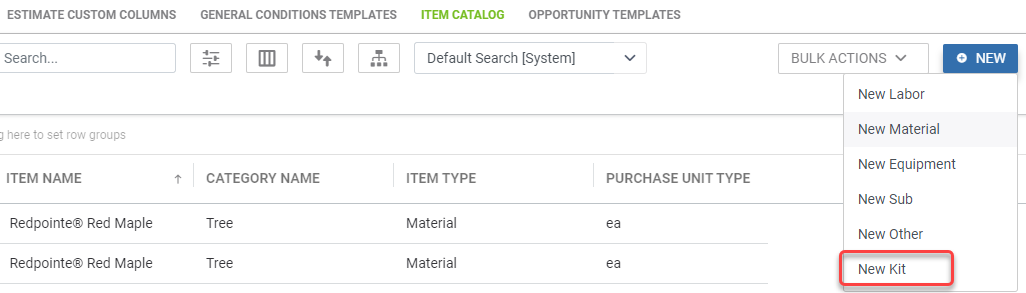
- The *Item Catalog* will appear showing your already created items! To create a new *Kit*, click *New* in the upper right then click *New Kit*.
- The *New Kit* screen will appear. You can begin to add your *Kit* details to get closer to adding it to the *Item Catalog!*
*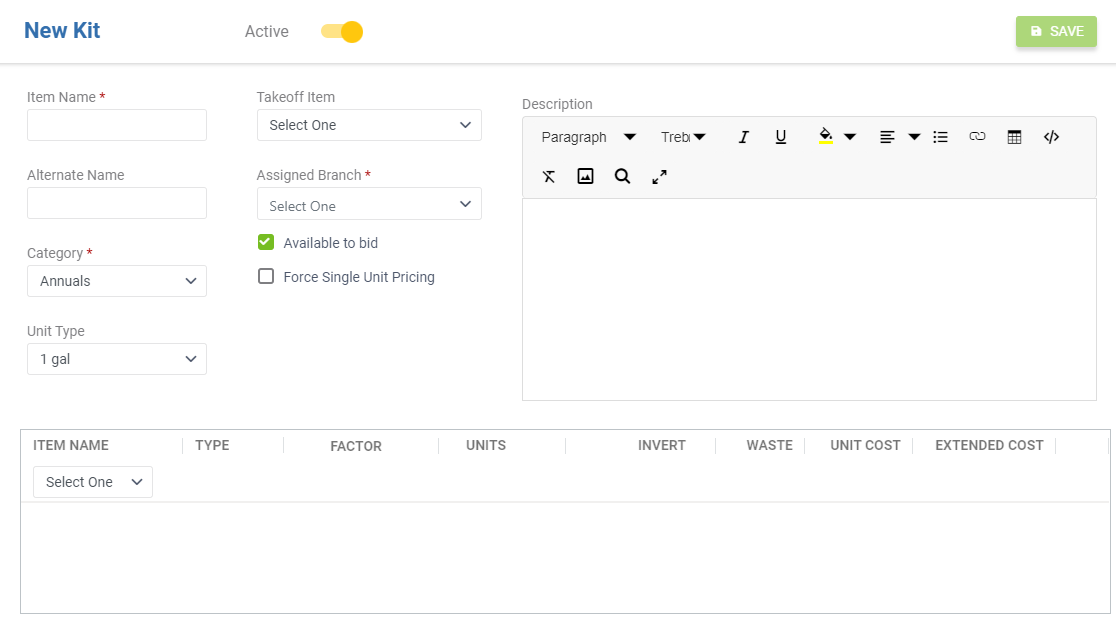*
- Type in the kit’s *Item Name*.
- This will be the name that is displayed on your customer’s proposal.
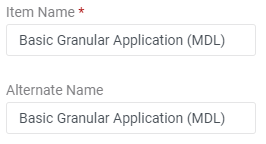
- The *Alternate Name*can be the same as the item name, left blank, or updated.
- You can edit the alternate name to be a specific name of a product, plant genus, species or other scientific names as needed.
- *Alternate Name* appears in the *Item Catalog Search Lis*t, when searching in the *Purchasing Assistant*, is available for use on *Purchase Receipt* layouts or on estimate sheet layouts.
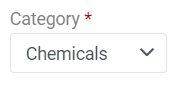
- Select the *Category* that the *Kit* should belong to.
- Item categories can include: *Kit, Chemicals, Tree, Materials* or *Snow*.
- Item categories can be set up in [*Lists*](https://cloud.youraspire.com/app/admin/application/lists/search/catalogitemcategory) in *Administration.*
**
- Assign a *Unit Type*. The unit type of the kit relates to how the takeoff that will be used is measured. Typically, the *Unit Type* should match the *Takeoff Item* unit of measurement.
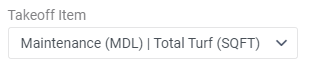
- Assign a *Takeoff Item* if needed. Takeoff Items are often assigned to kits being used in *Contract Opportunities* but are not required.
- *Kits* for *Work Orders* will have takeoffs entered at the opportunity level.
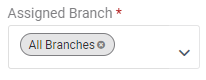
- By default, new Items will be available for all branches. A branch can be assigned if the kit should be limited to specific branches.
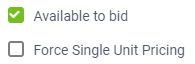
- Checking the *Available to bid* checkbox will make sure the kit can be used when estimating a service that contains the kit.

- If needed, check the *Force Single Unit Pricing*checkbox.
- *Single Unit Pricing* calculates the unit price and then multiplies it to determine the total price.
- This method results in a slightly increased price, but provides consistent unit prices on a single work order.
📑This is most commonly used with planting material kits. For more info on *Single Unit Pricing,* [click here*.*](https://guide.youraspire.com/docs/using-single-unit-pricing)
*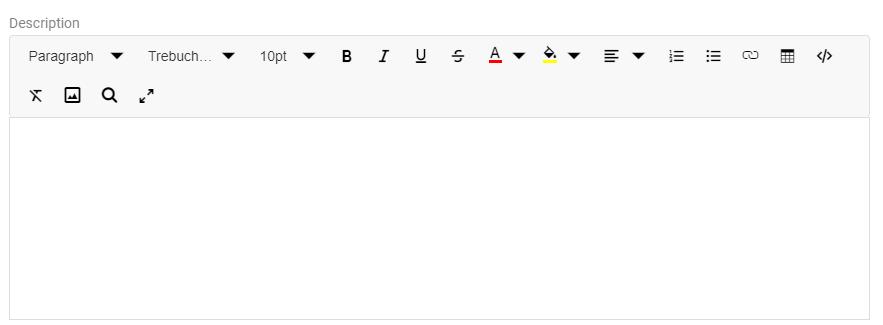*
- The *Description*field provides a more complete description of the item.
- This note becomes available when the kit is placed onto a service in the estimate.
- Add a description here if you need it to appear on services in your opportunity estimate.
🧠You can also choose to include the item description in a proposal layout to give extra information to your customer.
Kit Examples
⚠️ The factors used below are *for example purposes only* and may not be how your company performs work.
Mower Size
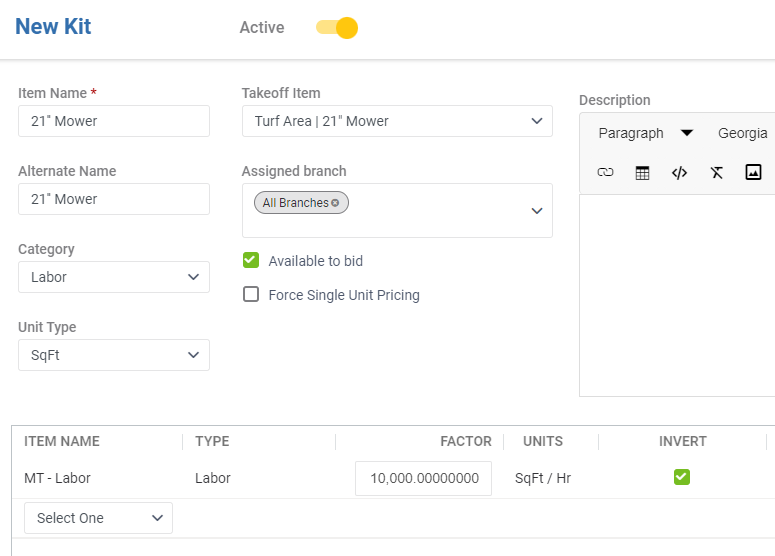
It's common to create kits based on the size of the mower. After all, a larger mower will be able to cut more grass in a shorter amount of time than a smaller deck mower. Therefore, a 21'' mower will have a different production rate then a 60'' mower.
Spreading Mulch
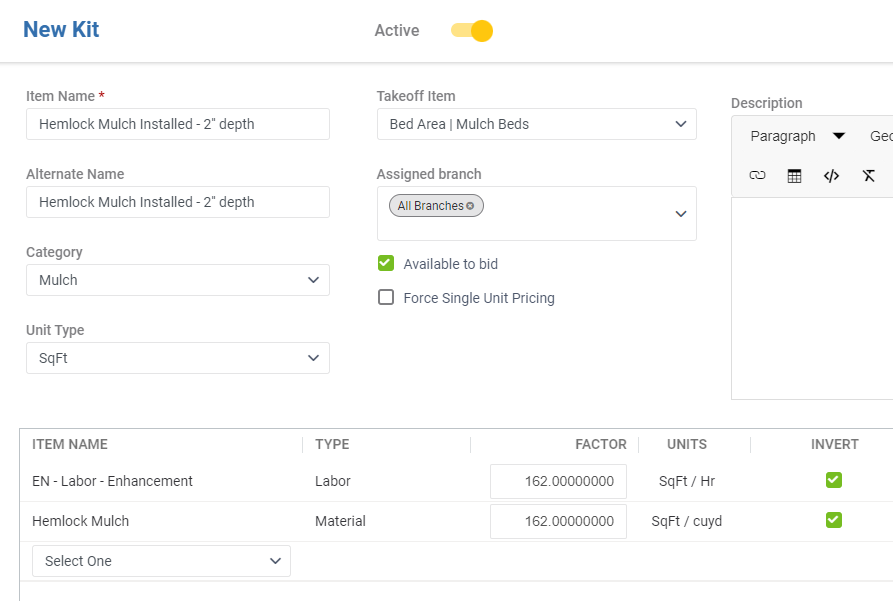
When building kits, you will want not only labor items but also the material items needed to do the service. It is common to calculate how much mulch is needed by measuring the square footage to be mulched and how deep the mulch is being spread.
This kit below is saying a crew member can mulch 162 SqFt every labor hour (1) and the mulch will cover 162 SqFt with every cubic yard spread.
Installing Plants
*Plant Install* kits can be used to calculate labor and materials based on count of plant material.
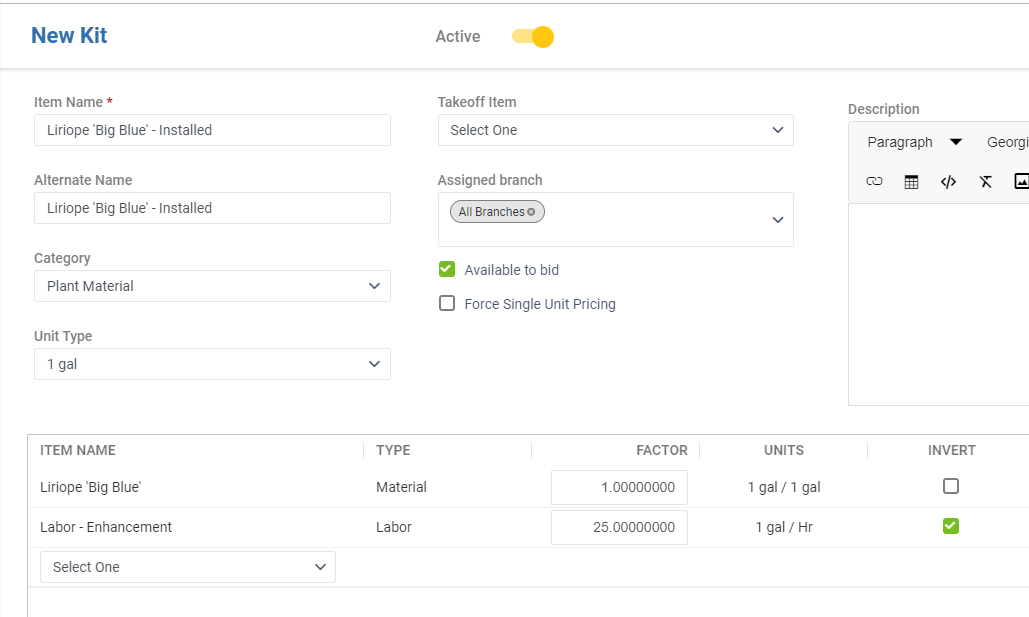
The below kit is saying we can install (25) 1 gal Liriope per 1 hour. The plant item itself will calculate estimated QTY based on the total entered in your estimate.
Adding Items to a Kit
After the fields for your Kit are entered, you can assign items to your kit by using the drop down under *Item Name.* You can add these items to your kit here!
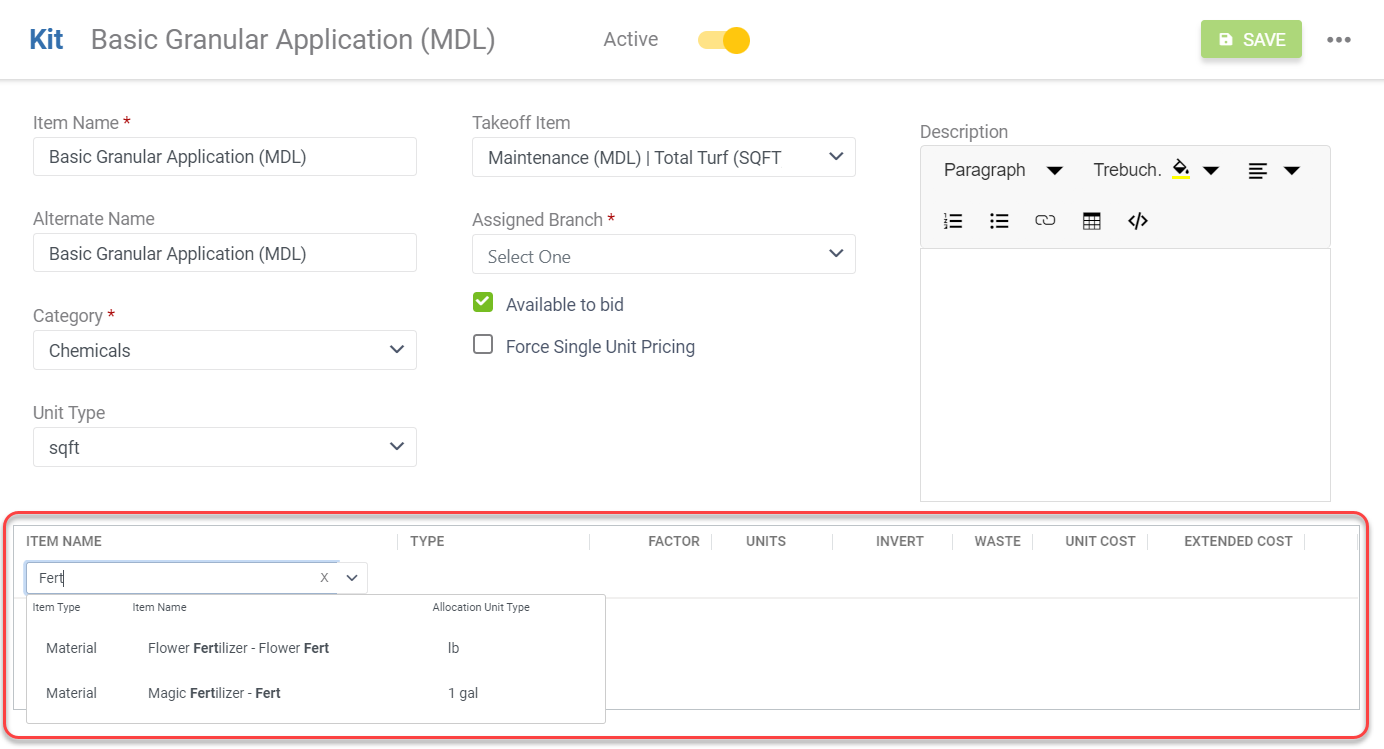
📌 Note: The items used for a kit must be created first before the kit itself. To learn about creating item types besides kits, [click here](https://care.youraspire.com/en/articles/4763807-adding-items-to-the-item-catalog).
We will break down the values and fields found in the item list for your kit below!

- *Item Name* is assigned from the catalog item selected.
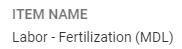
- *Item Type* is assigned from the catalog item selected.

🧠 Fo*r Factors, Units, and Inverting,* read the section after this to better understand what to put in these fields. Or, you can skip to the section here.
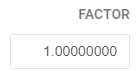
- Enter your *Factor*, or Production Factor, for each item assigned to the kit.
- The *Units* displayed are the Unit Type of the item added and the Unit Type assigned to the kit.

- Selecting *Invert* will flip the Unit Types. This often makes it easier to enter factors so you don't need to figure out fractions! You can use whole numbers.
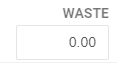
- The *Waste*field allows a waste percent for the item.
- Example: Brick pavers are estimated based upon the square footage of the patio. However, because of cuts needed, it has been determined that there will be 10% waste from those cuts. This factor will allow for that waste when estimating and purchasing.
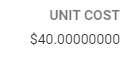
- *Unit Cost* is assigned from the catalog item selected.
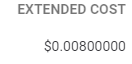
- *Extended Cost* is calculated using *Unit Cost* and *Factors*.
Once all the information is entered, click *Save* to create your Kit!
Factors, Units, and Inverting
💡 When creating a kit, it's important to understand the relationship between the *Factor*, *Units,* and *Inverting*. Let's look at a kit with a production rate for our team to cut grass using a 21'' mower.
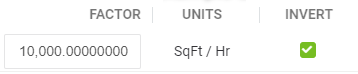
We'll read our *Factor* and *Units* from left to right. The kit is set up to say it takes .006 Hours for every 1 SqFt of grass mowed with a 21" mower. As you can see, our *Units* column shows Hr / SqFt.
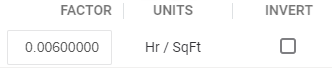
If we use SqFt as our production factor, we can use the *Invert* button to flip our unit types. This means we have now switched from Hr / SqFt to SqFt / Hr. The kit now reads we can cut 10,000 SqFt of grass per 1 Hour.
Using a Kit in an Opportunity
Using the previous examples, we can see what the kit will look like when estimating.
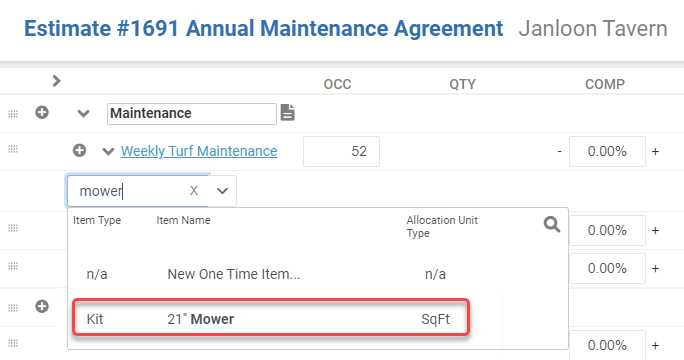
When adding items to services in our estimate kits can be searched for by name and will be identified as kit on the left hand side.
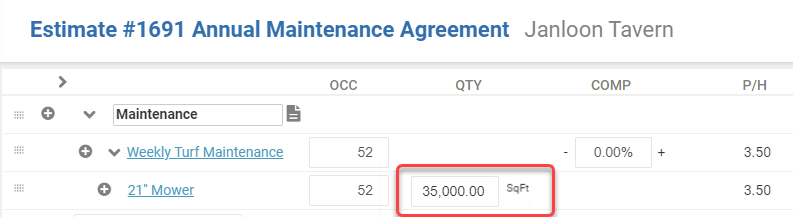
When selected, the unit type assigned to the kit can be displayed and our qty entered. Using the previous example, entering 10,000 SqFt will estimate 1 crew labor hour.
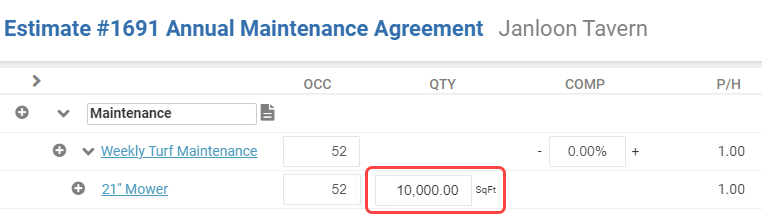
Changing the quantity based on the takeoff we've performed, or what we've measured at the site, changes our labor hours to reflect the new quantity (3.5).