---
title: "Creating Service Types"
slug: "creating-service-types"
tags: ["Language - English", "Area - Administration", "Area - Estimating", "Industry - Landscaping", "Type - Task (How-To)", "Role - System Admin", "Role - Branch Admin", "Role - Operations Manager", "Skill Level - 1 (Beginner)"]
updated: 2026-01-06T20:30:05Z
published: 2026-01-06T20:30:05Z
canonical: "guide.youraspire.com/creating-service-types"
---
> ## Documentation Index
> Fetch the complete documentation index at: https://guide.youraspire.com/llms.txt
> Use this file to discover all available pages before exploring further.
# Creating Service Types
What is a Service Type?
Service Types are used to group services and tie them to your divisions. They can be thought of as *Sub Divisions*. They are the link between divisions and services to break down the pricing mark ups on your opportunities.
- For Landscaping companies, Service Types for a Maintenance Division could be *General Maintenance, Chemical Applications, Commercial* or *Residential.*
- *For Commercial Clean Companies, Service Types for a Floor Care Division could be* *Carpet Cleaning, Hi-Speed Buffing, and Misc. Floor Service.*
Watch the video below and keep reading to learn more!
[203 Estimating - Administration - Service Types Video](https://fast.wistia.net/embed/iframe/ta76infvp7?web_component=true&seo=true&videoFoam=false)
Requirements
⚠️ To create or edit *Service Types*, the user must have System Admin access.
⚠️ If you are currently in *Implementation*, it's recommended to start simple with your *Service Types*. You can always add complexity as you continue using your system!
✅ You've read *Building Your Organization in Aspire*. If you haven't, please read [this article](https://guide.youraspire.com/docs/building-your-organization-in-aspire) before moving forward.
Instructions
To add a new *Service Type*, follow these steps:
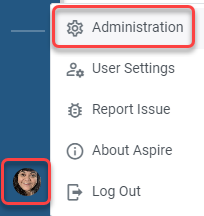
1. Click on your *Profile Icon,* then *Administration.*
**
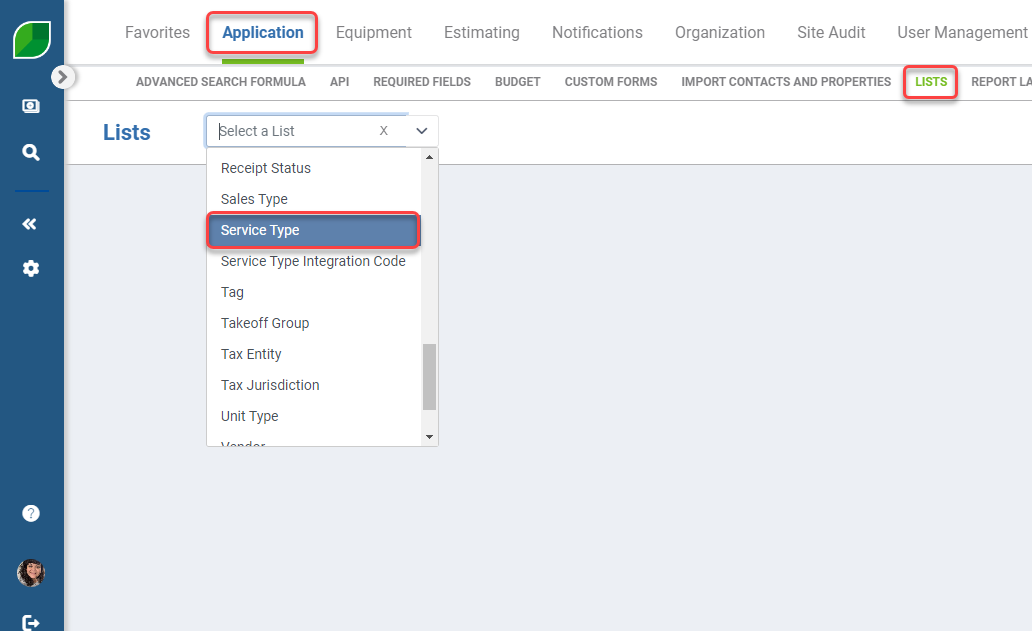
2. Click *Application*
3. Click *Lists.*
4. A drop down will appear. Click *Select A List,* scroll down, and click *Service Type.*
**
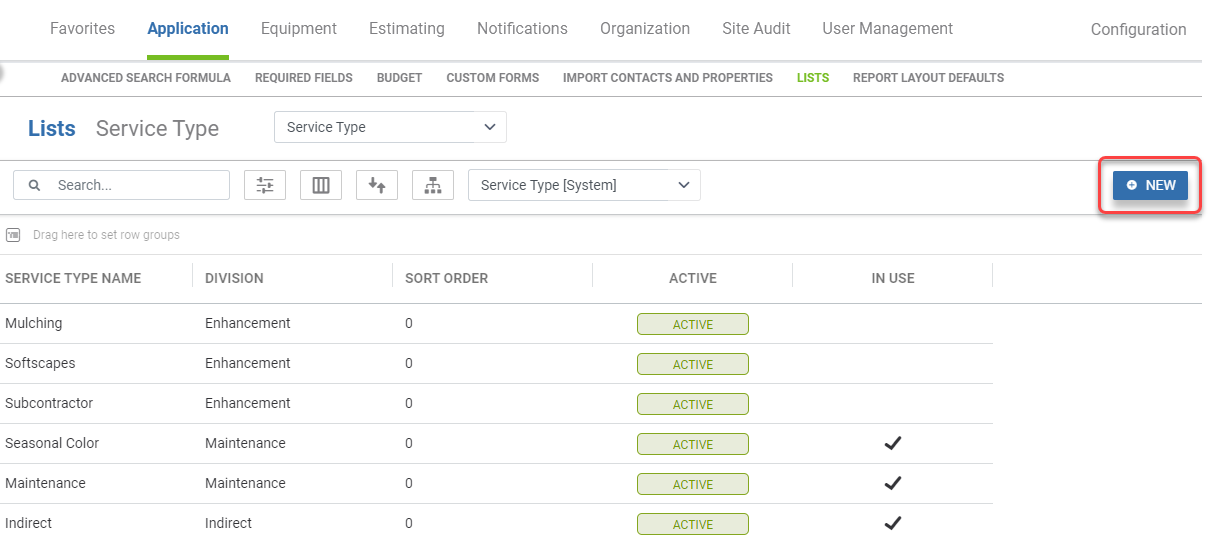
5. Click the blue *New* icon to create a new *Service Type.*
**
6. When creating a new *Service Type,* the *Active* slide will automatically be yellow and to the right. In order to inactivate a service type, click the *Active* slider while the service type is *Active*. It will then turn grey*.*
*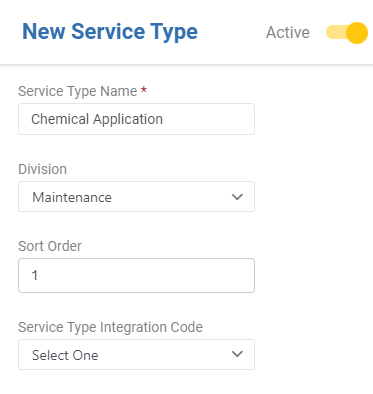*
7. Enter the *Service Type Name.*
8. Click from the drop down menu which division this *Service Type* will be linked to.
9. The *Sort Order* is optional and can be used to display the *Service Types* in a specific order. As with all sort orders, the lower the number, the higher it will show on your list.
10. *Service Type Integration Code* is optional. 📑 To learn more about *Integration Codes*, read [this article](https://guide.youraspire.com/docs/property-type-fields-and-integration-codes).
11. When finished, click *Save* in the upper right corner.
📌 Note: The new *Service Type* will not be in use until it is assigned to a *Service* within the *Service Catalog* as shown below.

📑 To learn more about creating *Services,* read [this article](https://guide.youraspire.com/docs/creating-a-service)!