---
title: "Email and SMS Notification Overview"
slug: "email-and-sms-notification-overview"
tags: ["Language - English", "Area - Email Communication", "Industry - Landscaping", "Type - Concept", "Role - System Admin", "Role - Branch Admin", "Role - Operations Manager", "Role - Scheduler", "Skill Level - 1 (Beginner)"]
updated: 2025-11-18T21:44:34Z
published: 2025-11-18T21:44:34Z
canonical: "guide.youraspire.com/email-and-sms-notification-overview"
---
> ## Documentation Index
> Fetch the complete documentation index at: https://guide.youraspire.com/llms.txt
> Use this file to discover all available pages before exploring further.
# Email and SMS Notification Overview
## Overview
With notifications enabled, you can send instant notifications when a work ticket is marked complete in Aspire Mobile or receive an internal alert if a crew member doesn’t clock into a scheduled work ticket*.*
Email notifications are a good alternative to SMS for customers who manage multiple properties and prefer more detailed messages. You can also use email notifications to send equipment inspection alerts to internal teams responsible for maintenance.
Sometimes, you have customers who don't read emails or prefer a short text message to notify them about service. You can reach these customers with an SMS notification.
### Things to know
**Notification types**
**Email notifications**
- Uses HTML and can include logos.
- You can use tokens to insert dynamic information.
**SMS Notifications**
- Send messages from a toll-free number unique to your organization
**Workflow triggers**
**Email triggers**
- Work ticket complete in:
- Aspire Mobile
- The Subcontractor Portal
- Aspire Cloud
- Equipment Inspection complete (internal):
- Out of Service
- Failed, warning, or passed
**SMS triggers**
- Absentee Notification (internal):
- Job not started in Aspire Mobile
- Visit Reminders:
- Work ticket visit Sscheduled
- Work ticket complete in:
- Aspire Mobile
- The Subcontractor Portal
- Aspire Cloud
**Configuration options**
- You can configure notifications at the system and branch levels.
- You can also configure them at the **Division**, **Service Type**, or **Service** level.
- Copy existing notifications to create new ones quickly.
**Delivery time options**
- **Immediately** – Sends the notification right away (email and SMS).
- **Daily Digest** – Sends a daily summary (email only).
- **Weekly Digest** – Sends a weekly summary (email only).
- **Day(s) before** – For Visit Reminder notifications only. Choose to send the reminder 1–31 days before the scheduled visit (email and SMS).
## Requirements
To set up notifications, you must have the following permissions:
- The *Manage Notification Settings* permission is turned on for your user role at either the system or branch level.
- The *Edit All Contacts* permission is turned on, which allows you to set up a contact to receive SMS notifications.
- For Absentee Notifications, you must enable time-based scheduling for the relevant branches and routes.
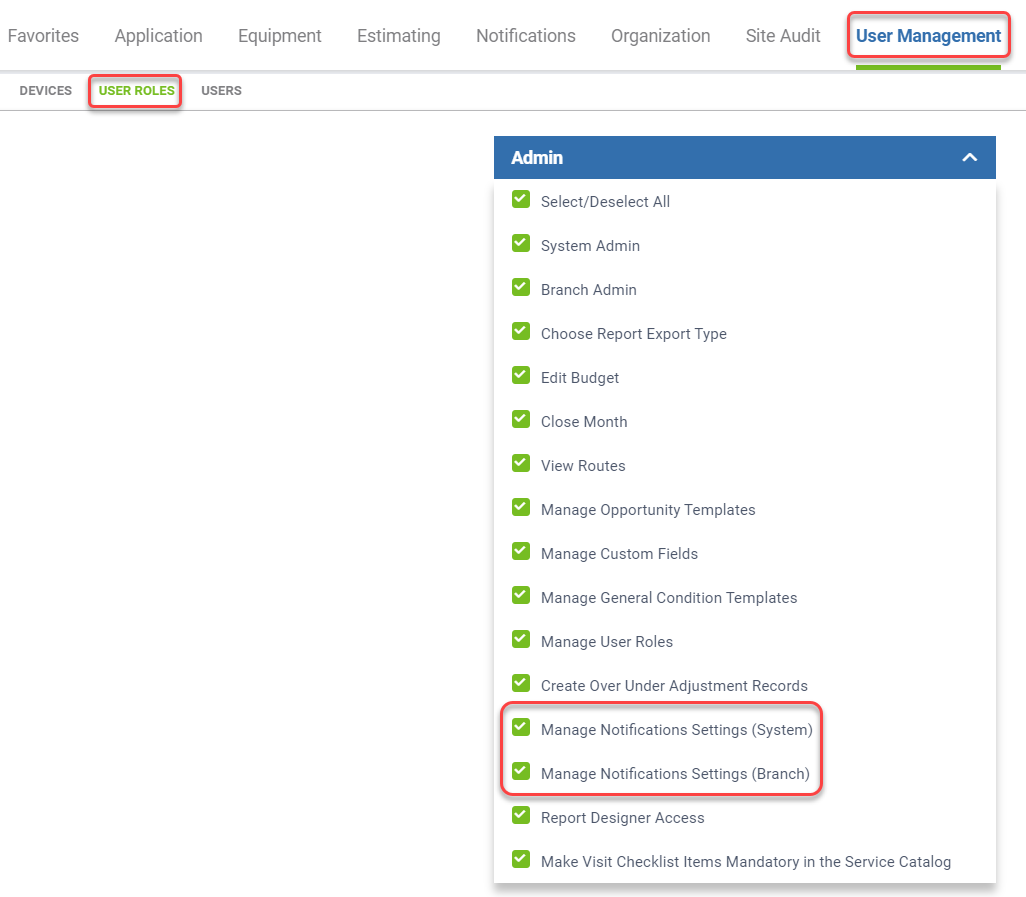
To verify permissions, go to **Profile > Administration > User Management > User Roles**. Under **Admin**, select **Manage Notification Settings (System)** and **Manage Notifications Settings (Branch)**.
## Enable and configure notifications
**Turn on notifications**
1. Go to **Administration** **>** **Notifications**, then select the **Notifications Settings** tab.
2. Turn on **Email Notifications Enabled** or **SMS Notifications Enabled**.
3. In the **Reply To Email (System)** field, enter a default reply-to email address.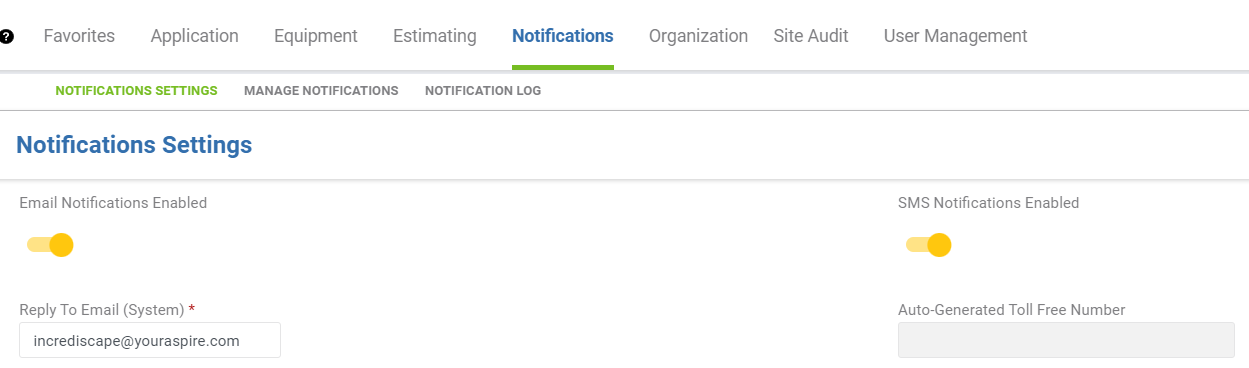
4. **Optional:** To override system settings for a specific branch, select a branch from the list and update its settings.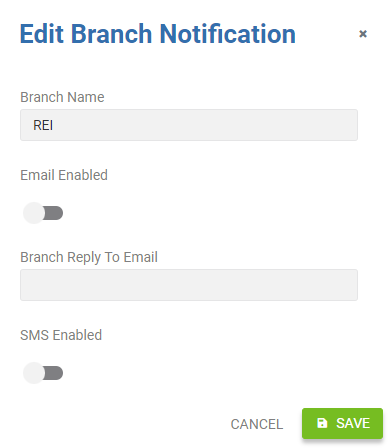
> [!NOTE]
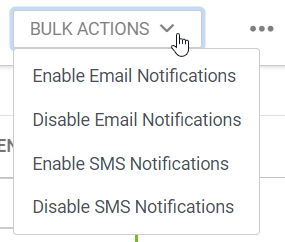
> **Note**: If you have multiple branches, enable notifications for each branch individually, or use **Bulk actions** to update multiple branches at once.
>
> 
5. Select **Save**.
### Preparing contact records to accept notifications
For customers to receive notifications, you must allow notifications on the property's Contact record. You can specify notification contacts in the *Contacts* section of the Property Overview screen.
For internal notifications, your employees must opt-in to receive messages on their contact record.
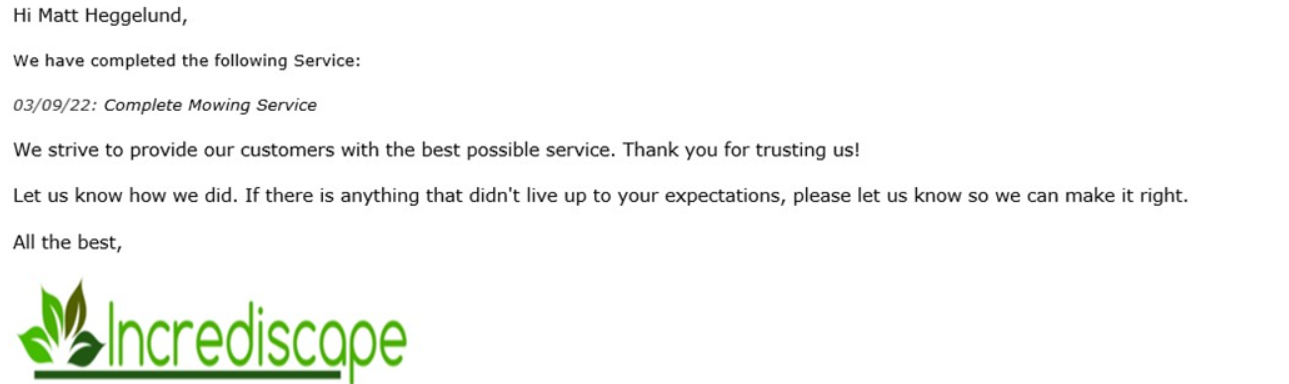
Example of an email notification:
Instant and email digest notifications
When you turn on notifications, you can send them instantly when a work ticket is marked complete in Aspire Mobile. You can also receive an internal alert if a crew member doesn't clock into their scheduled work ticket.
*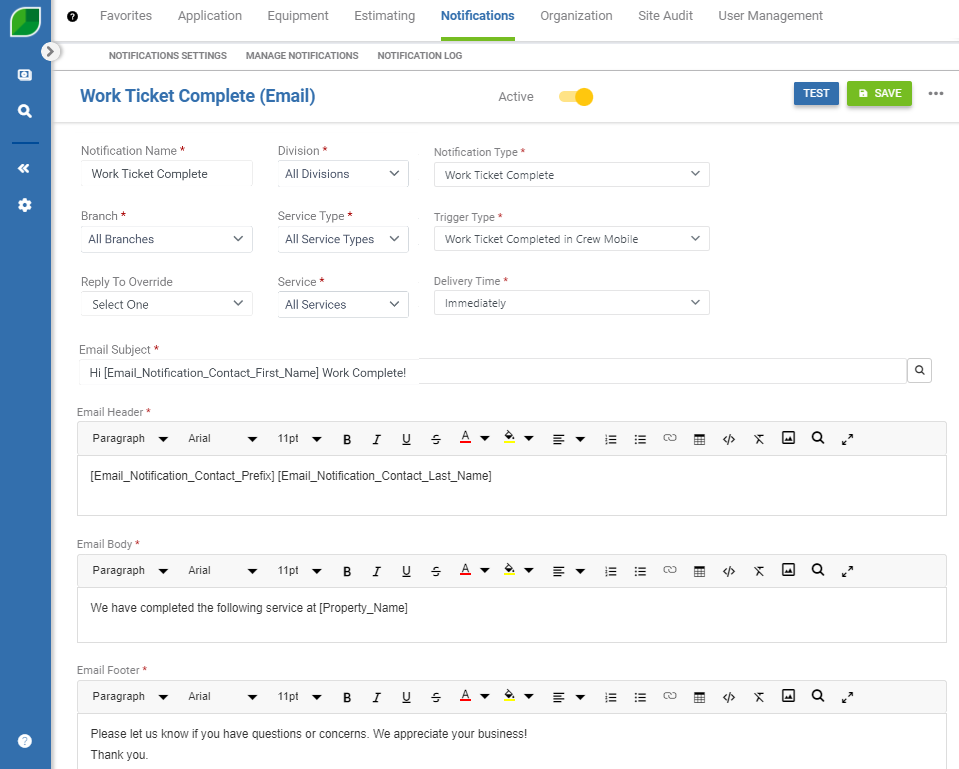*
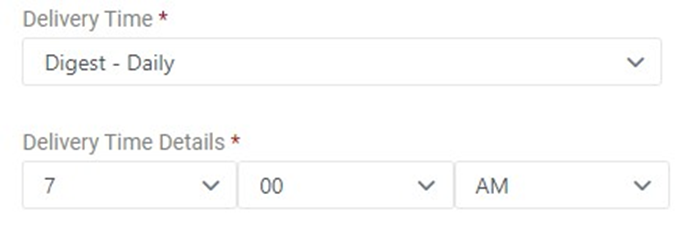
For email notifications, you can use the digest approach to streamline communication about completed work. You can send a daily or weekly digest of all work tickets completed during that period. The digest includes all applicable work tickets completed since the last digest was sent.
**Examples:**
- **Daily digest:**
- A digest sent at **7:00 AM** today includes all work tickets completed between 7:01 AM yesterday and 7:00 AM today.
- A digest sent at **9:00 PM** today includes all work tickets completed between 9:01 PM yesterday and 9:00 PM today.
- **Weekly digest:**
- A digest sent on **Friday at 8:00 PM** includes all work tickets completed between 8:01 PM the previous Friday and 8:00 PM on the day it is sent.
- A digest sent on **Monday at 6:00 AM** includes all work tickets completed between 6:01 AM the previous Monday and 6:00 AM on the day it is sent.
Set up employee contacts for internal notifications
For your team to receive internal SMS notifications, you must send an invite to the employee's contact record.
1. Go to the employee's Contact record.
2. In the **Mobile Phone** section, find the **SMS Notification Status** field and select **Send Invite**. 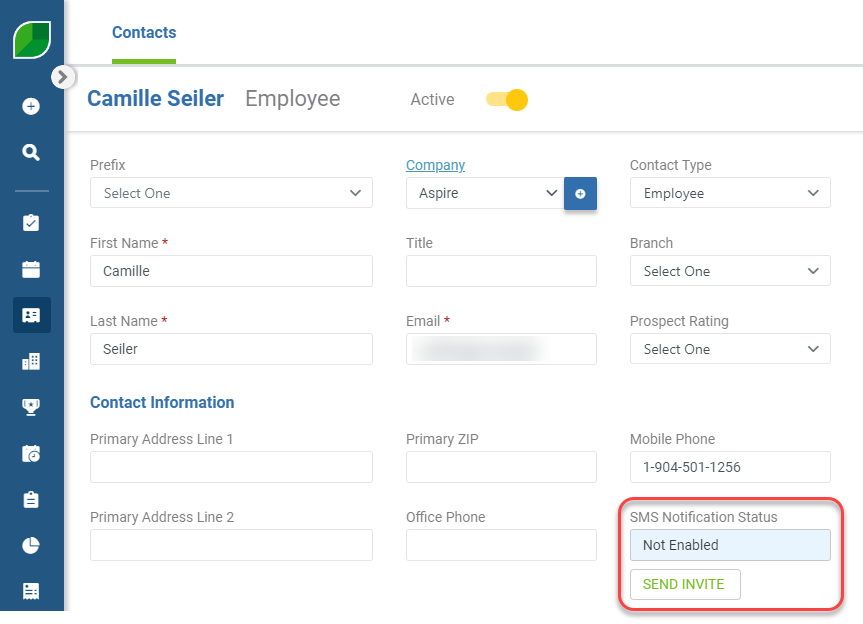
1. After the invite is sent, the field updates to **Opt-in SMS Sent** with the date.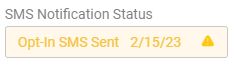
3. Your employee receives an SMS message asking them to opt-in. They must reply `START` to finish the process.
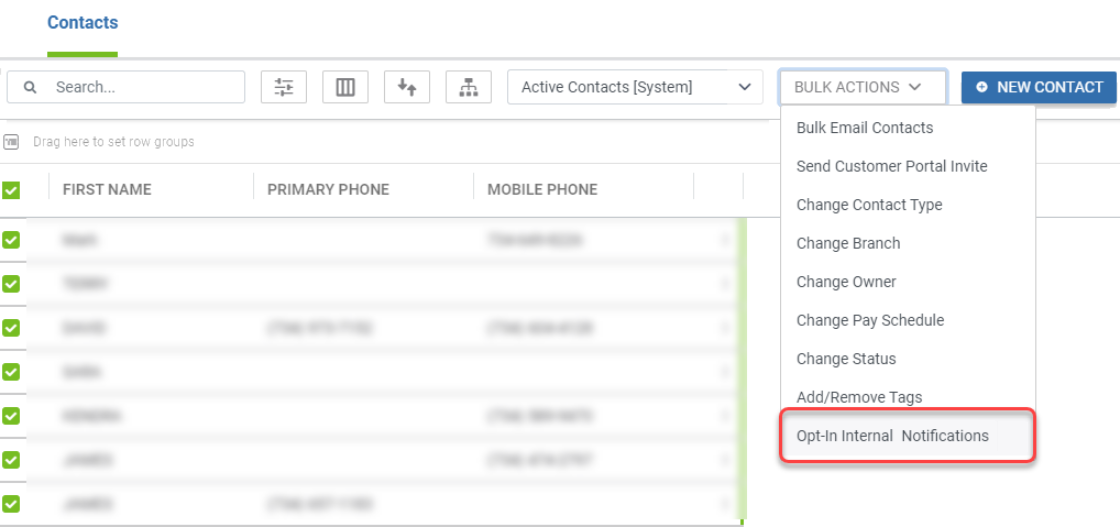
Once an employee opts in, their status shows as **SMS Enabled** with the date. You can also opt-in multiple employees at once using **Bulk Actions** in the Contacts module. 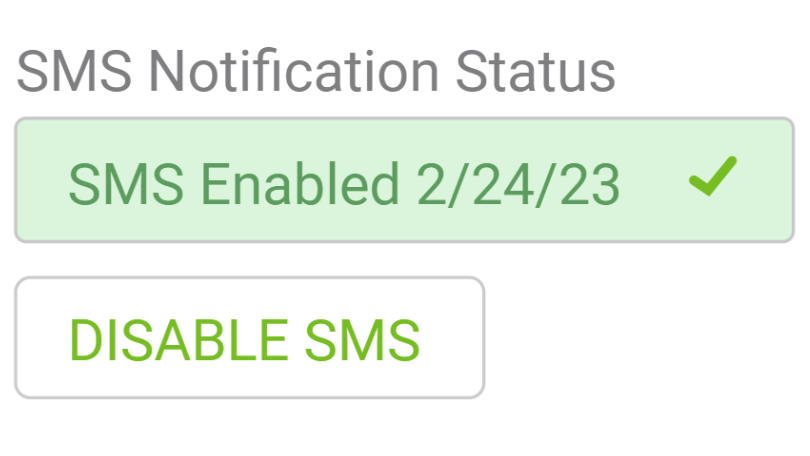
**
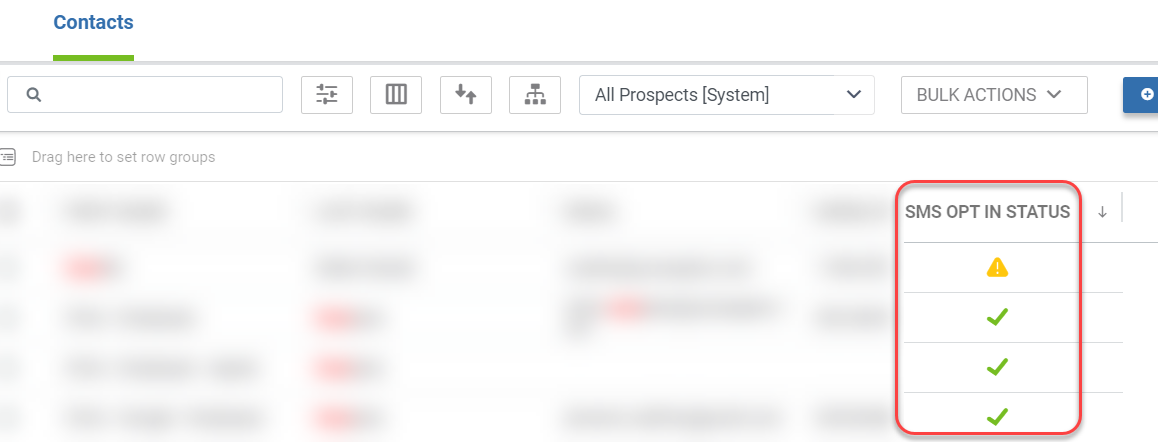
If you need to review the *Opt-In* status for any of your contacts, add the *Display* column of **SMS Opt-In Status**:
- A **hazard** icon means that the contact has a pending **Opt-In SMS invite**.
- A **green** **checkmark** means that the contact has accepted the **Opt-In SMS invite**.
- More detail about *Internal SMS Notification* types is found [here](https://guide.youraspire.com/docs/using-sms-notifications#setting-up-your-employee-contacts-to-receive-internal-notifications).
- More detail about *Internal Email Notification* types is found [here](https://guide.youraspire.com/docs/using-email-notifications#using-the-internal-equipment-inspection-complete-notification).
More detail about opting in to SMS Notification types is found [here](https://guide.youraspire.com/docs/using-sms-notifications#opting-in-and-out).
Review the notification log
The Notification Log allows you to view and filter information about sent notifications. You can find the log in three places:
- **Profile > Configuration** > **Notifications** > **Notification Log** 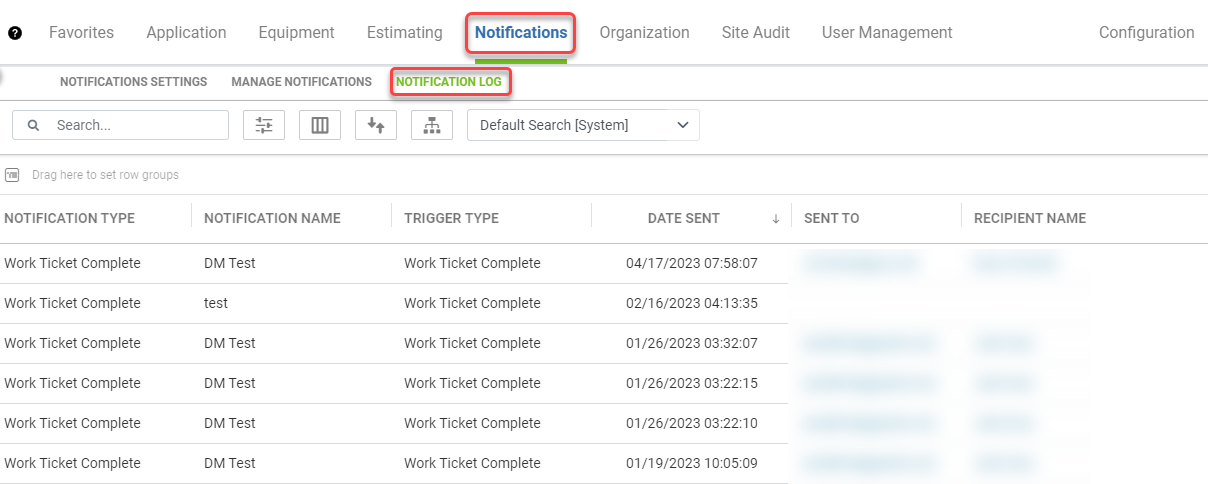
- On the Contact Details screen
- On the Property Details screen
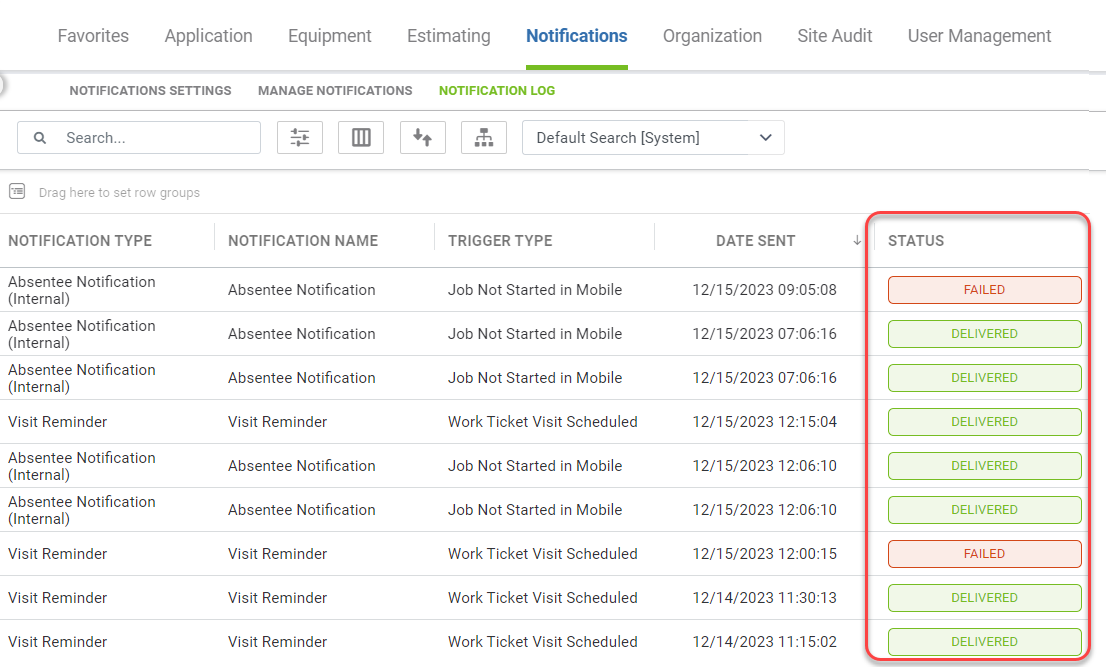
In the log, you can add the **Status** column to check if a delivery was **Delivered** or **Failed**. Selecting a recipient's name in the log takes you to their contact record in the *Contacts* module.
Learn more
After you configure user roles and turn on notifications for your system and branches, you're ready to create your email or SMS notification templates.
- To learn how to set up an *Email Notification,* read [Using Email notifications](https://guide.youraspire.com/docs/using-email-notifications).
- To learn how to set up and *SMS Notification*, read [Using SMS notifications](https://guide.youraspire.com/docs/using-sms-notifications).