---
title: "Enabling and Using Quick Tickets in Aspire"
slug: "enabling-and-using-quick-tickets-in-aspire"
tags: ["Language - English", "Area - Scheduling", "Area - Work Tickets", "Industry - Landscaping", "Type - Task (How-To)", "Role - Scheduler", "Skill Level - 1 (Beginner)", "Skill Level - 2 (Intermediate)"]
updated: 2026-05-02T02:35:05Z
published: 2026-05-02T02:35:05Z
canonical: "guide.youraspire.com/enabling-and-using-quick-tickets-in-aspire"
---
> ## Documentation Index
> Fetch the complete documentation index at: https://guide.youraspire.com/llms.txt
> Use this file to discover all available pages before exploring further.
# Enabling and Using Quick Tickets in Aspire
What Are Quick Tickets Used For?
Quick tickets are an Aspire feature that lets crew leaders report time for jobs that 'pop-up' through Aspire's Mobile app without going through the proposal process. For example: This feature can be used for irrigation repairs where the technician is scheduled ahead of time for irrigation system inspections, but then discovers that certain T&M repairs or maintenance are required. The additional T&M repair or maintenance can be performed using the quick tickets capability.
Enabling the Quick Ticket Feature
If a user does not see this option in Aspire's Mobile app, that means that the function is not enabled for their route in Aspire's Mobile app. To enable:
1. Go to the *Scheduling* module.
2. Click on the triple dot menu in the upper right.
3. Select *Manage Routes*. [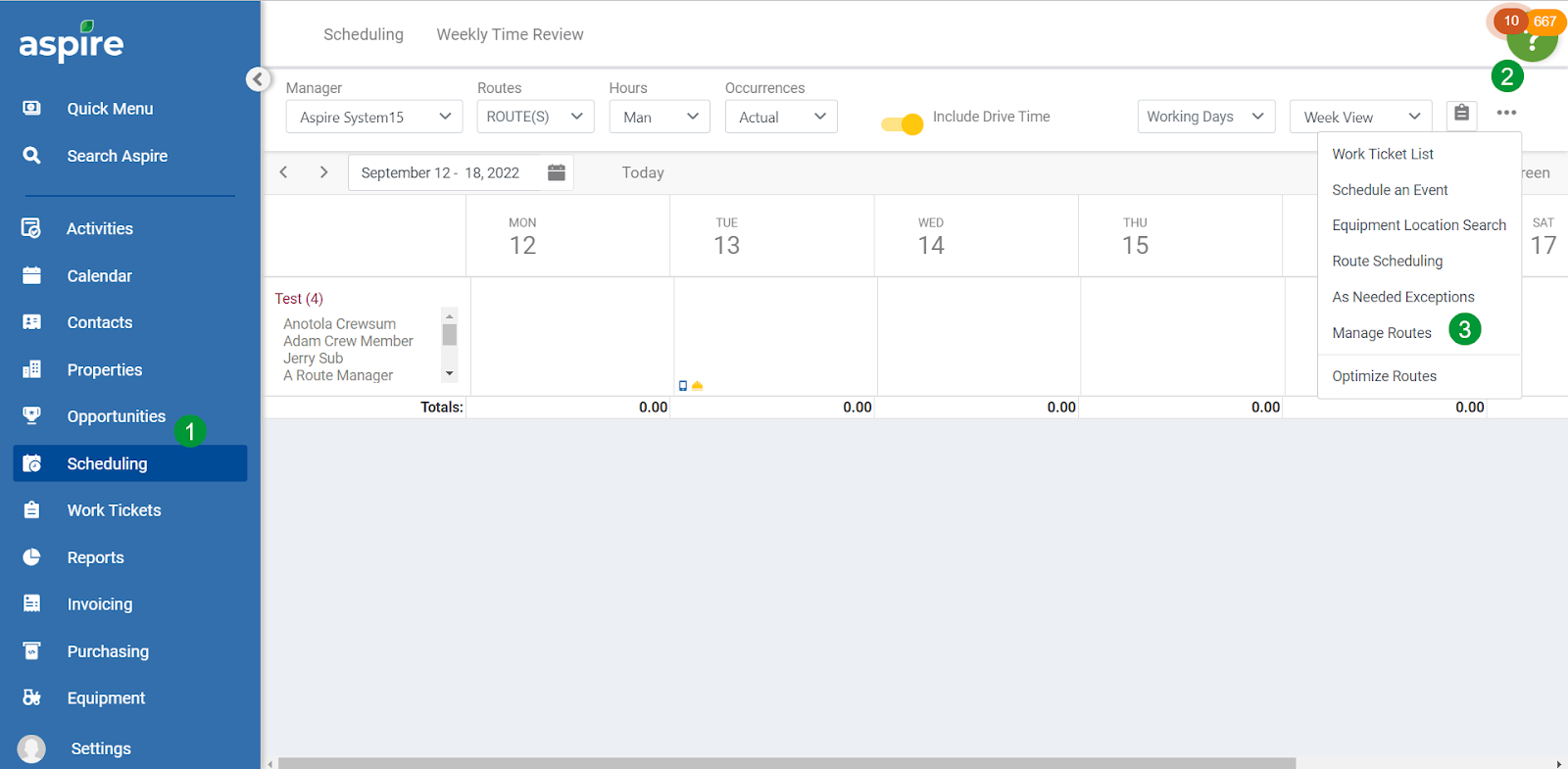](https://aspire-software.intercom-attachments-7.com/i/o/652158773/f4467a0db7c730a98a5169ff/wx5WSBO0M64GzyvS9lf0KuWKNx1FPUNqAq2dTlZuQu6LnfP8kY1-tsgqmX12XVPGBWyKRB8DfDulebnElotQn7wNn49GETo4snQuS8xvDj4Kc6VM5S6QmNG5-0zm1oRY8O5WJFgiR4qPlrkmf_5EKjuToSYG7r_uy4hSaQR7tvaBJA-50nbL0EWMeA?expires=1758134700&signature=59f2225df06ca8bd65cb0e7186cb3110b67cd0235631906909b698f583b14e39&req=ciUlF8x2moZcFb4f3HP0gN9yrYps%2F6eQCTBkfJvtppWp7RI43rErdIBQV1qC%0A2Ec%3D%0A)
4. Choose a *Route* or create a new route by clicking *New*. [](https://aspire-software.intercom-attachments-7.com/i/o/652158780/2db4bc7c605008d942ee22c1/1q0HSsJYUv2IKXUYMb5xRvR4T4WuIsCXuvZ5PR5GpKFP3X2fZ5pevxfPr85TTuzIClSbODokTybJcifOrIMr1A1VBHnYp40pJsRMPVd7tw0v5XVtwdMN2iUdw3WajWjgtO4h3UIu0Sp1TSkDLAW3nx5NsmSHfMA4aKp88i2Wa-lXPoUYkD2alktQNw?expires=1758134700&signature=3105fe0fa7a250707d779dcf78057b07dccb2515657407ba52ab660b65e50644&req=ciUlF8x2molfFb4f3HP0gMLO%2BAG3Ye%2FBPuQrtP4rnsAPnd1xIJz2iNa3xStb%0AriA%3D%0A)
5. Select the *Show New Ticket* box to allow crew leaders the option to create new quick tickets in the mobile app. [](https://aspire-software.intercom-attachments-1.com/i/o/652158785/da69094ff778214d56672f06/image-1663876476908.png?expires=1758134700&signature=437bf76fc2937263c9b06381ca4417a01ac30e148fdb9456d363c20b2407498d&req=ciUlF8x2molaFb4f3HP0gHN4RYM4JaC%2Bnz%2Bdnno7E9ZJTddggnLjOn47LMjt%0AQZc%3D%0A)
6. Deselect the *Show New Ticket* box if you would like to hide the option to create new tickets in the mobile app.
Creating a Quick Ticket in Aspire Mobile
The below will show you how to create a quick ticket in Aspire Mobile. Share the video below with your crew members to show them how to create a quick ticket!
📱 👀 For best viewing, watch this video on a mobile device. Either on a computer or phone, choose *Full Screen* mode on the video.
[409 - Mobile and Time Entry - Creating Quick Tickets in Mobile Video](https://fast.wistia.net/embed/iframe/xue9943hy5?web_component=true&seo=true&videoFoam=false)
Accepting Time From a Quick Ticket
At this point, our crew has recorded time and materials, but we need to connect them to an existing work ticket. Or create a new ticket based on an established *Quick Ticket Template*. We cannot save the time entry screen until time and materials have been applied.
### What is a quick ticket template?
A *Quick Ticket Template* is a template that has only one service listed in the estimate. This template allows us to create a work order on the fly from the Time Entry screen to account for time spent on Quick Tickets by crews in the field.
📖 If you need a refresher on setting up Opportunity Templates, [check out this article](https://guide.youraspire.com/docs/creating-estimates-with-templates).
The below video will show you how to accept time in the Time Entry screen from quick tickets created by crews.
[408_ Mobile and Time Entry - Using Quick Tickets Video](https://fast.wistia.net/embed/iframe/05pqpt55ww?web_component=true&seo=true&videoFoam=false)