---
title: "Entering Pricing Markups in Aspire"
slug: "entering-pricing-markups-in-aspire"
tags: ["Language - English", "Area - Administration", "Area - Estimating", "Industry - Landscaping", "Type - Task (How-To)", "Role - System Admin", "Role - Branch Admin", "Skill Level - 1 (Beginner)"]
updated: 2025-10-30T19:56:01Z
published: 2025-10-30T19:56:01Z
canonical: "guide.youraspire.com/entering-pricing-markups-in-aspire"
---
> ## Documentation Index
> Fetch the complete documentation index at: https://guide.youraspire.com/llms.txt
> Use this file to discover all available pages before exploring further.
# Entering Pricing Markups in Aspire
Requirements
✅ You must have *System Admin* access **added** to your user role. You can also have *Branch Admin* plus *Enhanced Admin Branch Security*.
## **Purpose 🧠**
Before your estimators can accurately bid opportunities, your pricing markups should be entered in *Administration* for consistent pricing!
Now that you:
- Understand pricing terminology
- Learned how Aspire uses MORS through cost, markups, and net profit to calculate price
- Discovered the pricing hierarchy when using services on estimates
- Converted your gross margins into markups
📌 Note: Markups for Time & Material (T&M) Opportunities work similar to those of the markup screen but must be specified on each service within the estimate. Review T&M estimating documents for more information on T&M pricing structures!
Entering Pricing Markups in Aspire 💰
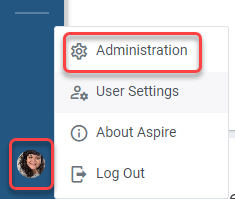
- In order to do this, select your *Profile Icon* then *Administration*.
- Select the *Estimating* tab then the *Pricing Mark-Ups* tab.
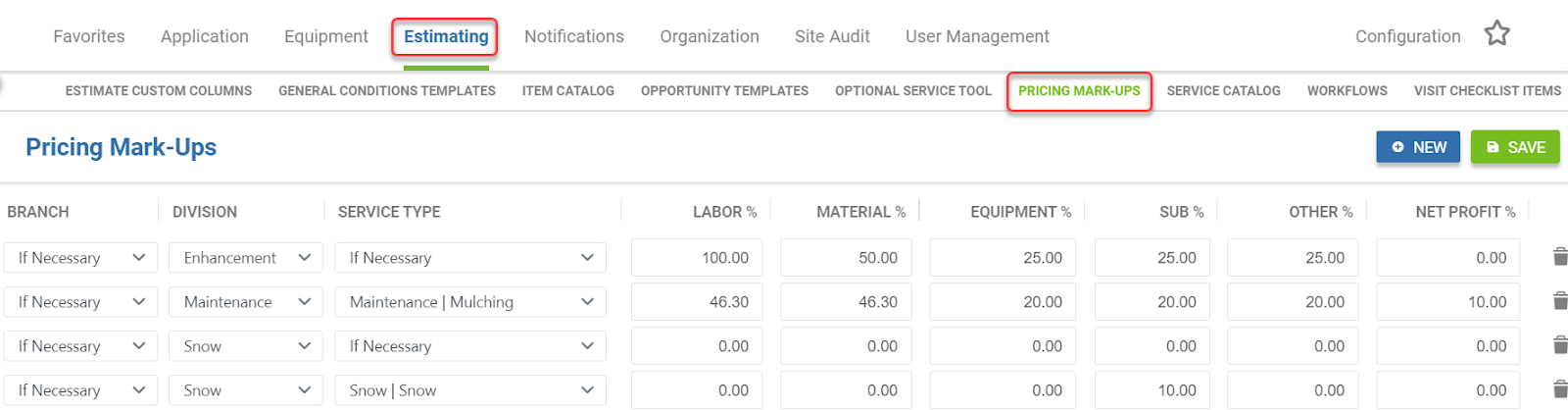
- If there are any pricing mark-ups entered in your system, you will see them listed here. Select the blue *New* button to add a new *Pricing Mark-Up* line.
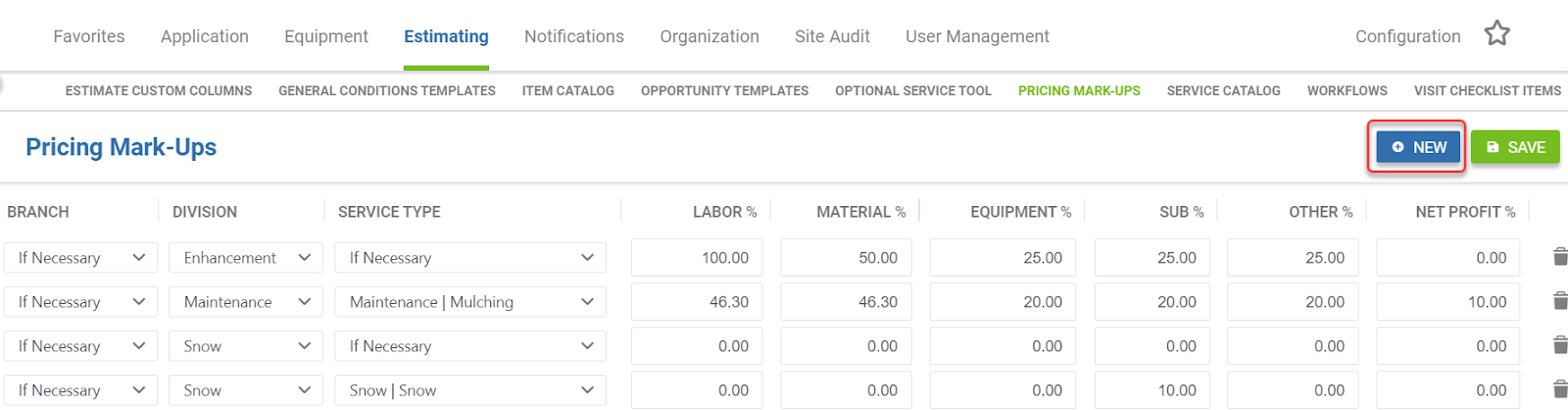
- A new line will appear at the top of the list with all percentages listed as *0*. This screen lets you set how much Aspire will markup the costs for labor, materials, equipment, subcontractor, or other when charging the customer for services.

🧠 The pricing hierarchy applies to Services that are mapped to the Service Type and Division chosen, as well as properties that are assigned to a specific Branch ([discussed in our Pricing Hierarchy article](https://guide.youraspire.com/docs/the-pricing-hierarchy-in-pricing-markups)).
- Select the *Branch* the pricing will affect. *Branch* pricing allows for differences in markups between each *Branch*.
- *If Necessary* will be displayed if you do not set a *Branch and will affect all Branches.*
**
📌Note: The drop down options for Branch selection only include the branches you have access to.
- Select the *Division* that pricing will affect. *Division* pricing allows for differences in markups between each *Division*.
- *If Necessary will be displayed if you do not set a Division and will affect all divisions.*
**
- Select the *Service Type* that pricing will affect. Service Type pricing allows for differences within *Divisions* by *Service Types*.
- *If Necessary* will be displayed if you do not set a Service Type and will affect all service types.
- Enter in the percent markup for *Labor, Material, Equipment, Sub,* and *Other*.

📌Note: Even if you do not have certain item types in a service, such as *Other*, we still recommend adding a specific markup percentage in all item type fields. Otherwise, if no other pricing lines exist, your price in an estimate will come over at cost.
- Enter in the *Net Profit* percent, if necessary. This is the desired net profit and is applied to each item type of *Labor, Material, Equipment, Sub and Other* on your estimates.
- When complete, select *Save.*
**
Continue to enter more pricing markup lines as needed for accurate pricing in estimating your proposals! When finished, as you are creating estimates, double check that these prices are in line with previous contracts or intended gross margins!