---
title: "New Service Log Screen"
slug: "new-service-log-screen"
tags: ["Language - English", "Industry - Landscaping", "Type - Reference", "Role - System Admin", "Role - Branch Admin", "Role - Operations Manager", "Role - Branch Manager", "Skill Level - 2 (Intermediate)"]
updated: 2025-10-28T21:58:25Z
published: 2025-10-28T21:58:25Z
canonical: "guide.youraspire.com/new-service-log-screen"
excludeFromExternalSearch: true
---
> ## Documentation Index
> Fetch the complete documentation index at: https://guide.youraspire.com/llms.txt
> Use this file to discover all available pages before exploring further.
# Service Log Screen
The *New Service Log* screen allows you to create or edit service log entries representing services performed on the equipment. This screen can be displayed from the *Equipment* screen by clicking on an entry on the *Due Services* screen, the *All Services* screen, or the *Equipment Services Due* screen. You can view existing *Service Log* records by selecting the *Service Log* section of the *Equipment* module.
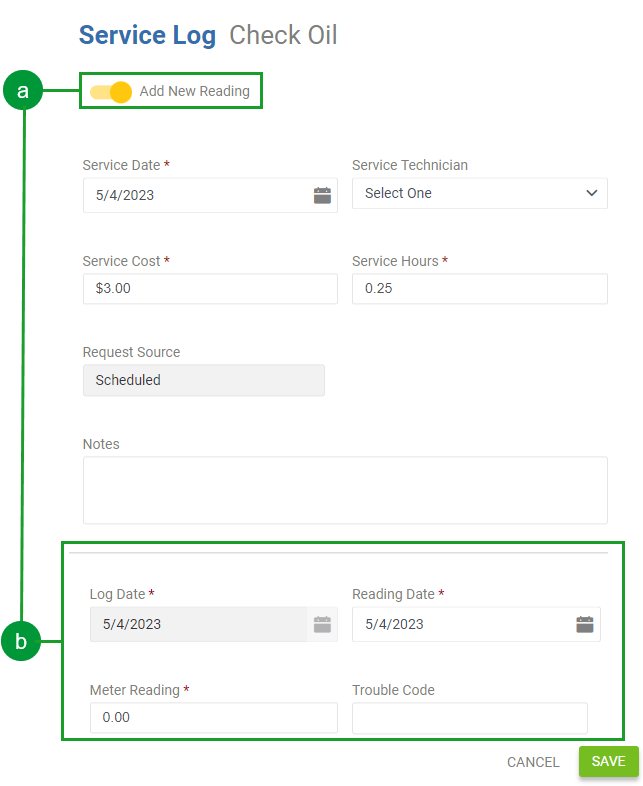
When you enter this screen by selecting an existing service log entry for an equipment item, you will be allowed to edit the entry only if it is the most recent entry for the equipment service. If you click on a service entry for a service with more recent log entries, the screen will be read-only.
The screen title includes the name of the service performed (i.e. Rotate Tires) and the name of the asset for which the service is being recorded (i.e. ‘John Deere Z525E 22 HP 54” Mower (Francine)’).
Each of the screen elements on the *Equipment Service Log* screen is described in the following table:
| Screen Element | Description |
| --- | --- |
| Add New Reading Checkbox | If you check this checkbox, then when you save the log entry, the *Equipment New Reading Log* section will be displayed at the bottom of the modal, allowing you to enter the *Reading Date*, *Meter Reading,* and, if applicable, a *Trouble Code* to create a new meter log entry for the equipment. You can automatically switch on the *Add New Reading* toggle once the *Service Log* modal appears by selecting the *Add New Reading* checkbox on the *Application* subsection of the *Configuration* section of the *Administration* menu. 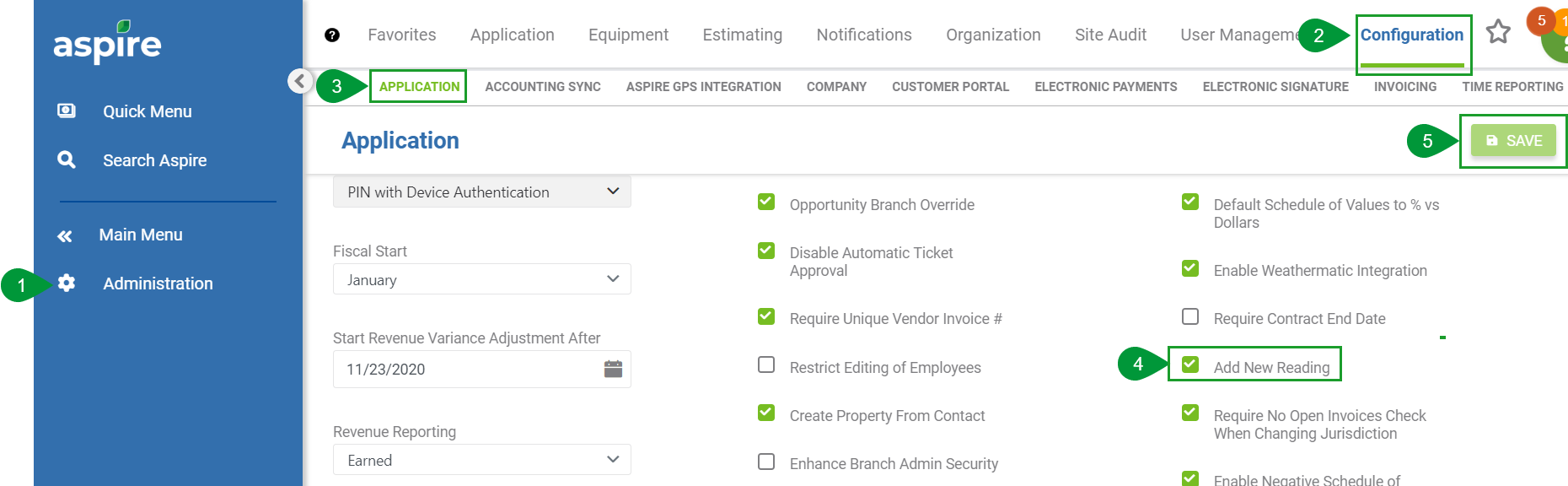 |
| Request Source | Read-Only. You can see the origins of a service request by observing the information in the new Request Source field on the Service Log modal. The request source can be accessed on the Equipment details screen or the *Service Log* modal accessed from the Services Due or Service Logs sections of the Equipment module after selecting the desired equipment item. By default, the *Request Source* field will be displayed on the advanced search list of the Services Due, Service Log screen. You must have the View Equipment Permission permission to view the Equipment details screen. You will see one of the following read-only inputs in the *Request Source* field: - *Scheduled* - The service request was created by selecting a *Maintenance Service* type from the *All Services* or *Due Services* modal to schedule the service. - *Manual Request* - A crew member initiated the service request via the *Request Equipment Service* option within Crew Mobile, or the service request was created by selecting a *Request Service* service type on the *All Service* or *Due Services* modal. - *Equipment Inspection* - The service request was automatically generated from a failing category with an associated *Service Tag* during an equipment inspection within Crew Mobile. 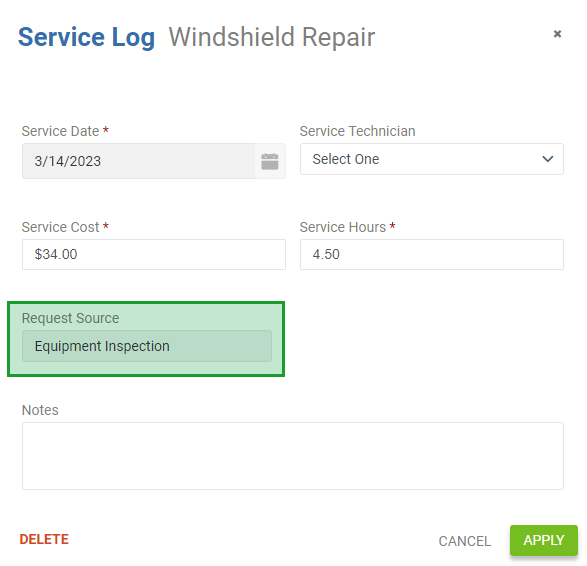 |
| Attachments | Select the Upload button to add an attachment to the equipment service log. Clicking on the camera icon will allow you to take and upload a new photo. Attachments are frequently documents or photos that provide additional information. When you select the upload button icon, Aspire displays the [Upload Attachment screen](/may-2021/docs/upload-attachment-screen-1). The hyperlink icon shows the number of attachments saved for the service log. If there are attachments, clicking the hyperlink will display the Attachments screen providing a list of the existing attachments that can be edited or removed from the service log. |
| Service Date | Required. Allows you to specify the date on which the equipment was serviced. |
| Service Cost | Required. Allows you to specify the cost to perform the service. This cost is not included in any Aspire financial reports. |
| Service Technician | Allows you to select the name of the employee who performed the service or who worked with the vendor to have the service performed. The selection list provides a list of employees from which to choose. |
| Service Hours | Allows you to record the number of hours required to service the equipment. |
| Service Comments | Allows you to enter comments related to the equipment service. |
| Save Icon | The *Save* icon is only displayed when editing a service log entry, the most recent log entry for the associated service or new service log entries. Clicking this icon saves the service log entry and returns you to the *Equipment* screen. |
### Request Service Screen
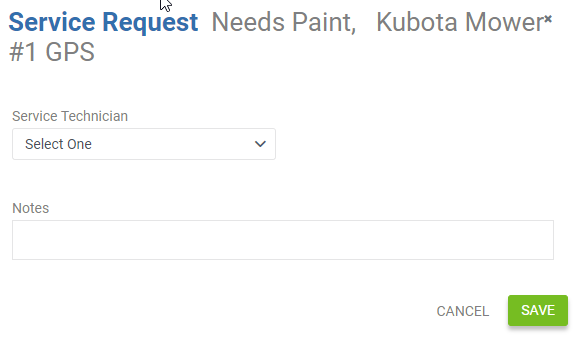
This screen allows office staff to request service in the same manner as a crew leader using the *Crew Mobile App* in the field. This screen is displayed when you click on a service tag with the service type *Request Service.* The created service request will become available as a service due, allowing you to log the service on one of the following screens.
1. The *Equipment Services Due* screen is available from the *Services Due* option of the *Equipment* icon in the *Aspire Tool Bar*.
2. The *Due Services* screen is available from the *View Services Due* option in the *Actions* menu of the *Equipment* screen.
### Equipment Service Logs Search List Screen
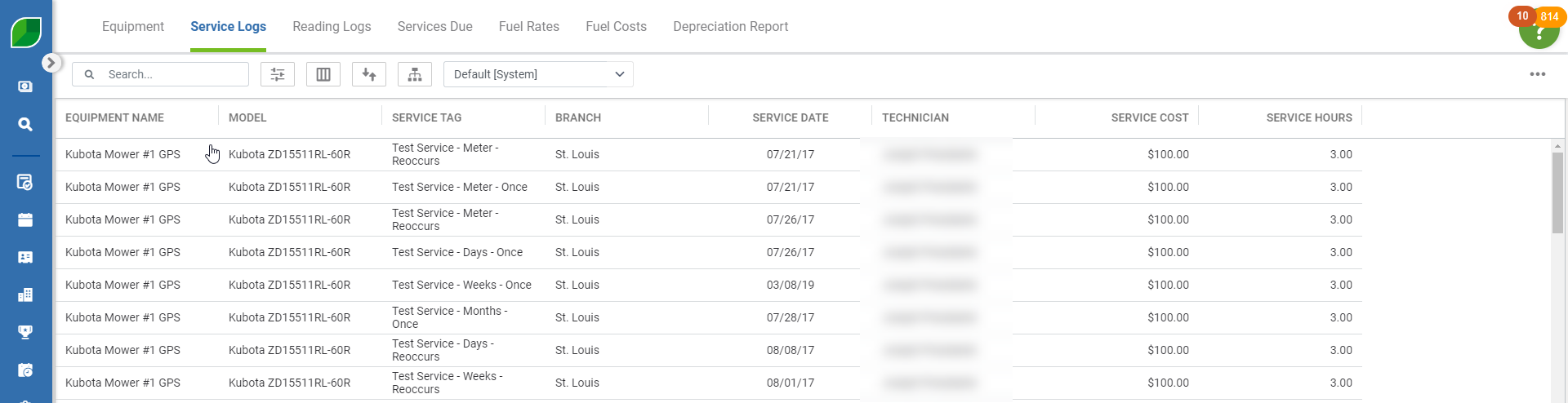
The Equipment *Service Logs Search List* screen allows you to display information about any selected service log entries selectively.
Watch the video below, and keep reading to learn all about using the *Service Logs* and *Reading Logs* tabs.
[Embedded content](https://www.youtube.com/embed/KSOfETsb0fA?&wmode=opaque&rel=0)
This search list behaves like other Aspire search lists allowing you to display and filter information to provide the most value in various situations. Clicking on an item in the list displays all information for the associated log entry on the *Equipment Service Log* screen.
The following image depicts the *Equipment Service Logs Search List* screen:
### Equipment Readings Log
The *Equipment Readings Log* is a search list that allows you to filter and view equipment readings taken from the meters of equipment in the field.
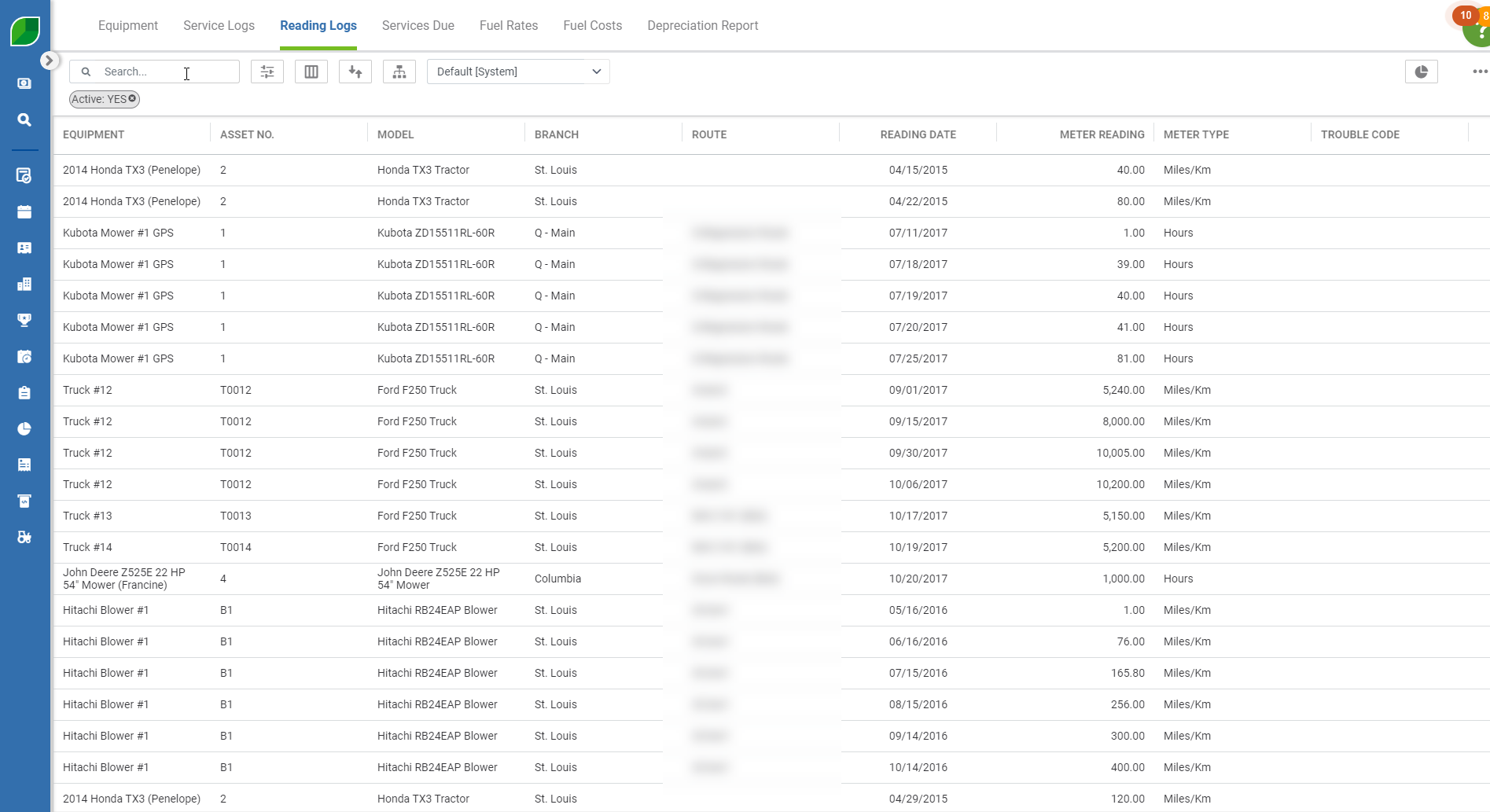
The following fields are available for display in this search list (* indicates field included in the system default view):
- Active
- Asset No.*
- Branch*
- Created By
- Division
- Model*
- Equipment*
- Log Date*
- Meter Reading*
- Meter Type*
- Property
- Reading Date*
- Route*
- Trouble Code*
The *Action* Menu in the footer provides a single option to display the *Equipment Utilization Report,* but only if you have permission for the View Equipment Utilization Report.
#### Equipment Utilization Report
Aspire provides the *Equipment Utilization Report,* which shows how many miles, kilometers, or hours were logged to each equipment asset each month during a selected timeframe.
This report is available from the *Reports* screen or the *Equipment Utilization Report* option available in the *Bulk Actions* menu of the *Equipment Readings Log* screen. This report is available if you have *View Equipment Utilization* Report permission.
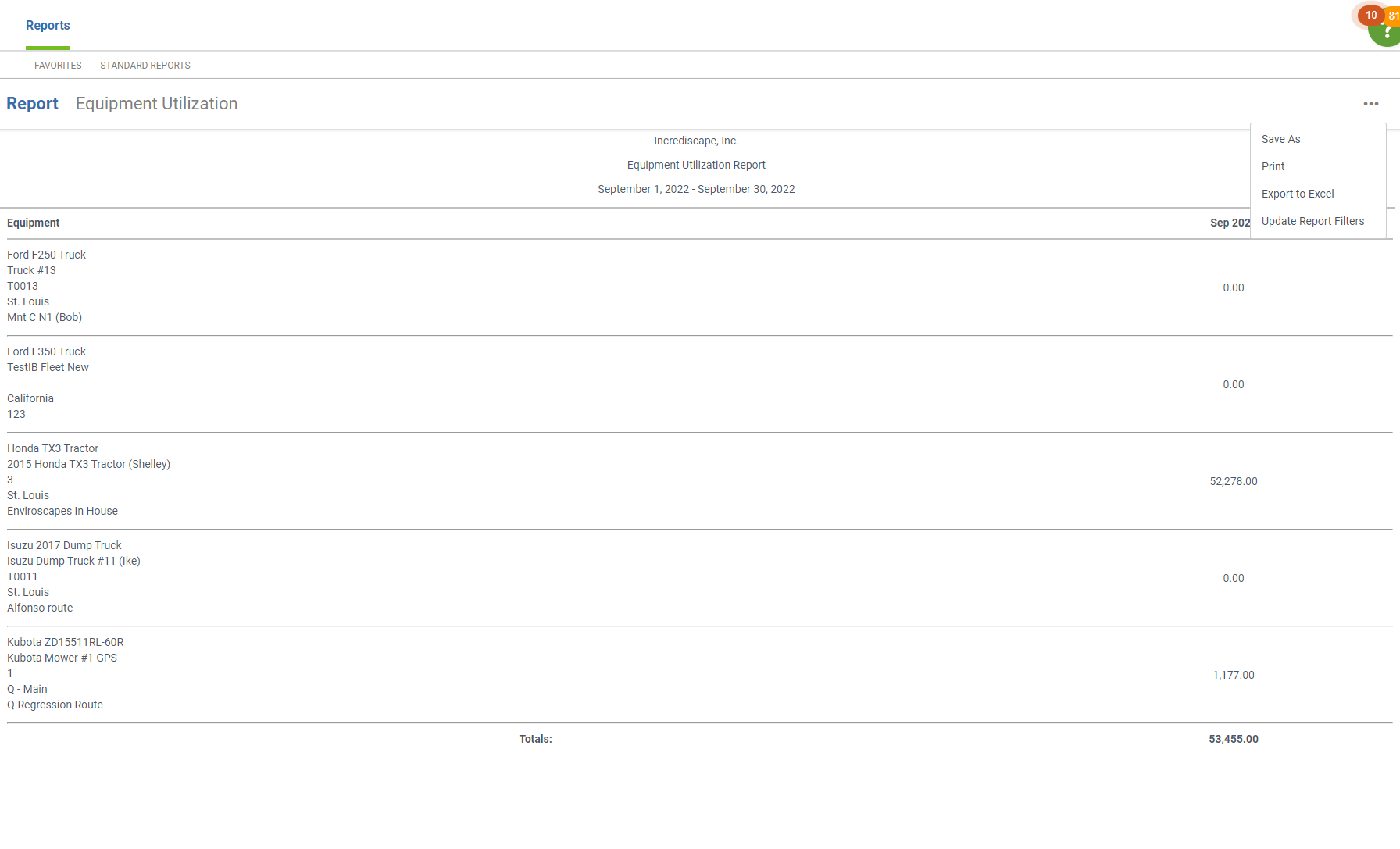
The *Equipment Utilization Report* screen is comprised of the following elements:
| Screen Element | Description |
| --- | --- |
| Export to Excel | Exports the screen content to an Excel spreadsheet. |
| Print | Generates a PDF file comprised of the information in the report for printing. |
| Update Report Filters | Displays the *Update Report Filters* screen to allow you to change the criteria for information provided in the report. |
| Save As | Displays a drop-down menu that may have the options shown in the image to the right. If the report was just generated for the first time (was not selected from the *Favorite Reports* tab of the *Reports* screen), then only the *Save* option is available. The options are: - **Save As** – Provides a dialog box to give the saved report a name and to provide sharing options. When you click the *Save* icon in the dialog, the report is saved with the currently selected filters and made available on the *Favorite Reports* tab of the *Reports* screen for future display. 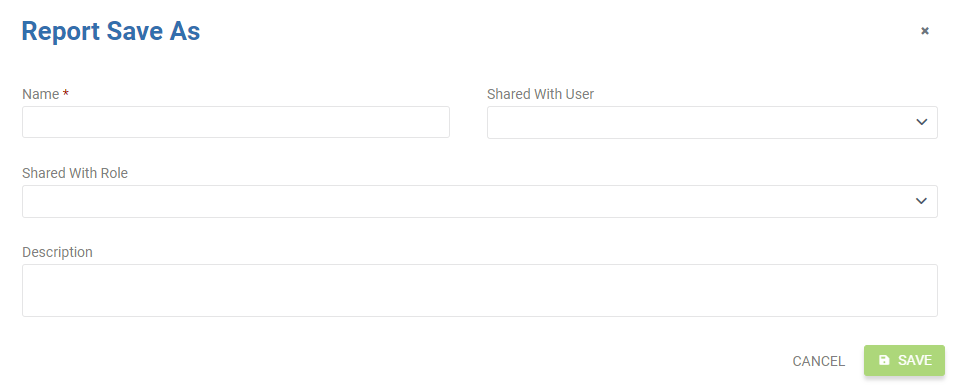 - **Save** – This option is only available if the report was opened by clicking on an existing report on the *Favorites* tab. This option displays a dialog box (as shown above) allowing youto modify the name and share options for the currently displayed report before saving it. - **Delete** – This option is only available if the report was opened by clicking on an existing report on the *Favorites* tab. This option deletes the report that was opened from the *Favorites* tab. Before deleting the report, Aspire displays a confirmation dialog. |
| | |
##### Update Report Filters Screen
Clicking the *Update Report Filters* icon displays the *Update Report Filters* screen.
 The *Update Report Filters* screen allows records returned in the report to be filtered by each of the following criteria:
- **Date Range** – Specify the date range for the report. Aspire will return partial readings based on specific dates selected for the start and end months of the range. When specifying the date range, you should choose the first day of the start month and the last day of the end month.
- **Branch** – Select branches for which equipment assets will be included in the report.
- **Equipment Model** – Select equipment models that will be included in the report.
- **Route** – Select routes for which equipment assets will be included in the report.
Clicking the *Save* icon applies the filters and redisplays the *Equipment Utilization Report*. Clicking the *Cancel* icon returns to the *Equipment Utilization Report* without applying any filter changes.
### Equipment Services Due Search List Screen
The *Equipment Services Due Search List* screen lets you easily see when maintenance is due on identified equipment. Each item in this list represents a service that can be performed on the equipment. Service items that are due are highlighted in red. They represent one of the following:
1. Maintenance services of type *Maintenance* that are due based on the service schedule associated with the equipment model.
2. Maintenance services of type *Request Service* have been requested by crew leaders using Aspire Mobile or Crew Mobile. Read our articles about [Setting Up Aspire Mobile on Mobile Devices](https://guide.youraspire.com/docs/setting-up-aspire-mobile-on-mobile-devices) and [Setting Up Crew Mobile on Mobile Devices](https://guide.youraspire.com/docs/setting-up-crew-mobile-on-mobile-devices) for more information.
This search list behaves like other Aspire search lists allowing you to display and filter information to provide the most value in various situations. Clicking on an item in the list displays the *Equipment Service Log* screen, allowing you to create a new service log entry. Once the service log entry has been created, the item will be removed from the *Equipment Services Due* search list.
When you drill into a due service whose service type is “Request Service,” Aspire will provide an option at the bottom of the displayed screen, allowing them to delete the service request without logging it. This allows office personnel to override inadvertent or unjustified service requests submitted by crew leaders.
To learn more about using the Services Due list, watch the video below.
[Embedded content](https://www.youtube.com/embed/pxsnYRiO5fk?&wmode=opaque&rel=0)
Administration > User Management > User Roles > View Equipment > Save