--- title: "Offboarding Employees in Aspire" slug: "offboarding-employees-in-aspire" tags: ["Language - English", "Area - User Settings", "Area - Administration", "Industry - Landscaping", "Type - Task (How-To)", "Role - System Admin", "Role - Branch Admin", "Role - Operations Manager", "Skill Level - 2 (Intermediate)"] updated: 2025-10-30T15:20:47Z published: 2025-10-30T15:20:47Z canonical: "guide.youraspire.com/offboarding-employees-in-aspire" --- > ## Documentation Index > Fetch the complete documentation index at: https://guide.youraspire.com/llms.txt > Use this file to discover all available pages before exploring further. # Offboarding Employees in Aspire

Purpose

While it's important to onboard new employees and their records to your system, it is just as important to offboard and deactivate employees who are no longer at your company. Deactivating former employees' records means that they can no longer access Aspire, and they won't be available in search lists or drop-down selections. Based on the *Employee's* *User Role*, the instructions below might not apply to all of your employees, but use them as needed to create your own Offboarding plan. 📌 **Note:** In Aspire, for historical purposes, you can't delete a contact record, including former employees.

Requirements

✅ To deactivate *Employee User Accounts*, you must have *System Admin* added to your *User Role.* ✅ If you are not a *System Admin*, and you still need to update information on the *Contact Record* for *Employee* that has left the company, you’ll need an *Edit Contacts* permission plus *HR Admin* permission added to your user role.

Reassigning The Employee’s Responsibilities

When an *Employee* leaves your organization, it’s important to limit access to Aspire, but it’s also great practice to make sure that their tasks, lists*,* and responsibilities are reassigned to employees that are still working with you. Below are some best practices to help you understand what needs to be reviewed or updated when an employee no longer works with your system.

For Lists, Metrics, plus Insights and KPIs

If You’ve Shared Metric or KPI Data With Them

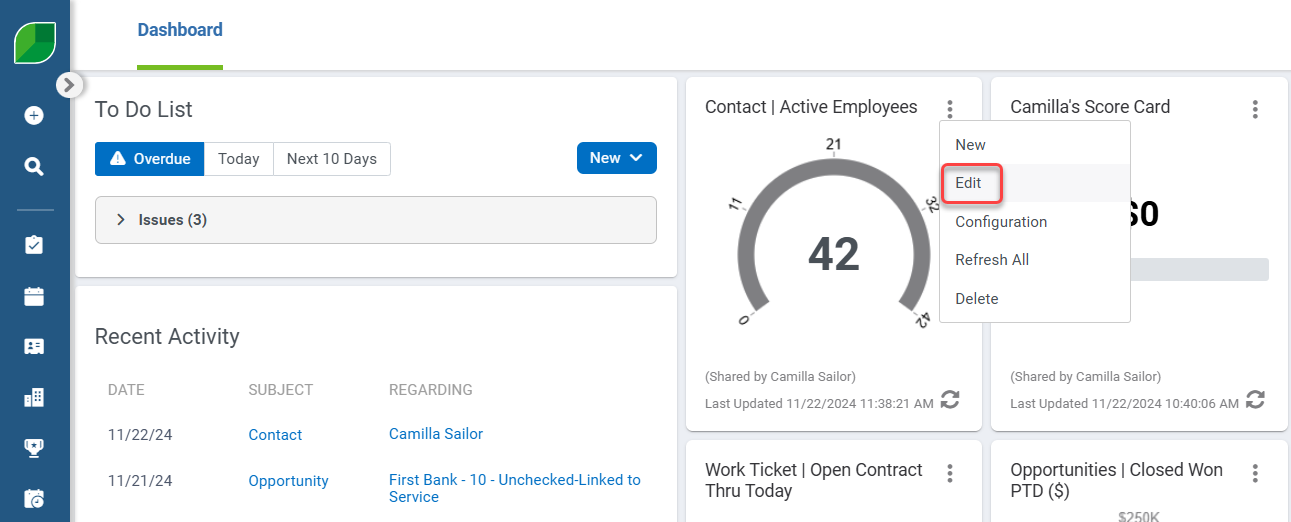
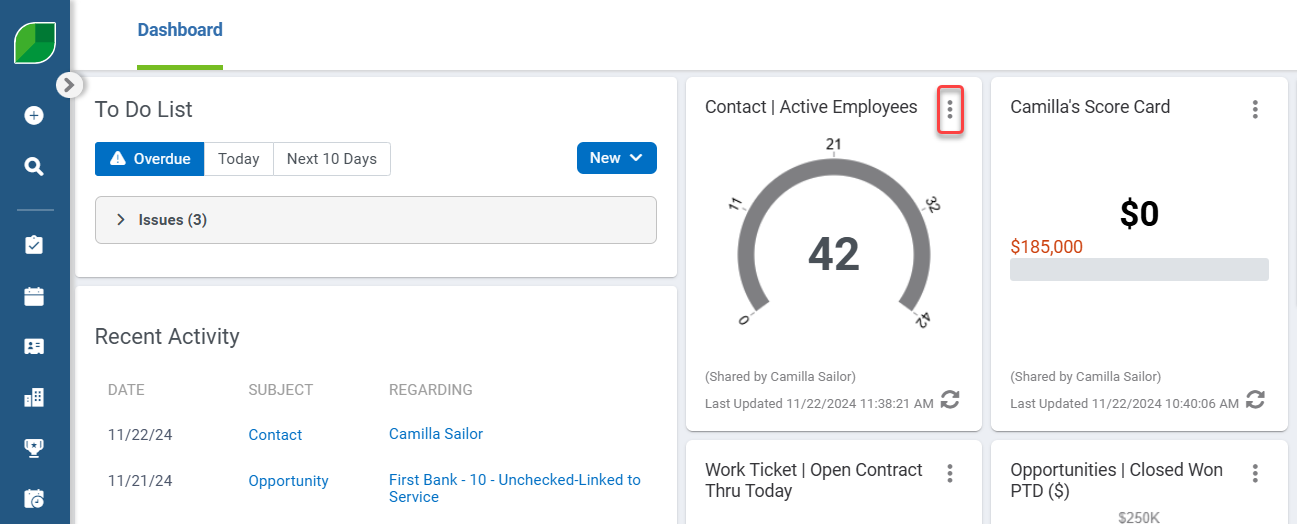
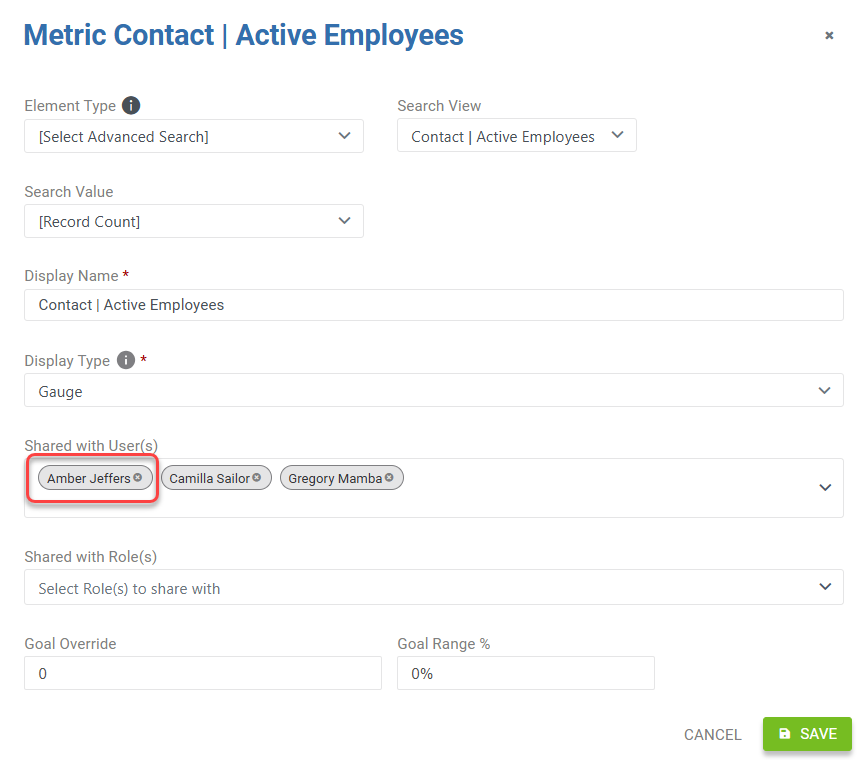
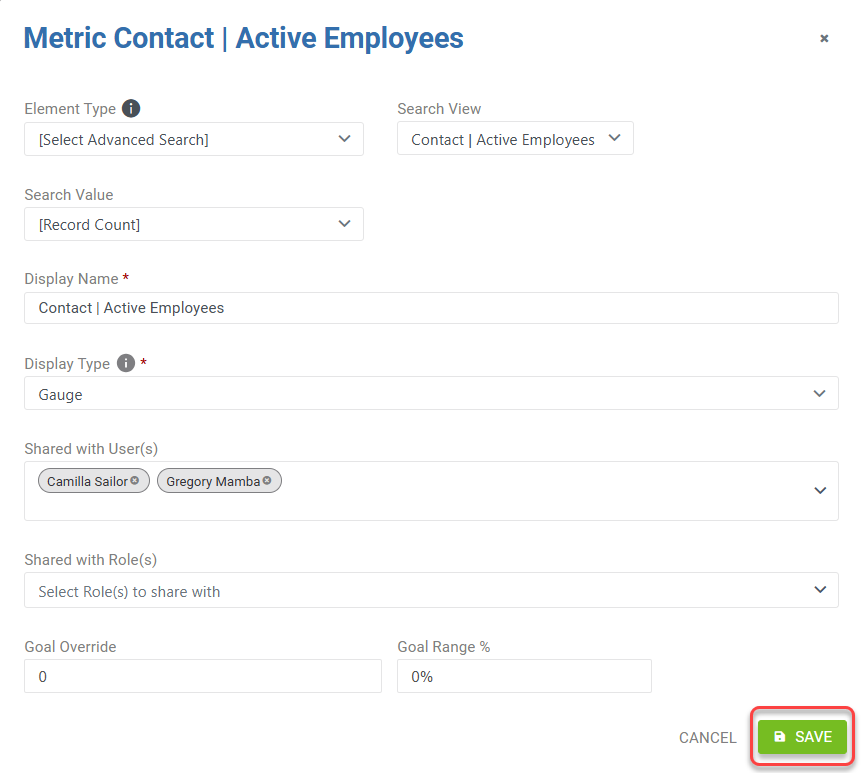
On your *Dashboard,* you have *Metrics* and *KPIs* that have been shared with you, or you’ve shared them. For the data that you’ve decided to share, now is the time to unshare the data with the employee that is now gone. It’s also a good idea to remove their information from these lists as it could affect reporting data and make important information you need inaccurate. For example, we want to unshare the *Metric* that we have shared with *Amber Jeffers*, whose last day was yesterday. - Click the vertical three dot menu on the *Active Employees Metric.* *![](https://cdn.document360.io/5942a8d7-f3b1-4919-bdfa-d477d8498fe3/Images/Documentation/offboarding-employees-in-aspire-image-471knev0.png?sv=2026-02-06&spr=https&st=2026-11-13T10%3A16%3A30Z&se=2026-11-13T11%3A16%3A30Z&sr=c&sp=r&sig=WJvC7y8MSlsKUAX7mLwuNCj2IDT7FipI5rUCy8kKytk%3D)* - Then, select *Edit* from the list. ![](https://cdn.document360.io/5942a8d7-f3b1-4919-bdfa-d477d8498fe3/Images/Documentation/offboarding-employees-in-aspire-image-bsnexk06.png?sv=2026-02-06&spr=https&st=2026-11-13T10%3A16%3A30Z&se=2026-11-13T11%3A16%3A30Z&sr=c&sp=r&sig=WJvC7y8MSlsKUAX7mLwuNCj2IDT7FipI5rUCy8kKytk%3D) - You can remove the *Employee’s* name from the list of *Shared with User(s).* *![](https://cdn.document360.io/5942a8d7-f3b1-4919-bdfa-d477d8498fe3/Images/Documentation/offboarding-employees-in-aspire-image-witgi0kx.png?sv=2026-02-06&spr=https&st=2026-11-13T10%3A16%3A30Z&se=2026-11-13T11%3A16%3A30Z&sr=c&sp=r&sig=WJvC7y8MSlsKUAX7mLwuNCj2IDT7FipI5rUCy8kKytk%3D)* - Once the edit has been made, click *Save* to finish applying the update to your *Metric* sharing. ![](https://cdn.document360.io/5942a8d7-f3b1-4919-bdfa-d477d8498fe3/Images/Documentation/offboarding-employees-in-aspire-image-tsw2gal0.png?sv=2026-02-06&spr=https&st=2026-11-13T10%3A16%3A30Z&se=2026-11-13T11%3A16%3A30Z&sr=c&sp=r&sig=WJvC7y8MSlsKUAX7mLwuNCj2IDT7FipI5rUCy8kKytk%3D)
If The Employee Shared Data With You

If the employee that has left your team shared a *List, Metric* or *KPI* data with you, you’ll need to recreate it, then you can delete the old shared information. This gives you more control over the data that was being shared previously. 📑To learn more about creating *Metrics* and sharing, please read [this article.](https://guide.youraspire.com/docs/navigating-editing-and-creating-a-metric) 📑To learn more about sharing *Lists*, please read [this article.](https://guide.youraspire.com/docs/list-building)

For Work Tickets and Scheduling

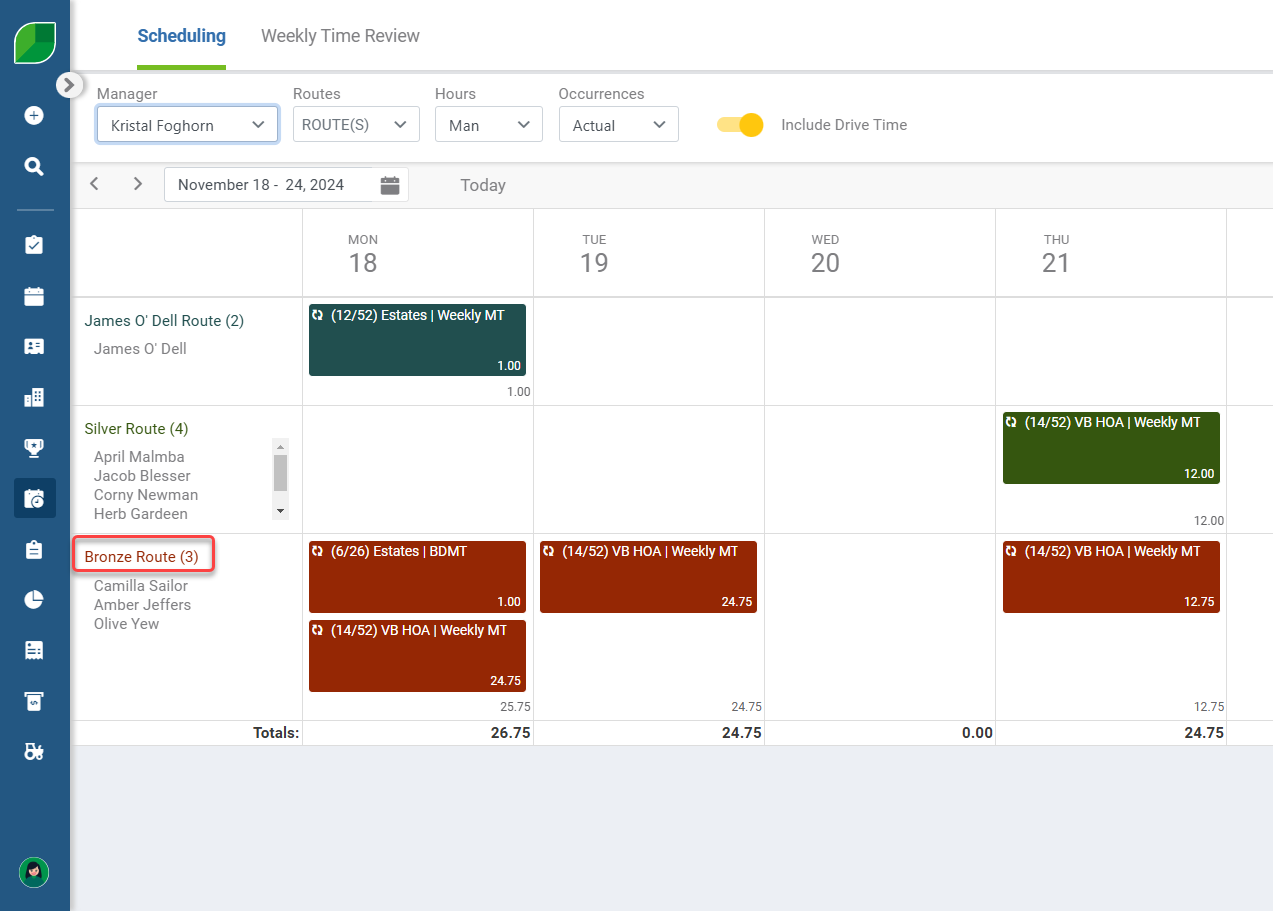
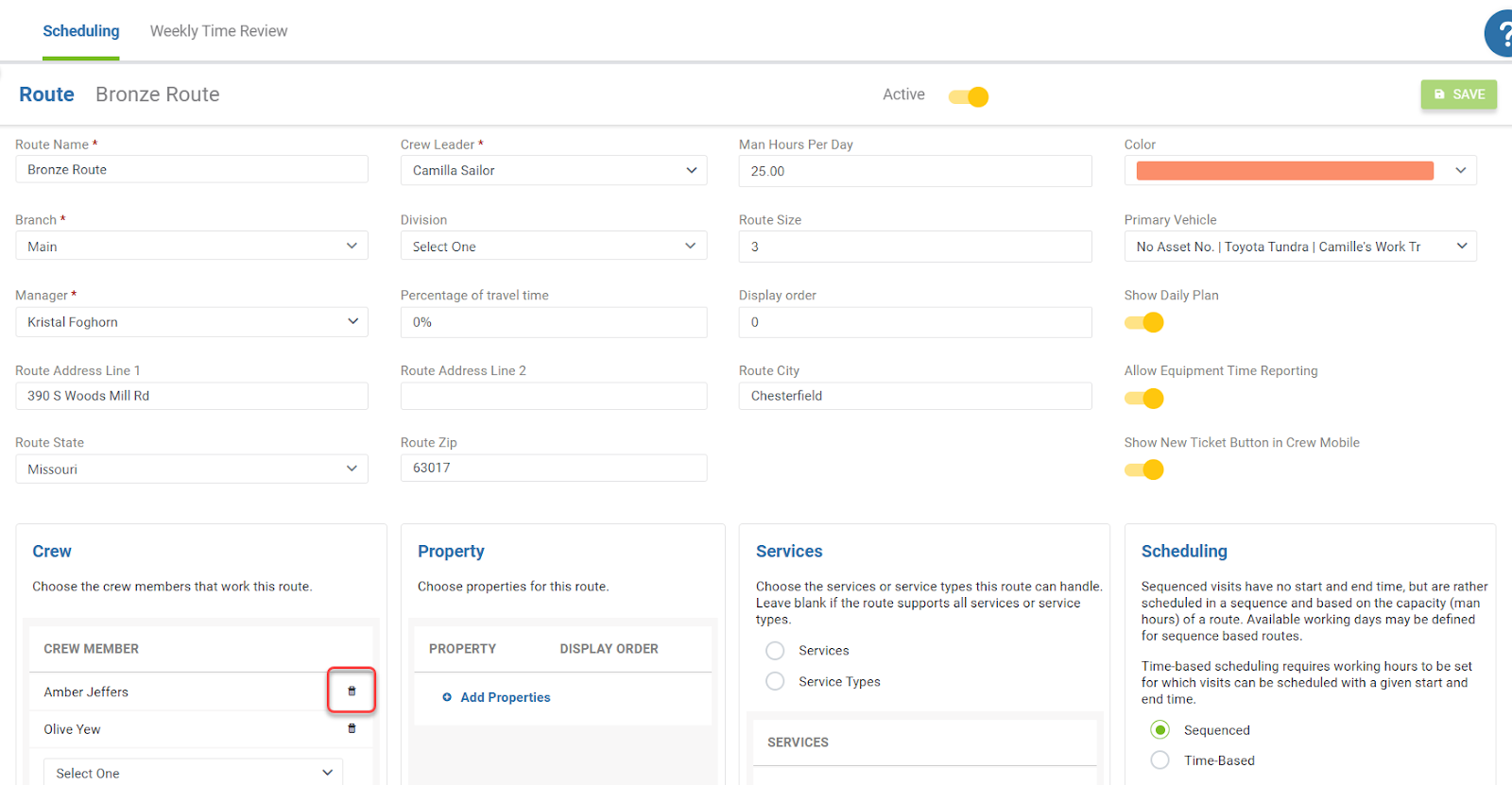
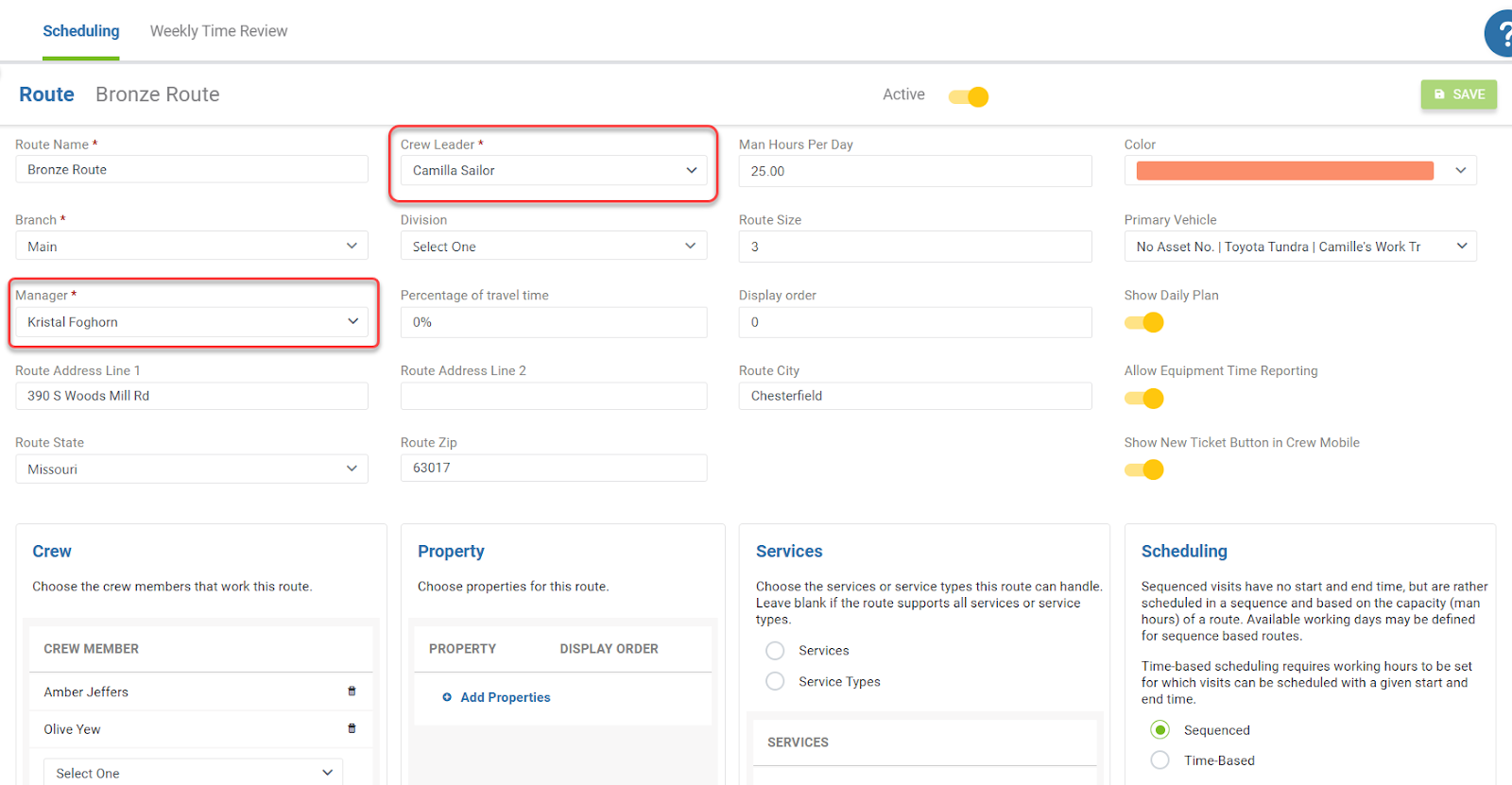
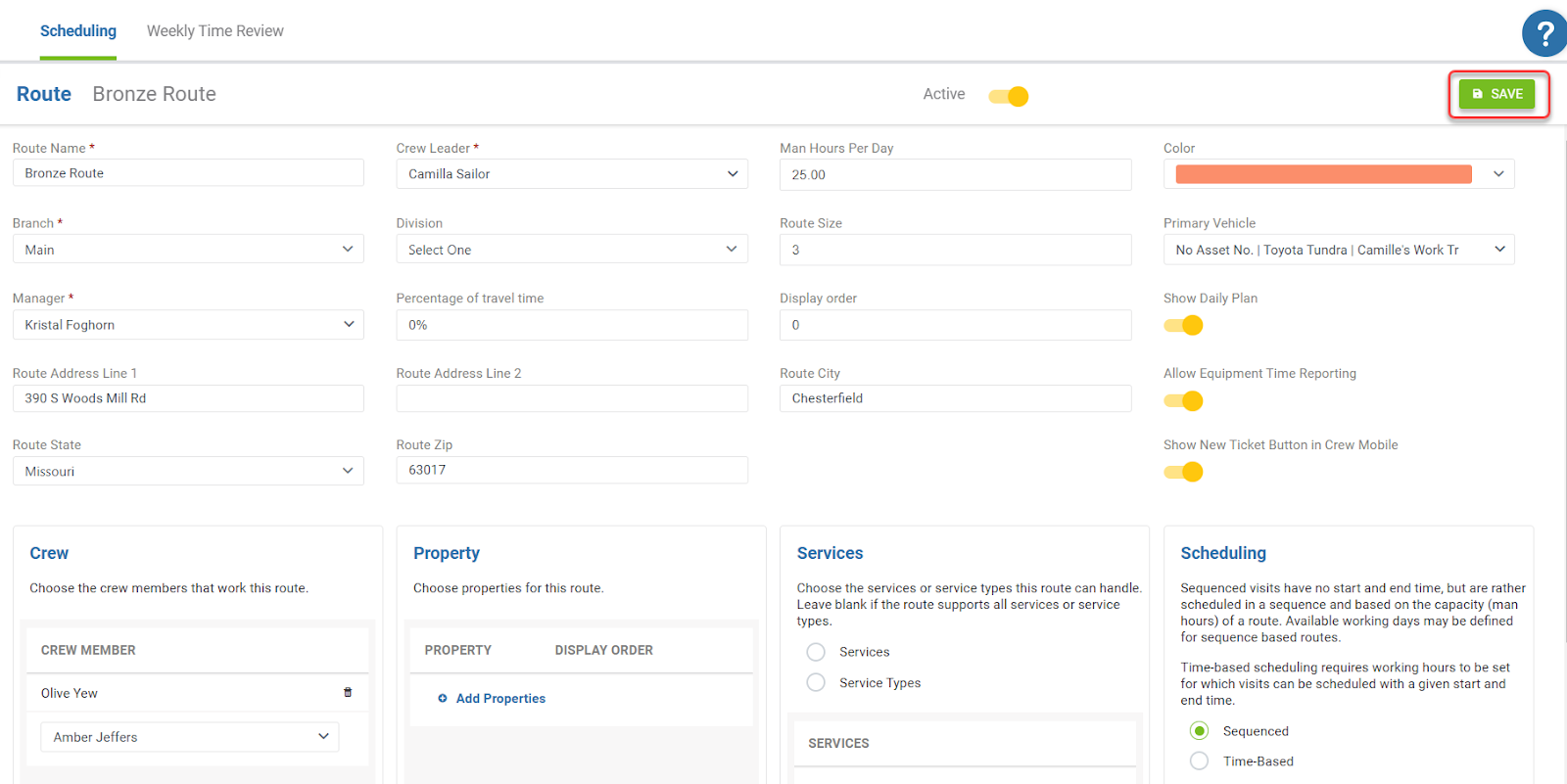
Next, you’ll want to review the *Work Tickets* and *Route* or *Schedule* that the employee was tied to. The first part of this task would be to remove the *Employee* from the *Route* that they are assigned to. ![](https://cdn.document360.io/5942a8d7-f3b1-4919-bdfa-d477d8498fe3/Images/Documentation/offboarding-employees-in-aspire-image-q4y9o1gq.png?sv=2026-02-06&spr=https&st=2026-11-13T10%3A16%3A30Z&se=2026-11-13T11%3A16%3A30Z&sr=c&sp=r&sig=WJvC7y8MSlsKUAX7mLwuNCj2IDT7FipI5rUCy8kKytk%3D) - Navigate to the *Scheduling* module. - Select the *Route* that the *Employee* is on. ![](https://cdn.document360.io/5942a8d7-f3b1-4919-bdfa-d477d8498fe3/Images/Documentation/offboarding-employees-in-aspire-image-pm6wvsw0.png?sv=2026-02-06&spr=https&st=2026-11-13T10%3A16%3A30Z&se=2026-11-13T11%3A16%3A30Z&sr=c&sp=r&sig=WJvC7y8MSlsKUAX7mLwuNCj2IDT7FipI5rUCy8kKytk%3D) - Once you are on the *Route’s* detail screen, review the list of *Crew Members*, if any. ![](https://cdn.document360.io/5942a8d7-f3b1-4919-bdfa-d477d8498fe3/Images/Documentation/offboarding-employees-in-aspire-image-qhdj0csd.png?sv=2026-02-06&spr=https&st=2026-11-13T10%3A16%3A30Z&se=2026-11-13T11%3A16%3A30Z&sr=c&sp=r&sig=WJvC7y8MSlsKUAX7mLwuNCj2IDT7FipI5rUCy8kKytk%3D) - If the employee was a *Manager* or a *Crew Leader*, then you’ll need to update the fields here: ![](https://cdn.document360.io/5942a8d7-f3b1-4919-bdfa-d477d8498fe3/Images/Documentation/offboarding-employees-in-aspire-image-dyc6admp.png?sv=2026-02-06&spr=https&st=2026-11-13T10%3A16%3A30Z&se=2026-11-13T11%3A16%3A30Z&sr=c&sp=r&sig=WJvC7y8MSlsKUAX7mLwuNCj2IDT7FipI5rUCy8kKytk%3D) - Once your changes have been made to the *Route*, then press *Save* to finish applying your updates! ![](https://cdn.document360.io/5942a8d7-f3b1-4919-bdfa-d477d8498fe3/Images/Documentation/offboarding-employees-in-aspire-image-2riyo6g4.png?sv=2026-02-06&spr=https&st=2026-11-13T10%3A16%3A30Z&se=2026-11-13T11%3A16%3A30Z&sr=c&sp=r&sig=WJvC7y8MSlsKUAX7mLwuNCj2IDT7FipI5rUCy8kKytk%3D)

Actions for Scheduled Work Tickets

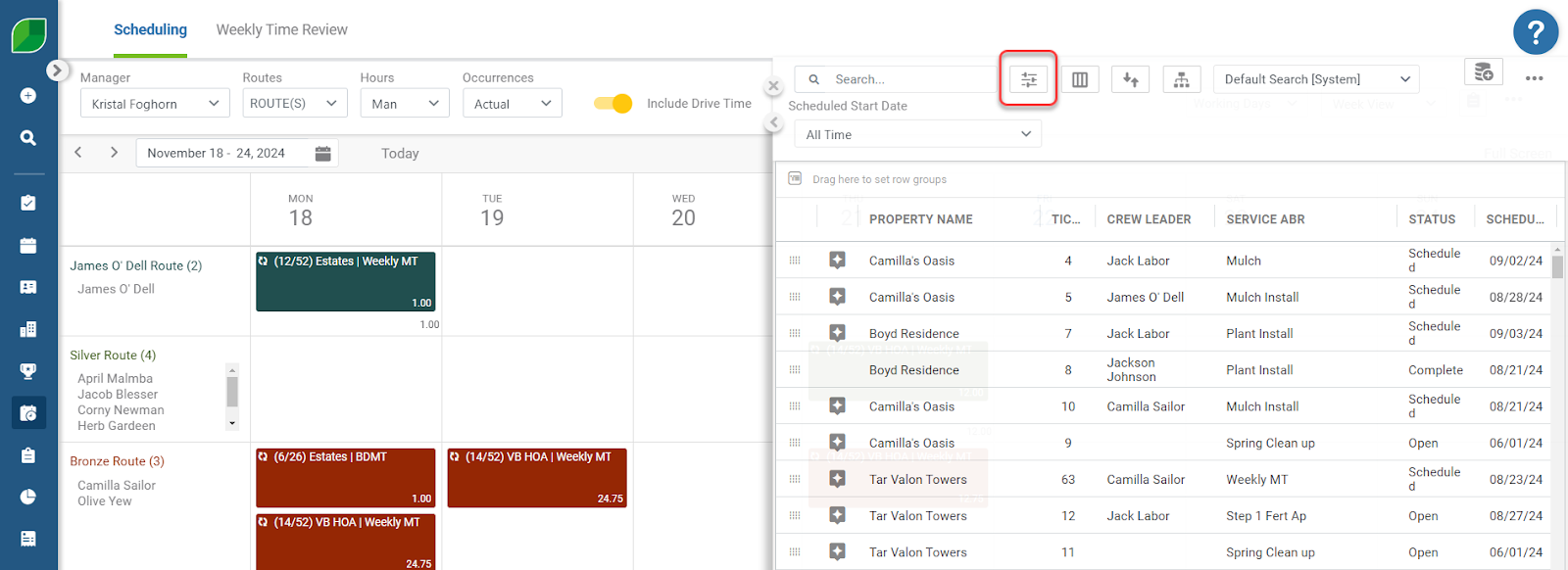
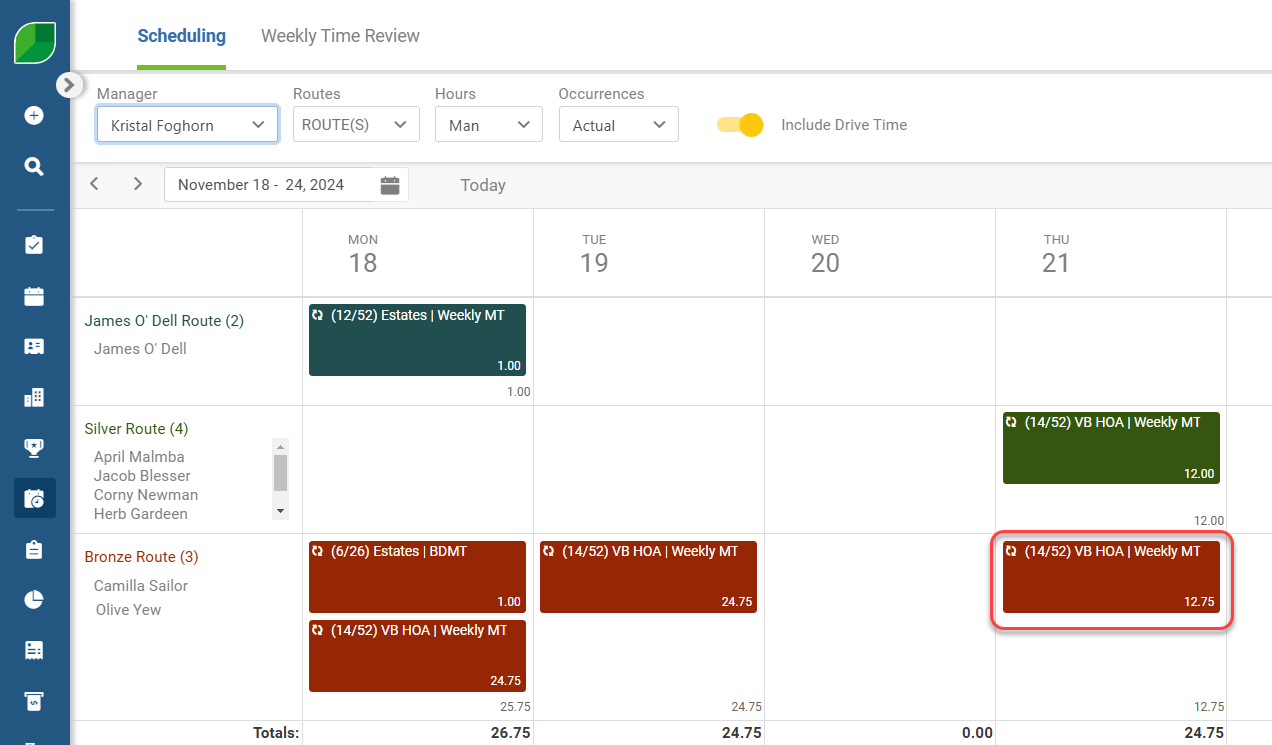
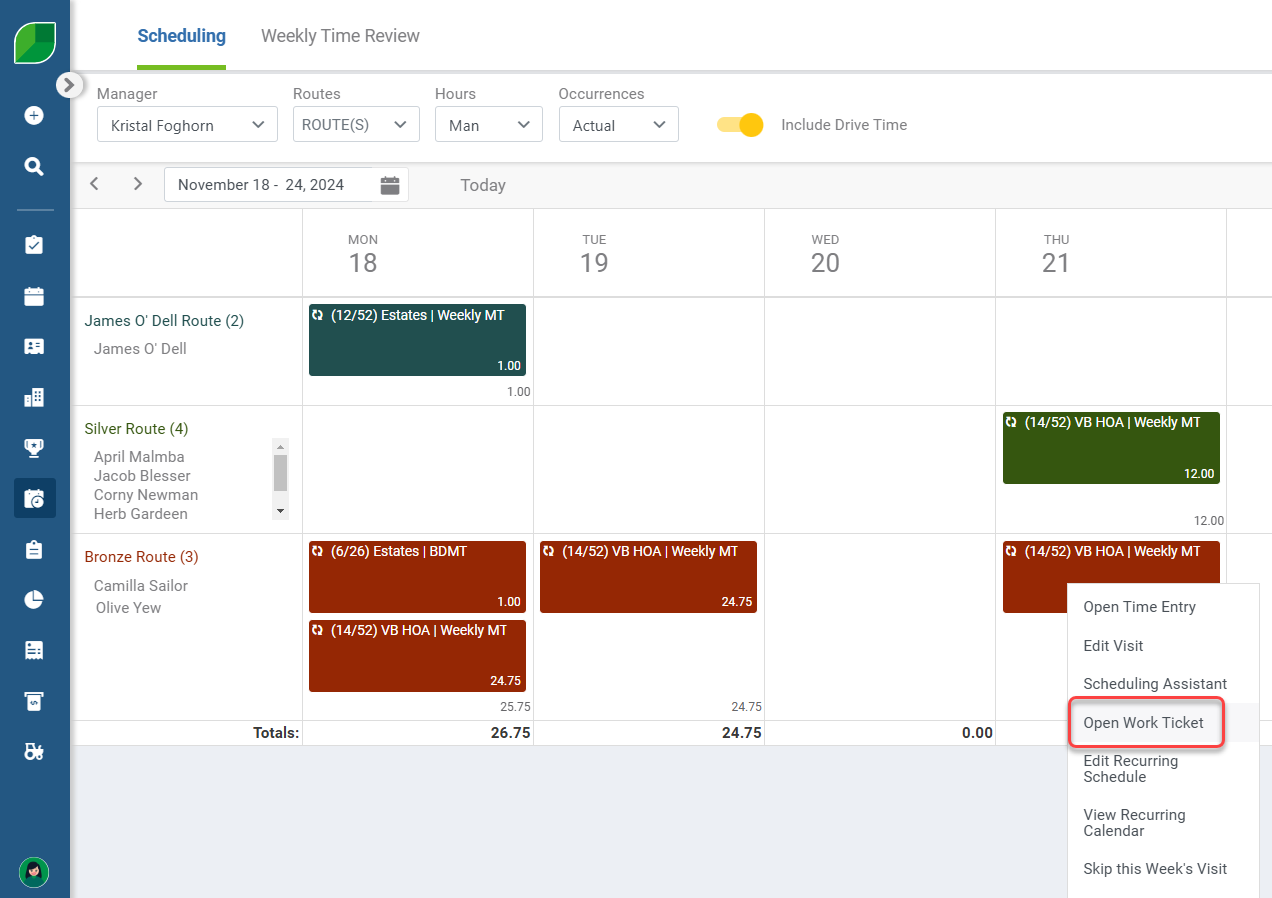
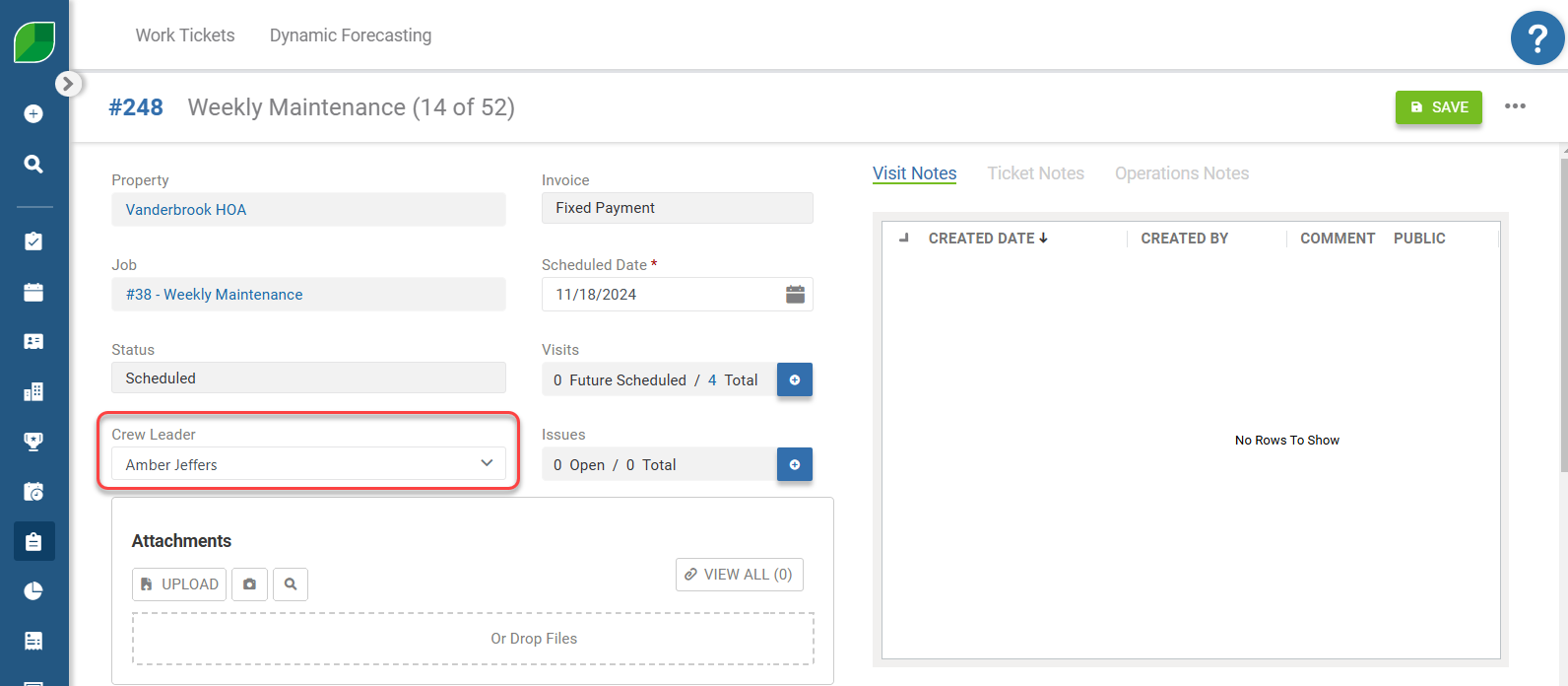
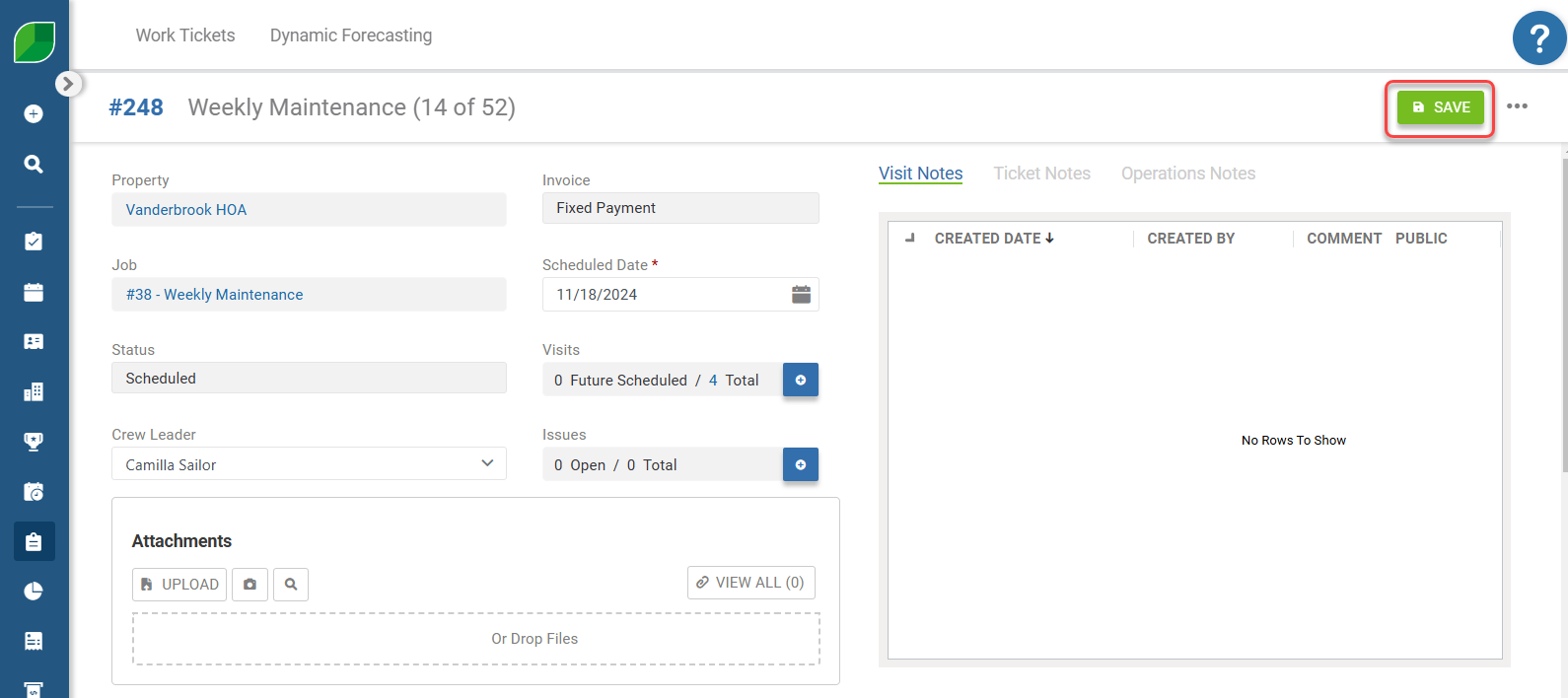
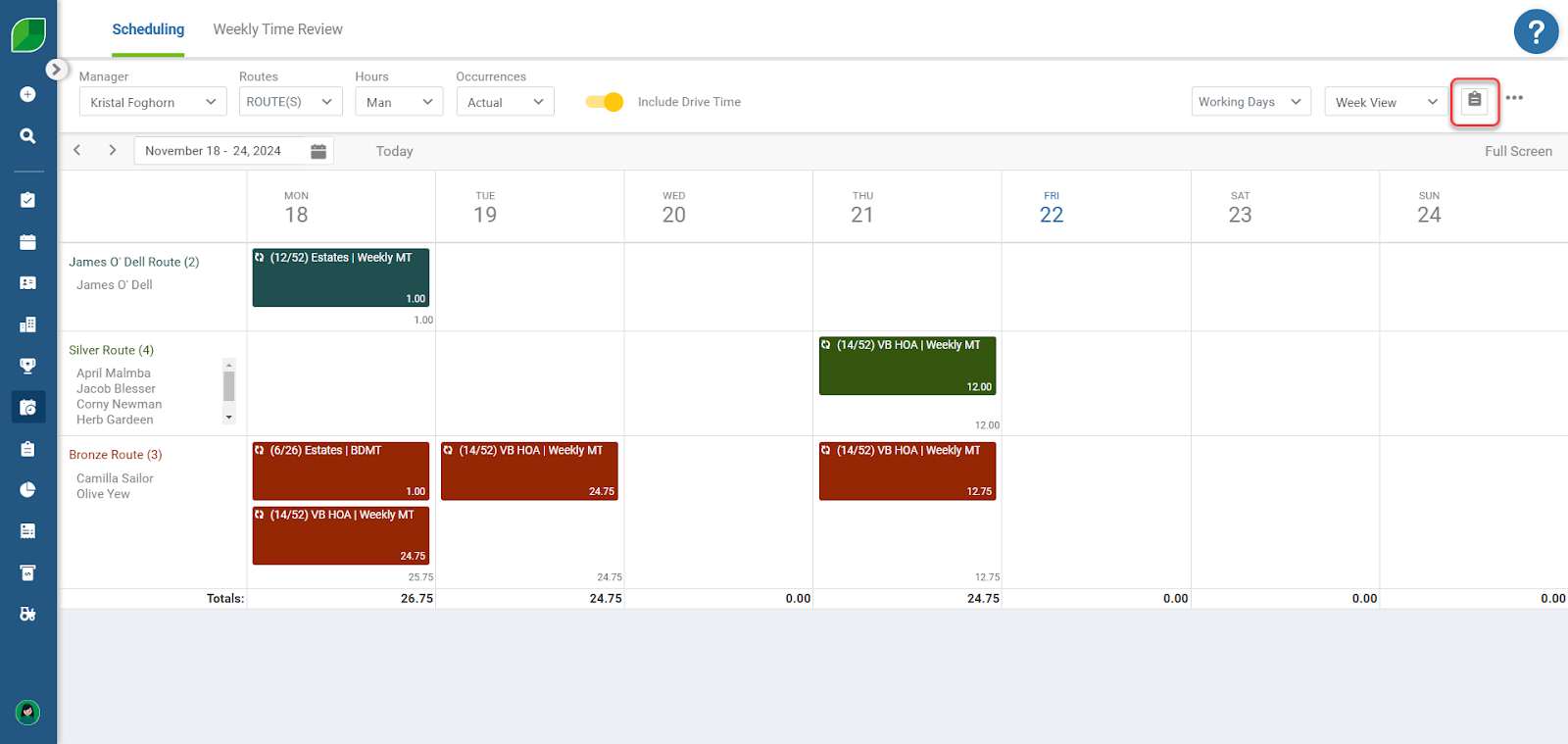
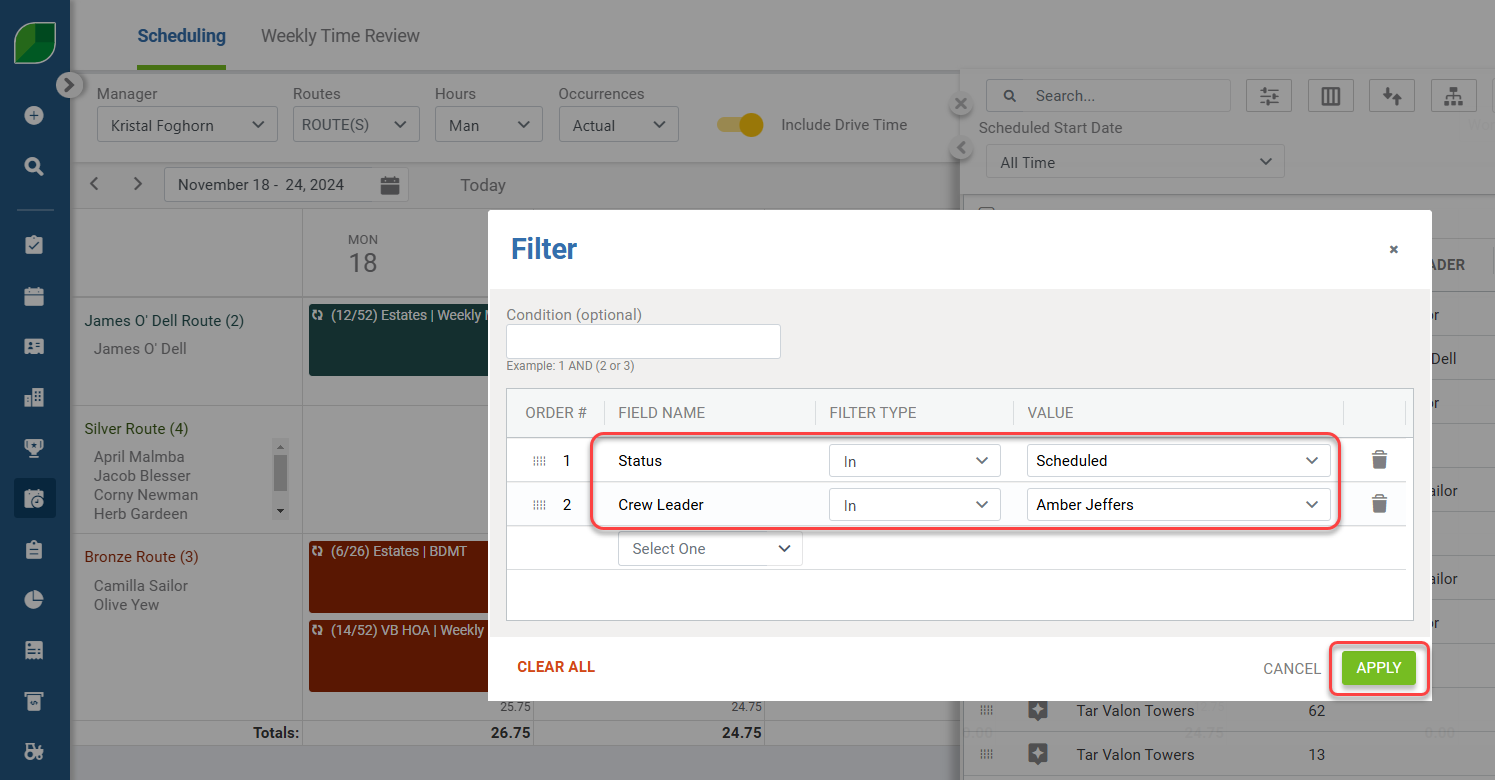
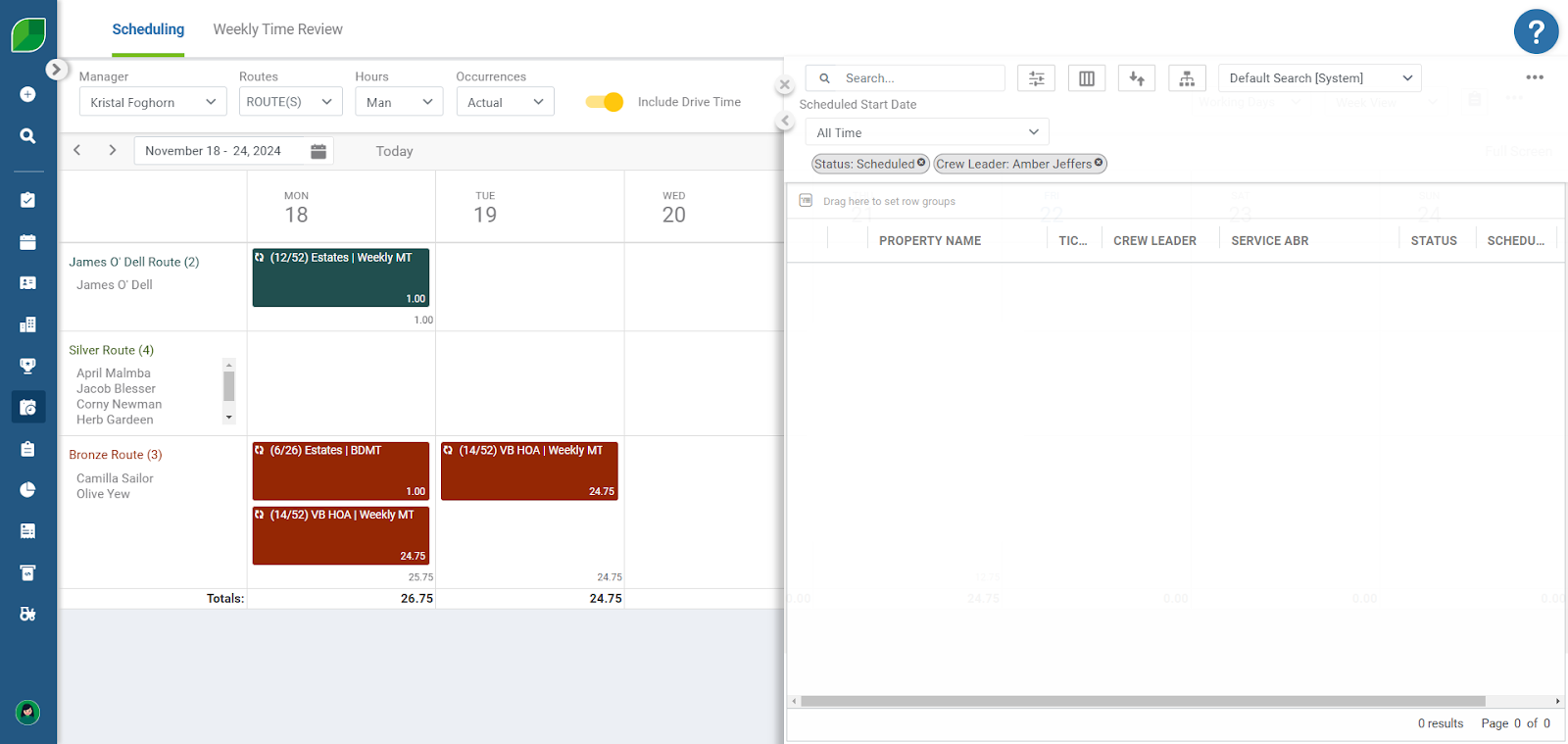
For scheduled *Work Tickets*, it’s a good idea to verify that your *Employee* is no longer assigned as the *Crew Leader.* 📌Note: You would have to do this for every work ticket that is already scheduled on the *Schedule Board.* *![](https://cdn.document360.io/5942a8d7-f3b1-4919-bdfa-d477d8498fe3/Images/Documentation/offboarding-employees-in-aspire-image-bufohs5z.png?sv=2026-02-06&spr=https&st=2026-11-13T10%3A16%3A30Z&se=2026-11-13T11%3A16%3A30Z&sr=c&sp=r&sig=WJvC7y8MSlsKUAX7mLwuNCj2IDT7FipI5rUCy8kKytk%3D)* - Right click on your scheduled *Work Ticket Visit Tile* on the *Schedule Board.* *![](https://cdn.document360.io/5942a8d7-f3b1-4919-bdfa-d477d8498fe3/Images/Documentation/offboarding-employees-in-aspire-image-r46pv5b3.png?sv=2026-02-06&spr=https&st=2026-11-13T10%3A16%3A30Z&se=2026-11-13T11%3A16%3A30Z&sr=c&sp=r&sig=WJvC7y8MSlsKUAX7mLwuNCj2IDT7FipI5rUCy8kKytk%3D)* - On the *Work Ticket* details screen, review the *Crew Leader* field. - Click the dropdown to assign a new *Crew Leader* to the *Work Ticket.* *![](https://cdn.document360.io/5942a8d7-f3b1-4919-bdfa-d477d8498fe3/Images/Documentation/offboarding-employees-in-aspire-image-i6ogk11p.png?sv=2026-02-06&spr=https&st=2026-11-13T10%3A16%3A30Z&se=2026-11-13T11%3A16%3A30Z&sr=c&sp=r&sig=WJvC7y8MSlsKUAX7mLwuNCj2IDT7FipI5rUCy8kKytk%3D)* - After you have reassigned the *Crew Leader,* then click *Save* to apply your updates to the scheduled *Work Ticket.* *![](https://cdn.document360.io/5942a8d7-f3b1-4919-bdfa-d477d8498fe3/Images/Documentation/offboarding-employees-in-aspire-image-npkjvqna.png?sv=2026-02-06&spr=https&st=2026-11-13T10%3A16%3A30Z&se=2026-11-13T11%3A16%3A30Z&sr=c&sp=r&sig=WJvC7y8MSlsKUAX7mLwuNCj2IDT7FipI5rUCy8kKytk%3D)* 📌Note: You can verify there are no remaining work tickets for your employee by using a *Filter* on the schedule board’s work ticket list. - Open the *Work Ticket* list by clicking on the clipboard icon. ![](https://cdn.document360.io/5942a8d7-f3b1-4919-bdfa-d477d8498fe3/Images/Documentation/offboarding-employees-in-aspire-image-2qike1ro.png?sv=2026-02-06&spr=https&st=2026-11-13T10%3A16%3A30Z&se=2026-11-13T11%3A16%3A30Z&sr=c&sp=r&sig=WJvC7y8MSlsKUAX7mLwuNCj2IDT7FipI5rUCy8kKytk%3D) - Click the *Filter* icon: ![](https://cdn.document360.io/5942a8d7-f3b1-4919-bdfa-d477d8498fe3/Images/Documentation/offboarding-employees-in-aspire-image-gjal9xem.png?sv=2026-02-06&spr=https&st=2026-11-13T10%3A16%3A30Z&se=2026-11-13T11%3A16%3A30Z&sr=c&sp=r&sig=WJvC7y8MSlsKUAX7mLwuNCj2IDT7FipI5rUCy8kKytk%3D) - Then, add *Filters* to help narrow down your search. - In this example, we are going to use the *Filter* of *Status is Scheduled* and then a *Filte*r for work tickets with the *Crew Leader* listed as our previous employee, *Amber Jeffers.* - Apply the Filters! ![](https://cdn.document360.io/5942a8d7-f3b1-4919-bdfa-d477d8498fe3/Images/Documentation/offboarding-employees-in-aspire-image-085blji6.png?sv=2026-02-06&spr=https&st=2026-11-13T10%3A16%3A30Z&se=2026-11-13T11%3A16%3A30Z&sr=c&sp=r&sig=WJvC7y8MSlsKUAX7mLwuNCj2IDT7FipI5rUCy8kKytk%3D) - We can confirm that all of the work tickets that were labeled as *Amber Jeffers* for the *Crew Leade*r have been updated to another *Crew Leader!* Nice job. ![](https://cdn.document360.io/5942a8d7-f3b1-4919-bdfa-d477d8498fe3/Images/Documentation/offboarding-employees-in-aspire-image-6tiea43m.png?sv=2026-02-06&spr=https&st=2026-11-13T10%3A16%3A30Z&se=2026-11-13T11%3A16%3A30Z&sr=c&sp=r&sig=WJvC7y8MSlsKUAX7mLwuNCj2IDT7FipI5rUCy8kKytk%3D)
For Property Records

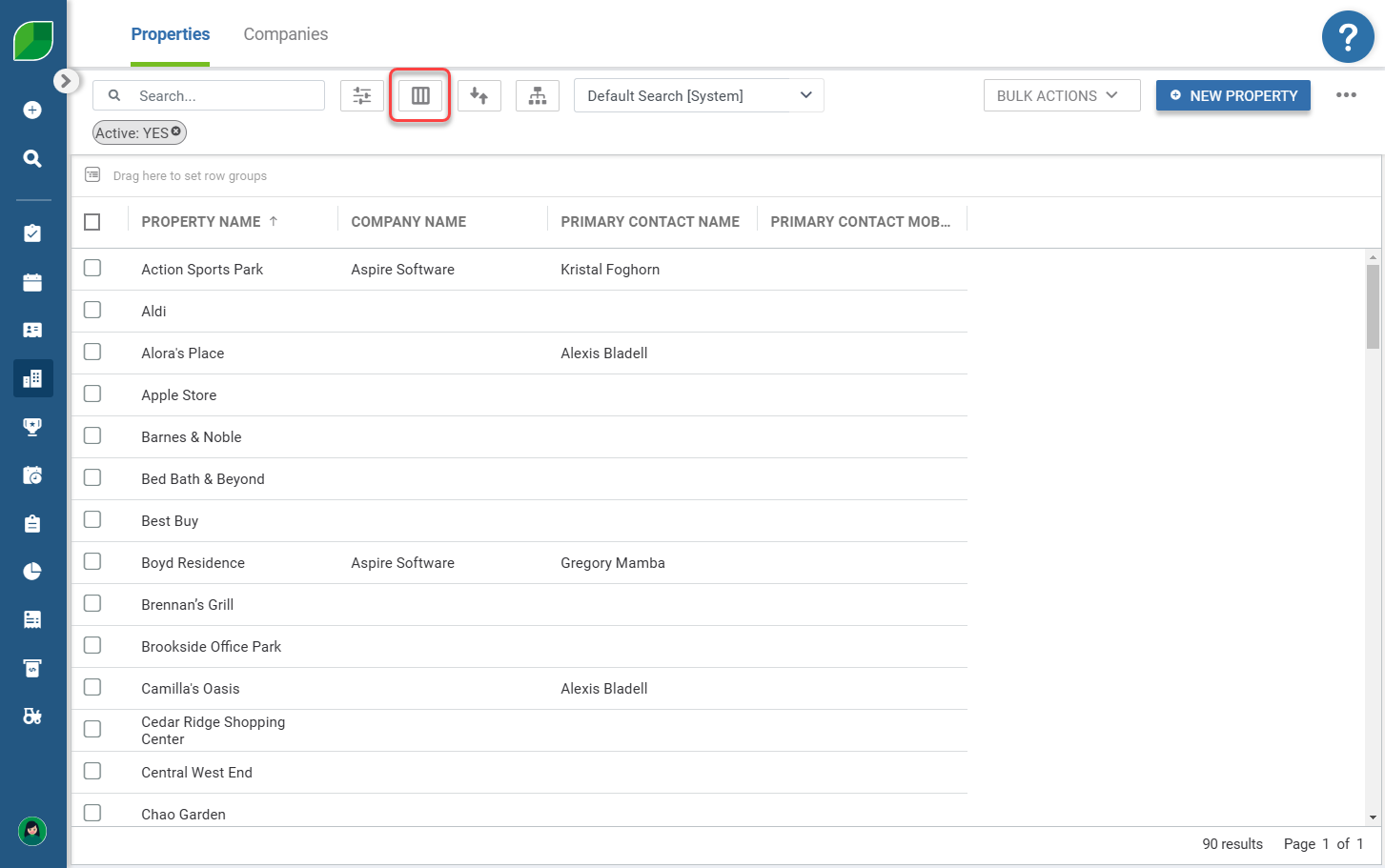
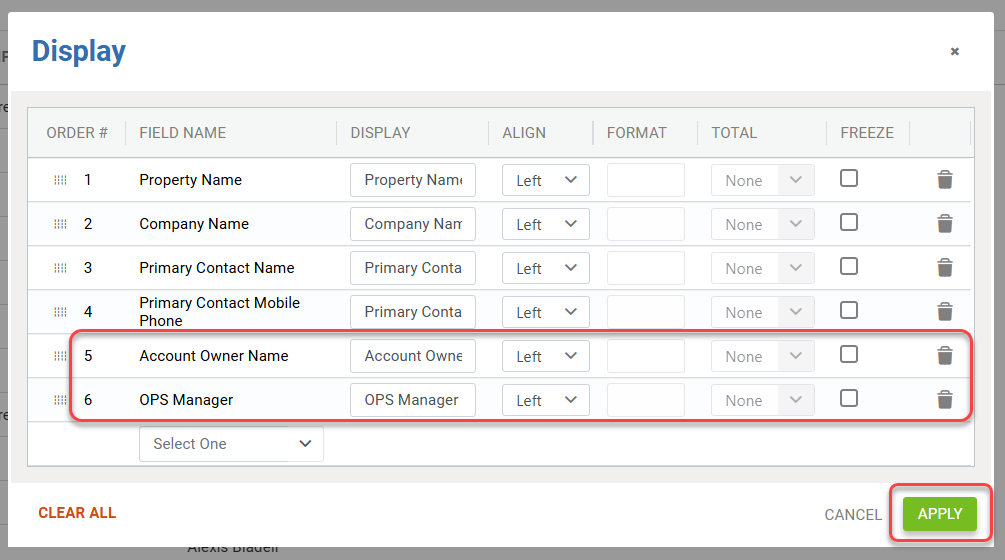
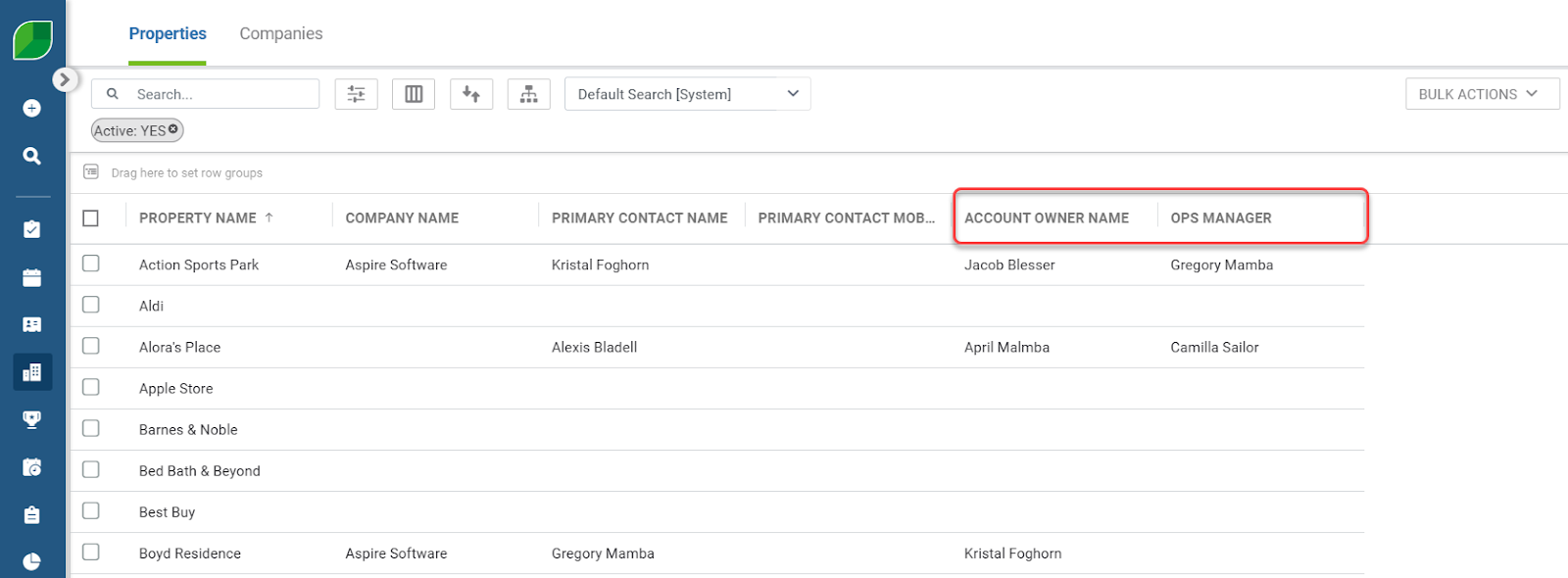
If you have *Operations Managers* or *Account Owners* on *Property Records* that are no longer active, then you should reassign the records for another employee to manage in your organization. You can update these fields on a single *Property Record,* or you can update them in bulk. 📑This section uses the feature for *Group Row Headers*. If you do not have this feature enabled, [read this article first](https://guide.youraspire.com/docs/editing-your-user-settings#advanced-search-list-settings), and then come back to complete the steps! ![](https://cdn.document360.io/5942a8d7-f3b1-4919-bdfa-d477d8498fe3/Images/Documentation/offboarding-employees-in-aspire-image-fb1x8xbc.png?sv=2026-02-06&spr=https&st=2026-11-13T10%3A16%3A30Z&se=2026-11-13T11%3A16%3A30Z&sr=c&sp=r&sig=WJvC7y8MSlsKUAX7mLwuNCj2IDT7FipI5rUCy8kKytk%3D) - Navigate to the *Properties* module. For this example, we will use *Display* columns to help highlight which *Property Records* need to be updated. - Add your *Display* columns. Select the *Display* icon at the top of the screen: ![](https://cdn.document360.io/5942a8d7-f3b1-4919-bdfa-d477d8498fe3/Images/Documentation/offboarding-employees-in-aspire-image-vqcjt9zy.png?sv=2026-02-06&spr=https&st=2026-11-13T10%3A16%3A30Z&se=2026-11-13T11%3A16%3A30Z&sr=c&sp=r&sig=WJvC7y8MSlsKUAX7mLwuNCj2IDT7FipI5rUCy8kKytk%3D) - Add the *Display* columns for *Account Owner Name* and *OPS Manager.* - Select Apply. ![](https://cdn.document360.io/5942a8d7-f3b1-4919-bdfa-d477d8498fe3/Images/Documentation/offboarding-employees-in-aspire-image-hengvmgp.png?sv=2026-02-06&spr=https&st=2026-11-13T10%3A16%3A30Z&se=2026-11-13T11%3A16%3A30Z&sr=c&sp=r&sig=WJvC7y8MSlsKUAX7mLwuNCj2IDT7FipI5rUCy8kKytk%3D) - After you apply the new *Display* columns, you’ll see them added in the order that they were added to the *Display* window: ![](https://cdn.document360.io/5942a8d7-f3b1-4919-bdfa-d477d8498fe3/Images/Documentation/offboarding-employees-in-aspire-image-2t9y4vns.png?sv=2026-02-06&spr=https&st=2026-11-13T10%3A16%3A30Z&se=2026-11-13T11%3A16%3A30Z&sr=c&sp=r&sig=WJvC7y8MSlsKUAX7mLwuNCj2IDT7FipI5rUCy8kKytk%3D)

Update the Account Owner Tied to Property Records

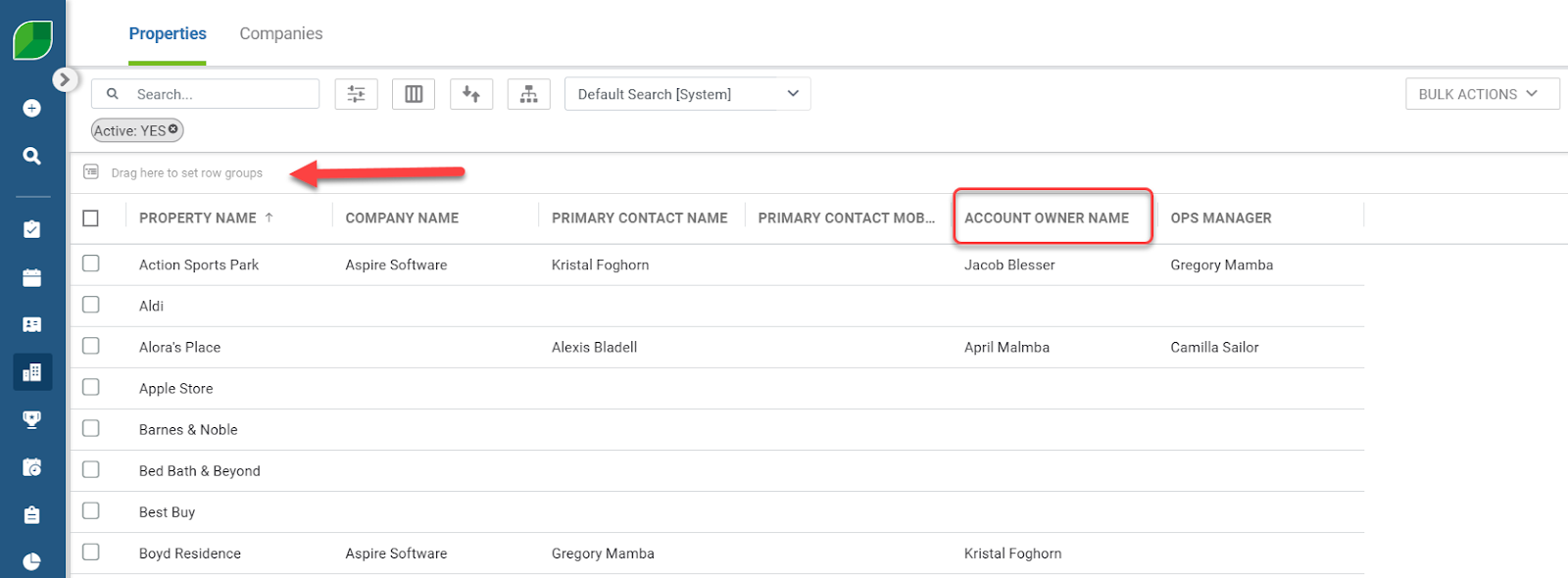
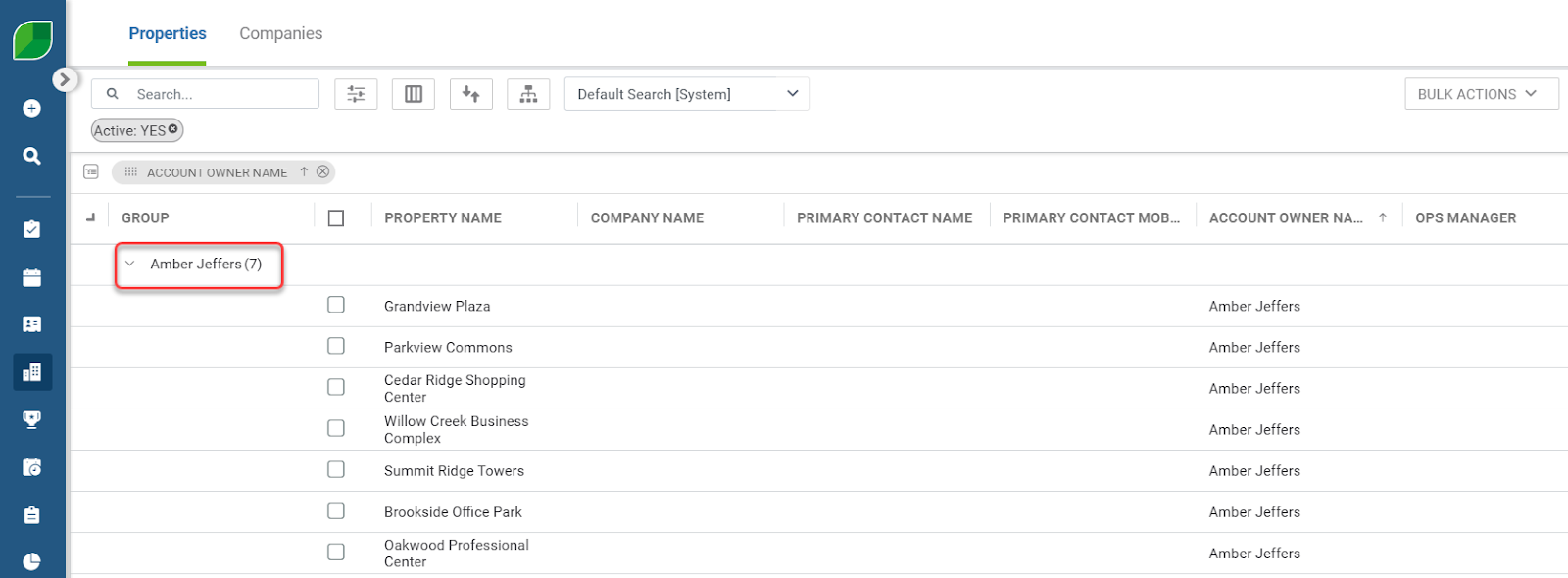
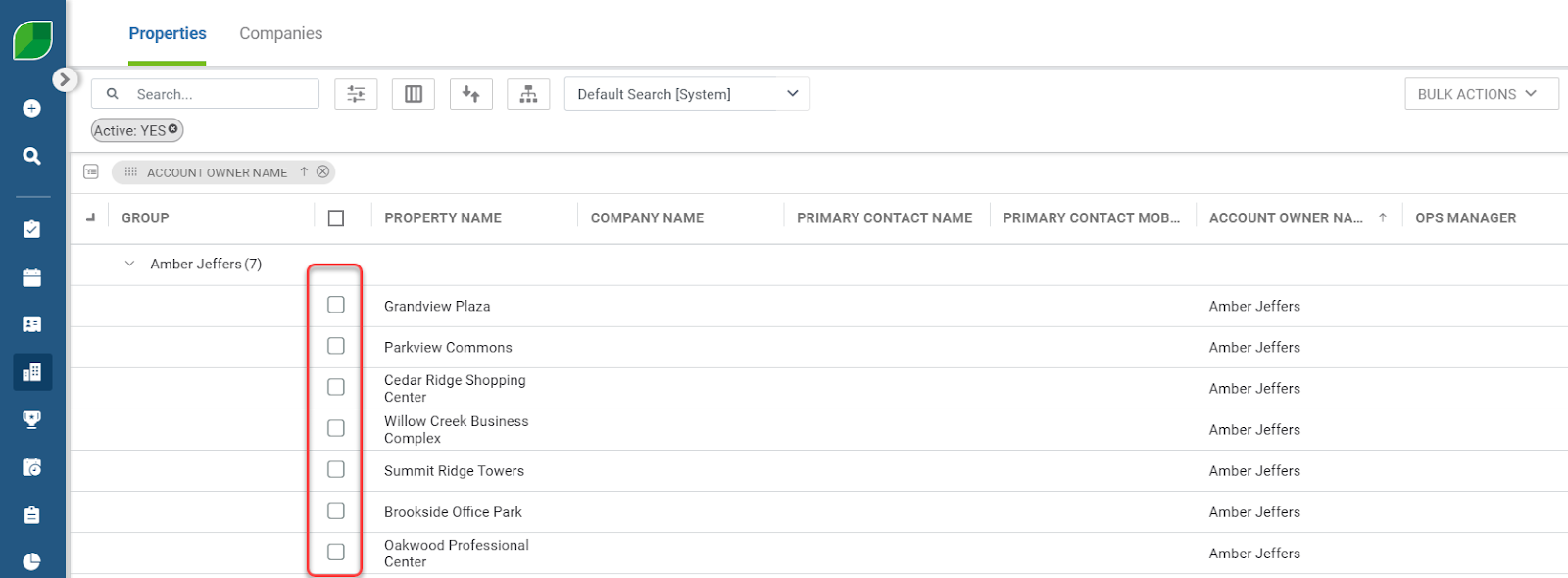
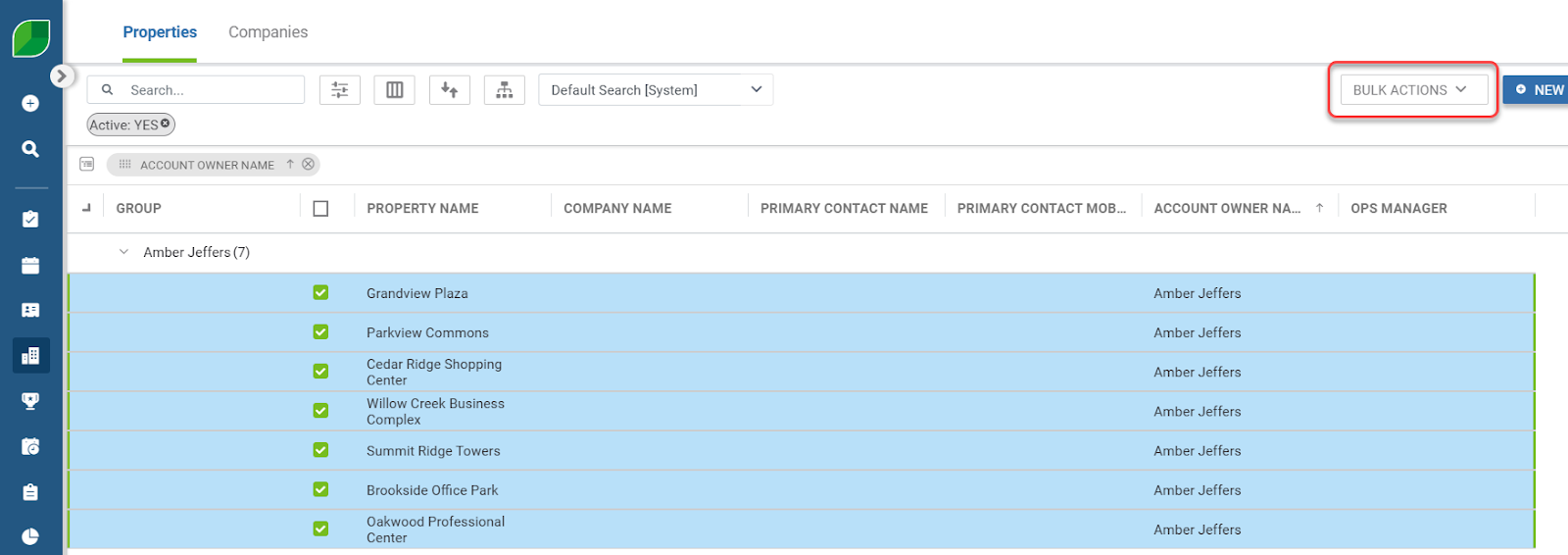
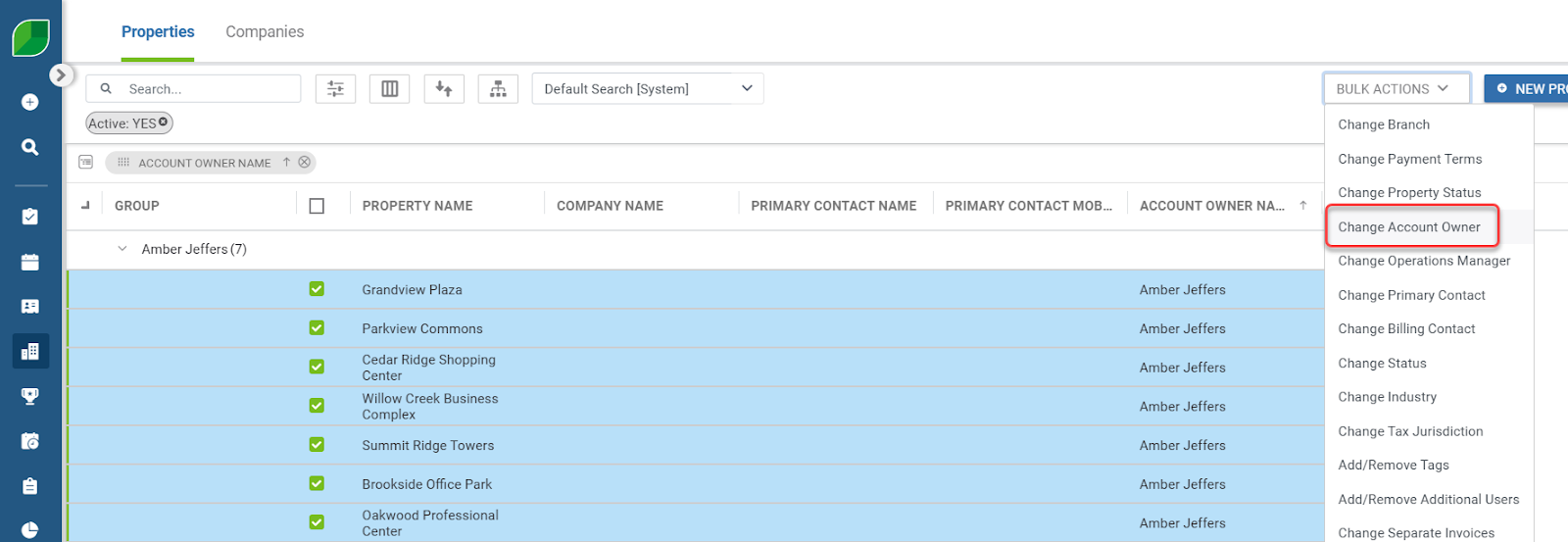
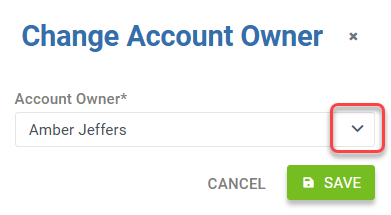
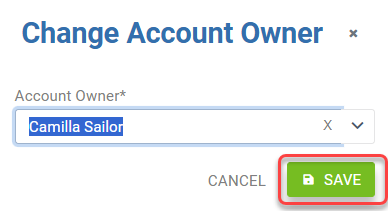
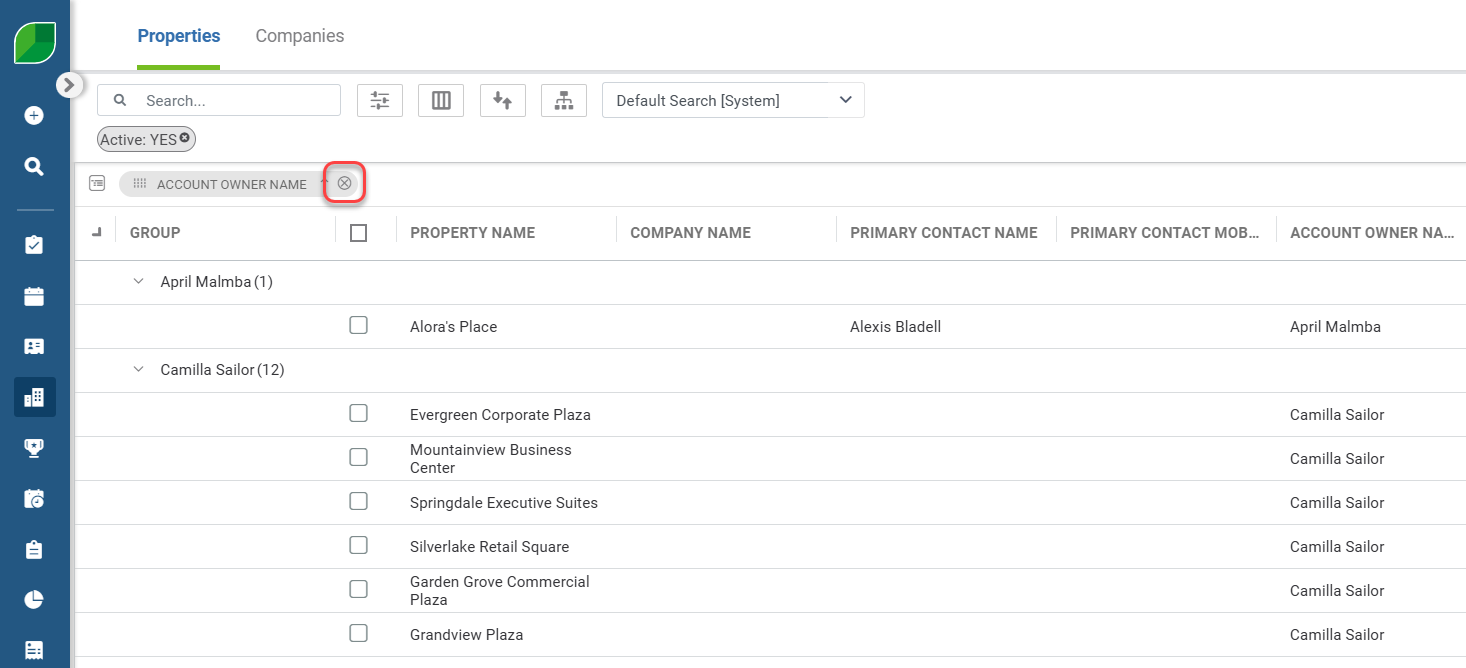
Now that the *Display* columns have been added to your list view, you can then group the *Property Records* with the use of the Row Group Header field. This will help you to narrow in which properties need to be updated with a new *Account Owner.* - Click and drag the header of *Account Owner Name* over to the *Row Group Header* field. ![](https://cdn.document360.io/5942a8d7-f3b1-4919-bdfa-d477d8498fe3/Images/Documentation/offboarding-employees-in-aspire-image-prpci70s.png?sv=2026-02-06&spr=https&st=2026-11-13T10%3A16%3A30Z&se=2026-11-13T11%3A16%3A30Z&sr=c&sp=r&sig=WJvC7y8MSlsKUAX7mLwuNCj2IDT7FipI5rUCy8kKytk%3D) - After you release your drag to this field, you’ll see your *Properties* list appear organized by *Account Owner*: ![](https://cdn.document360.io/5942a8d7-f3b1-4919-bdfa-d477d8498fe3/Images/Documentation/offboarding-employees-in-aspire-image-ig8jyv37.png?sv=2026-02-06&spr=https&st=2026-11-13T10%3A16%3A30Z&se=2026-11-13T11%3A16%3A30Z&sr=c&sp=r&sig=WJvC7y8MSlsKUAX7mLwuNCj2IDT7FipI5rUCy8kKytk%3D) - Check the boxes for the *Properties* that are listed under *Amber Jeffers* as the *Account Owner.* *![](https://cdn.document360.io/5942a8d7-f3b1-4919-bdfa-d477d8498fe3/Images/Documentation/offboarding-employees-in-aspire-image-brxyidj2.png?sv=2026-02-06&spr=https&st=2026-11-13T10%3A16%3A30Z&se=2026-11-13T11%3A16%3A30Z&sr=c&sp=r&sig=WJvC7y8MSlsKUAX7mLwuNCj2IDT7FipI5rUCy8kKytk%3D)* - Then, click on the *Bulk Actions* menu. ![](https://cdn.document360.io/5942a8d7-f3b1-4919-bdfa-d477d8498fe3/Images/Documentation/offboarding-employees-in-aspire-image-5vgw6s0h.png?sv=2026-02-06&spr=https&st=2026-11-13T10%3A16%3A30Z&se=2026-11-13T11%3A16%3A30Z&sr=c&sp=r&sig=WJvC7y8MSlsKUAX7mLwuNCj2IDT7FipI5rUCy8kKytk%3D) - Select *Change Account Owner* from the list. ![](https://cdn.document360.io/5942a8d7-f3b1-4919-bdfa-d477d8498fe3/Images/Documentation/offboarding-employees-in-aspire-image-ab24cdec.png?sv=2026-02-06&spr=https&st=2026-11-13T10%3A16%3A30Z&se=2026-11-13T11%3A16%3A30Z&sr=c&sp=r&sig=WJvC7y8MSlsKUAX7mLwuNCj2IDT7FipI5rUCy8kKytk%3D) - The *Change Account Owner* window will appear. - Click the dropdown! ![](https://cdn.document360.io/5942a8d7-f3b1-4919-bdfa-d477d8498fe3/Images/Documentation/offboarding-employees-in-aspire-image-kjxob90d.png?sv=2026-02-06&spr=https&st=2026-11-13T10%3A16%3A30Z&se=2026-11-13T11%3A16%3A30Z&sr=c&sp=r&sig=WJvC7y8MSlsKUAX7mLwuNCj2IDT7FipI5rUCy8kKytk%3D) - Once you have reassigned a new *Account Owner* for the previous employee’s properties, then click *Save* to finish the update. ![](https://cdn.document360.io/5942a8d7-f3b1-4919-bdfa-d477d8498fe3/Images/Documentation/offboarding-employees-in-aspire-image-8x4x49z1.png?sv=2026-02-06&spr=https&st=2026-11-13T10%3A16%3A30Z&se=2026-11-13T11%3A16%3A30Z&sr=c&sp=r&sig=WJvC7y8MSlsKUAX7mLwuNCj2IDT7FipI5rUCy8kKytk%3D) Great! Now you can see that the properties have been reassigned to a new *Account Owner*. - You can click the X next to *Account Owner Name* to remove the *Display Grouping* for this task. ![](https://cdn.document360.io/5942a8d7-f3b1-4919-bdfa-d477d8498fe3/Images/Documentation/offboarding-employees-in-aspire-image-dlr5jszr.png?sv=2026-02-06&spr=https&st=2026-11-13T10%3A16%3A30Z&se=2026-11-13T11%3A16%3A30Z&sr=c&sp=r&sig=WJvC7y8MSlsKUAX7mLwuNCj2IDT7FipI5rUCy8kKytk%3D)
Update the Ops Manager Tied to Property Records

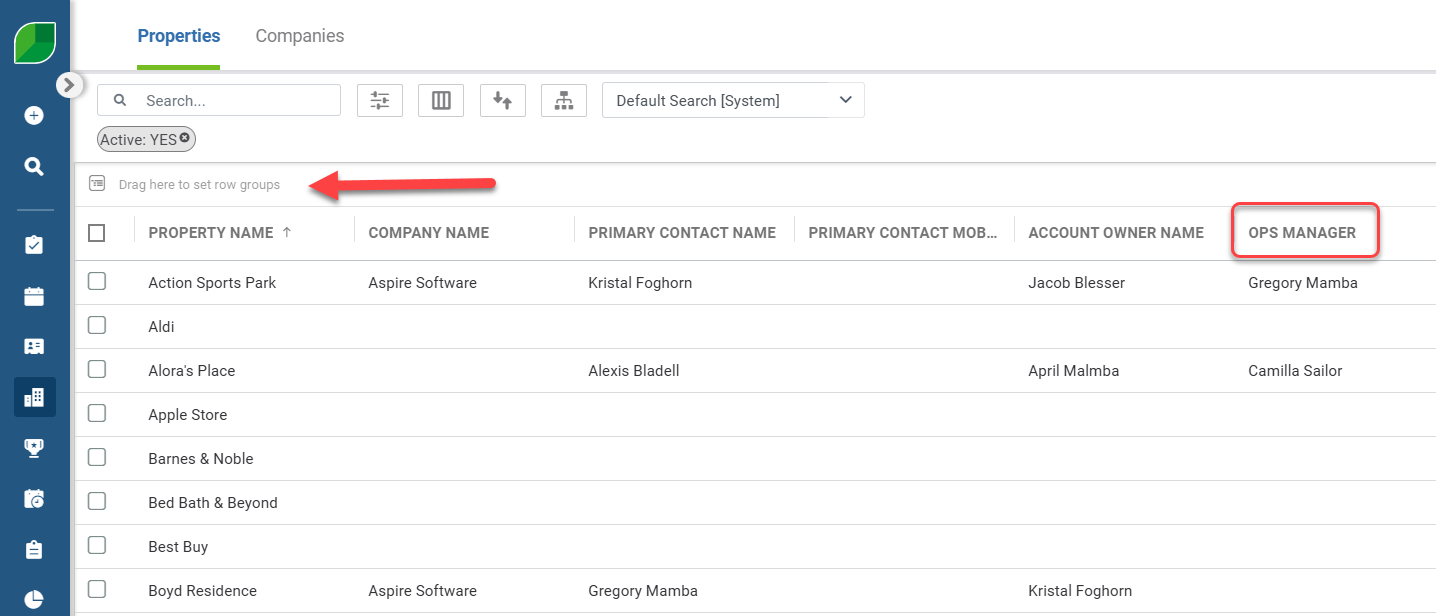
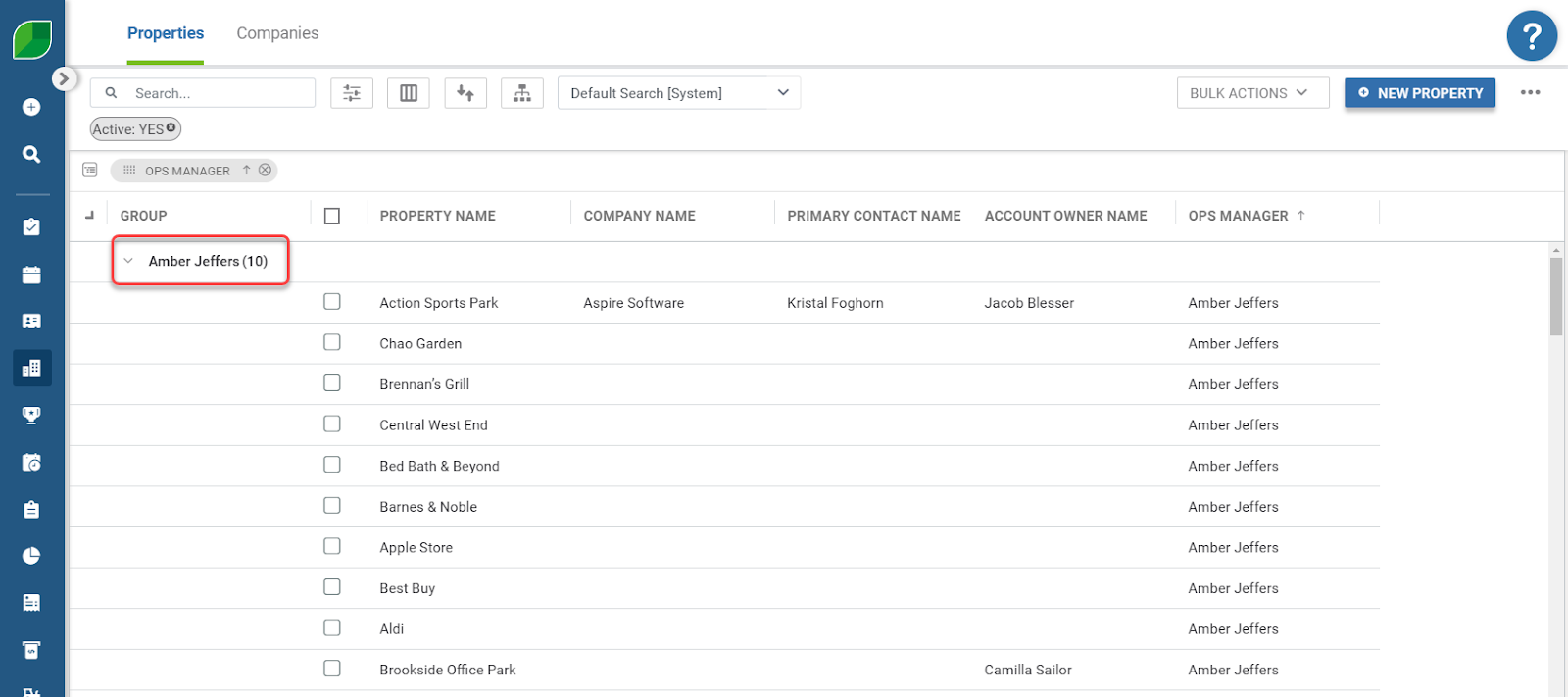
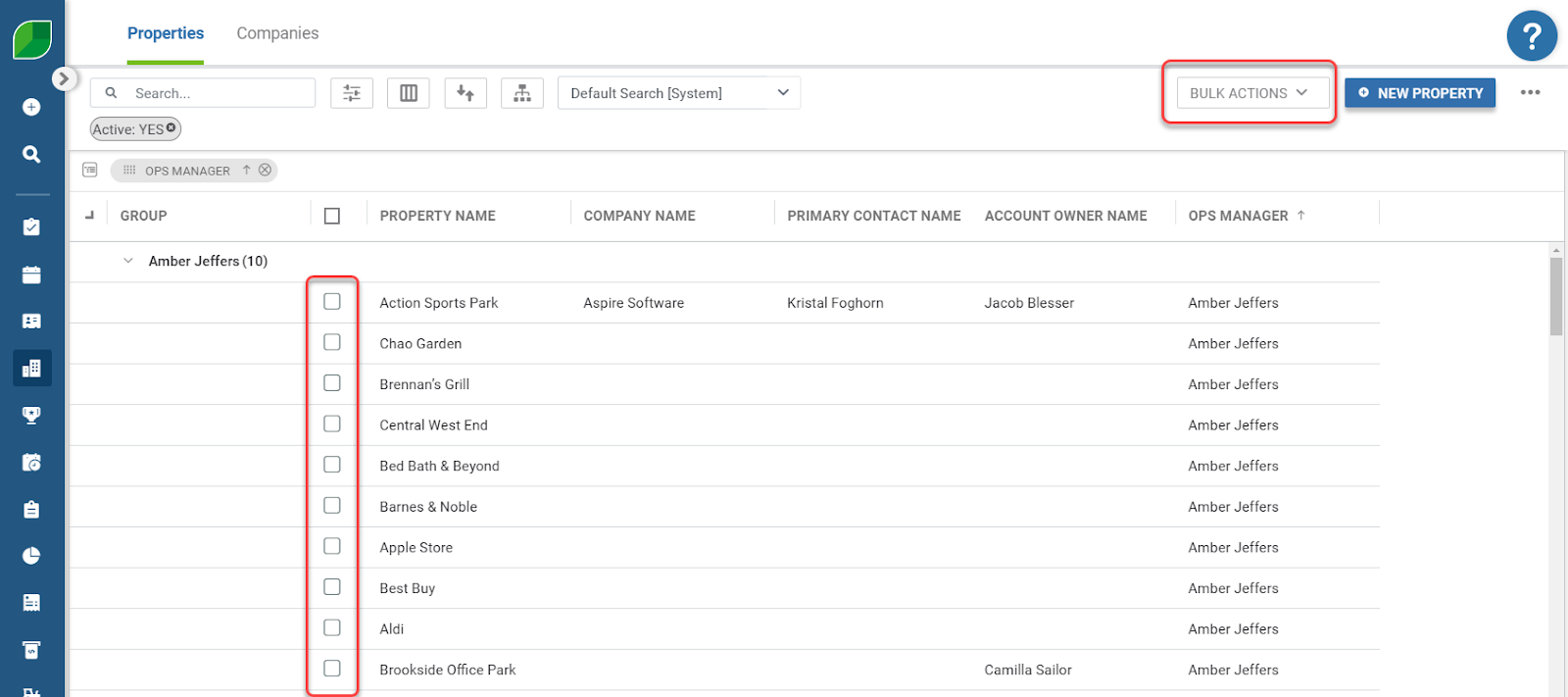
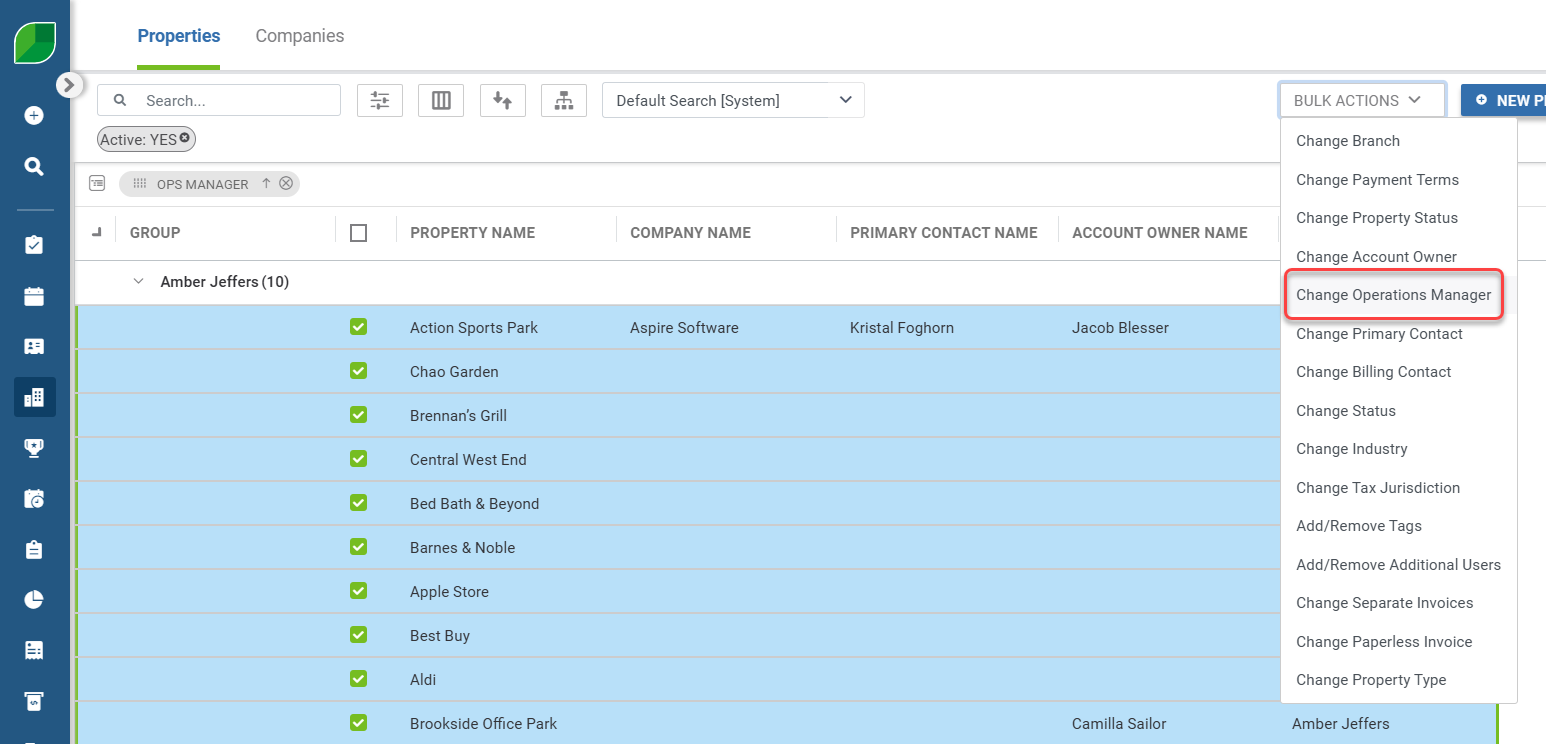
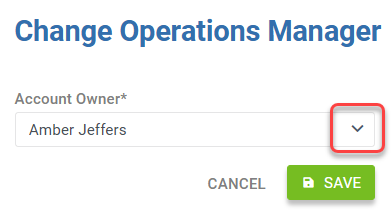
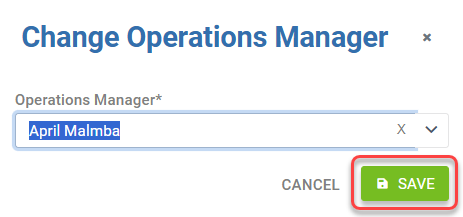
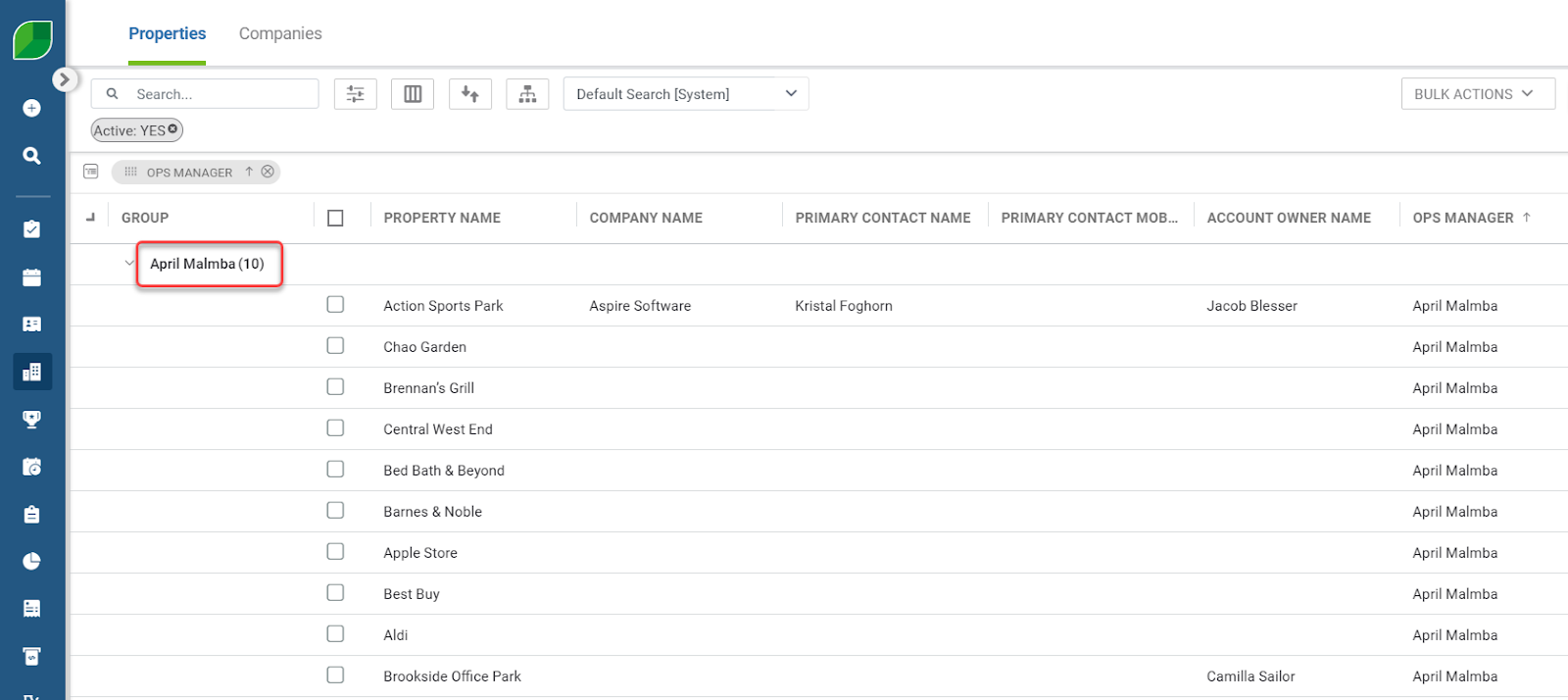
Next, you’ll update the *Ops Manager* tied to any property record that your employee might have been tied to. - Click and drag the header of *OPS Manager* over to the *Row Group Header* field. ![](https://cdn.document360.io/5942a8d7-f3b1-4919-bdfa-d477d8498fe3/Images/Documentation/offboarding-employees-in-aspire-image-5kmdz946.png?sv=2026-02-06&spr=https&st=2026-11-13T10%3A16%3A30Z&se=2026-11-13T11%3A16%3A30Z&sr=c&sp=r&sig=WJvC7y8MSlsKUAX7mLwuNCj2IDT7FipI5rUCy8kKytk%3D) - After you release your drag to this field, you’ll see your *Properties* list appear organized by *OPS Manager*: ![](https://cdn.document360.io/5942a8d7-f3b1-4919-bdfa-d477d8498fe3/Images/Documentation/offboarding-employees-in-aspire-image-t338qaop.png?sv=2026-02-06&spr=https&st=2026-11-13T10%3A16%3A30Z&se=2026-11-13T11%3A16%3A30Z&sr=c&sp=r&sig=WJvC7y8MSlsKUAX7mLwuNCj2IDT7FipI5rUCy8kKytk%3D) - Check the boxes for the *Properties* that are listed under Amber Jeffers as the *Ops Manager.* - Then, select the *Bulk Actions* menu. ![](https://cdn.document360.io/5942a8d7-f3b1-4919-bdfa-d477d8498fe3/Images/Documentation/offboarding-employees-in-aspire-image-5uilx7ex.png?sv=2026-02-06&spr=https&st=2026-11-13T10%3A16%3A30Z&se=2026-11-13T11%3A16%3A30Z&sr=c&sp=r&sig=WJvC7y8MSlsKUAX7mLwuNCj2IDT7FipI5rUCy8kKytk%3D) - Choose *Change Operations Manager* from the list. ![](https://cdn.document360.io/5942a8d7-f3b1-4919-bdfa-d477d8498fe3/Images/Documentation/offboarding-employees-in-aspire-image-56yxs9d5.png?sv=2026-02-06&spr=https&st=2026-11-13T10%3A16%3A30Z&se=2026-11-13T11%3A16%3A30Z&sr=c&sp=r&sig=WJvC7y8MSlsKUAX7mLwuNCj2IDT7FipI5rUCy8kKytk%3D) - The *Change Operations Manager* window will appear. - Click the dropdown! ![](https://cdn.document360.io/5942a8d7-f3b1-4919-bdfa-d477d8498fe3/Images/Documentation/offboarding-employees-in-aspire-image-crc59ies.png?sv=2026-02-06&spr=https&st=2026-11-13T10%3A16%3A30Z&se=2026-11-13T11%3A16%3A30Z&sr=c&sp=r&sig=WJvC7y8MSlsKUAX7mLwuNCj2IDT7FipI5rUCy8kKytk%3D) - Once you have reassigned a new *Operations Manager* for the previous employee’s properties, then click *Save* to finish the update. ![](https://cdn.document360.io/5942a8d7-f3b1-4919-bdfa-d477d8498fe3/Images/Documentation/offboarding-employees-in-aspire-image-aqg825zi.png?sv=2026-02-06&spr=https&st=2026-11-13T10%3A16%3A30Z&se=2026-11-13T11%3A16%3A30Z&sr=c&sp=r&sig=WJvC7y8MSlsKUAX7mLwuNCj2IDT7FipI5rUCy8kKytk%3D) Great! Now you can see that the properties have been reassigned to a new *OPS Manager*. - You can click the X next to *Ops Manager* to remove the *Display Grouping* for this task. ![](https://cdn.document360.io/5942a8d7-f3b1-4919-bdfa-d477d8498fe3/Images/Documentation/offboarding-employees-in-aspire-image-66tn45m8.png?sv=2026-02-06&spr=https&st=2026-11-13T10%3A16%3A30Z&se=2026-11-13T11%3A16%3A30Z&sr=c&sp=r&sig=WJvC7y8MSlsKUAX7mLwuNCj2IDT7FipI5rUCy8kKytk%3D)
Reassigning the Employee’s Work to Another Employee

For Issues, Tasks, Milestones and Appointments

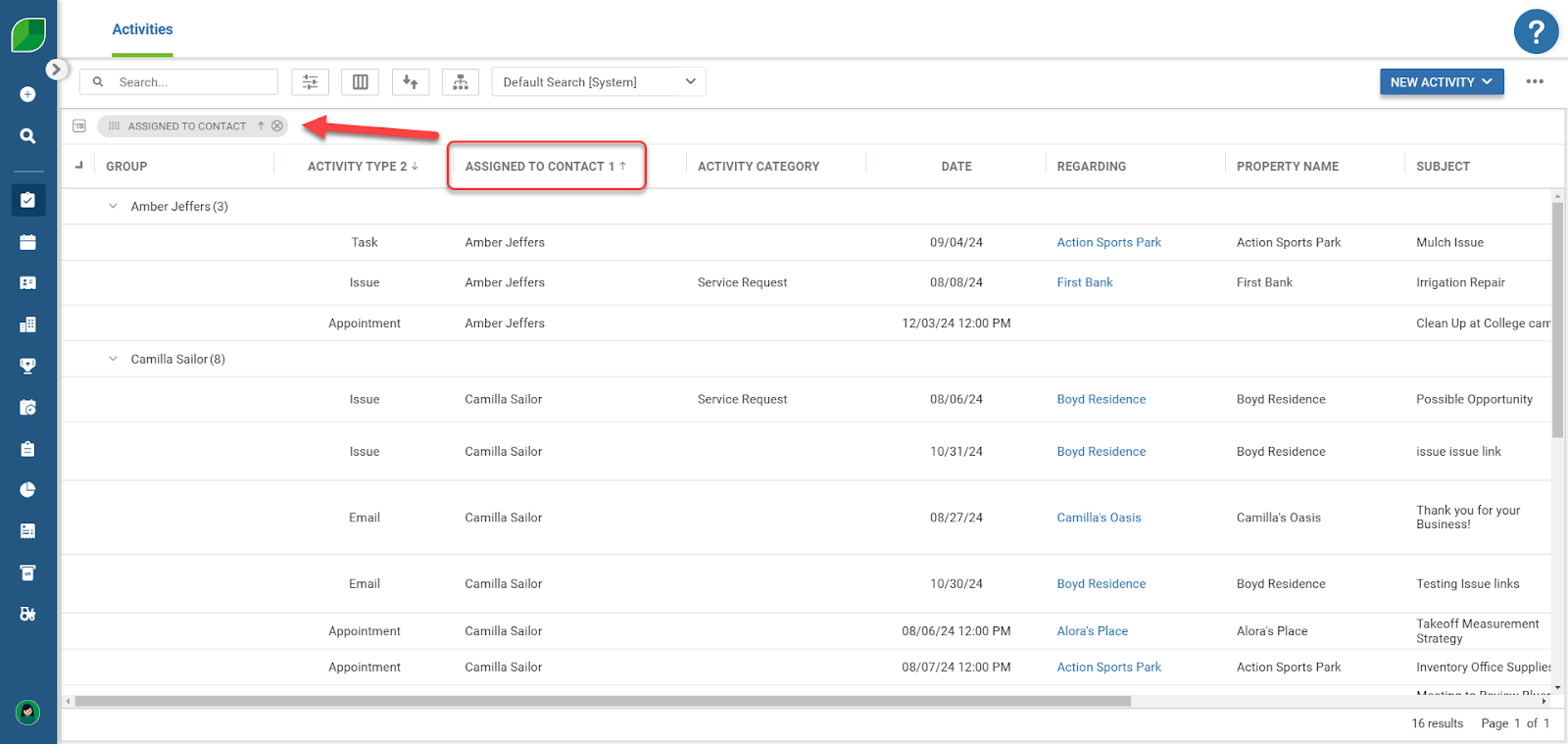
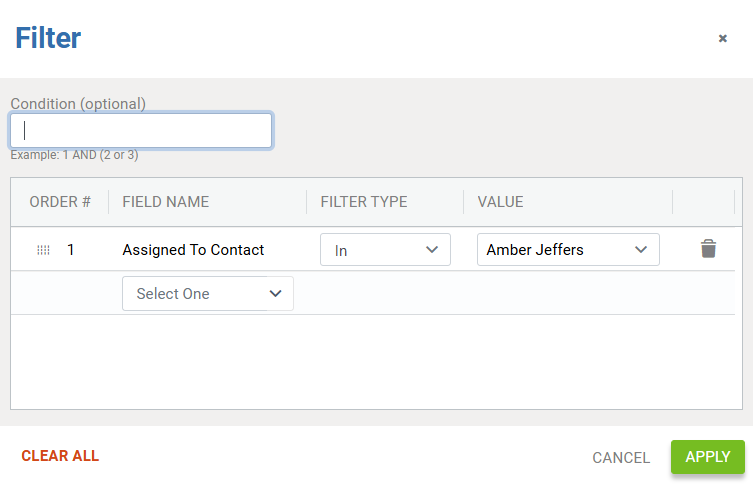
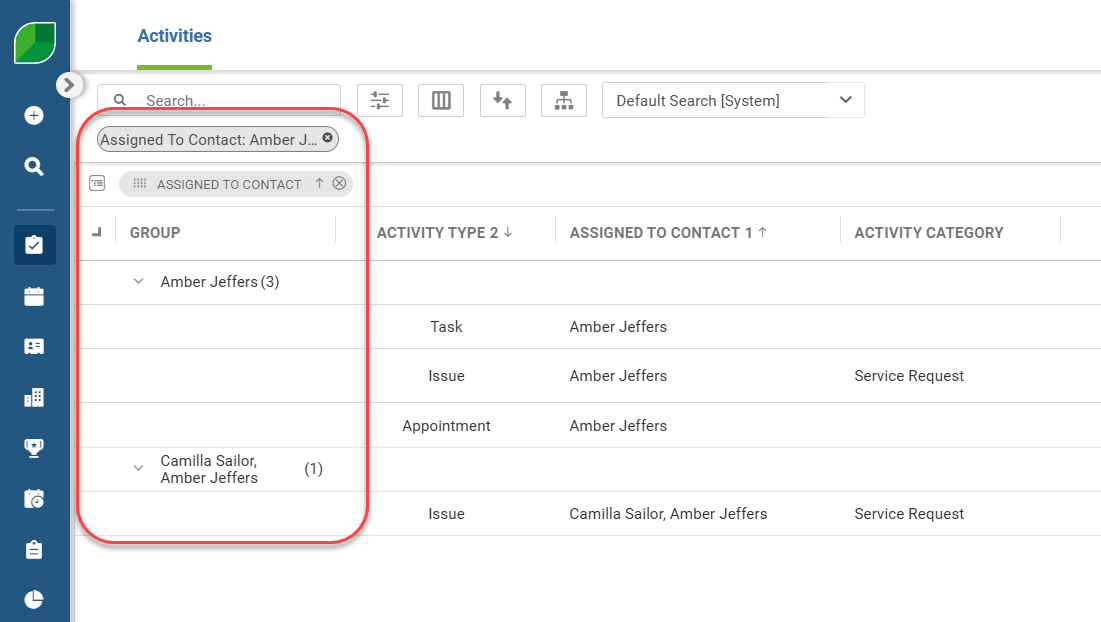
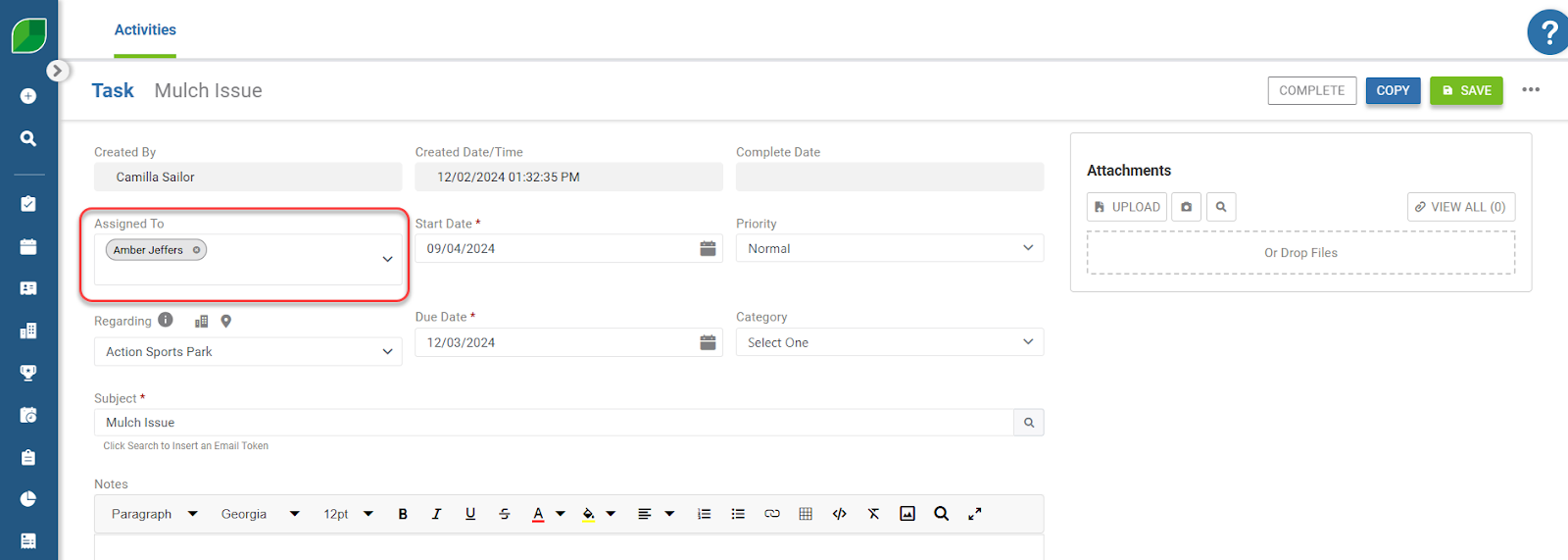
For certain activities, you’ll want to update the *Assigned To* field, if your employee was assigned to them. - Navigate to the Activities module in the blue side menu. ![](https://cdn.document360.io/5942a8d7-f3b1-4919-bdfa-d477d8498fe3/Images/Documentation/offboarding-employees-in-aspire-image-8n8g3qkm.png?sv=2026-02-06&spr=https&st=2026-11-13T10%3A16%3A30Z&se=2026-11-13T11%3A16%3A30Z&sr=c&sp=r&sig=WJvC7y8MSlsKUAX7mLwuNCj2IDT7FipI5rUCy8kKytk%3D) - You can use your *Display* and grouping like mentioned in the previous section. - For this example, the display column of *Assigned to Contact* has been added. - Then, the column header of *Assigned to Contact* was added to the *Row Group Header* field. ![](https://cdn.document360.io/5942a8d7-f3b1-4919-bdfa-d477d8498fe3/Images/Documentation/offboarding-employees-in-aspire-image-1vauwvtw.png?sv=2026-02-06&spr=https&st=2026-11-13T10%3A16%3A30Z&se=2026-11-13T11%3A16%3A30Z&sr=c&sp=r&sig=WJvC7y8MSlsKUAX7mLwuNCj2IDT7FipI5rUCy8kKytk%3D) - If your *Activities* are including more than one assignee, you would also want to add a *Filter* of *Assigned to Contact* ▶️ *In* ▶️and select the *Employee Name* from the list. ![](https://cdn.document360.io/5942a8d7-f3b1-4919-bdfa-d477d8498fe3/Images/Documentation/offboarding-employees-in-aspire-image-1x17ycmu.png?sv=2026-02-06&spr=https&st=2026-11-13T10%3A16%3A30Z&se=2026-11-13T11%3A16%3A30Z&sr=c&sp=r&sig=WJvC7y8MSlsKUAX7mLwuNCj2IDT7FipI5rUCy8kKytk%3D) - This will then display all of the activities that your employee is currently assigned to. ![](https://cdn.document360.io/5942a8d7-f3b1-4919-bdfa-d477d8498fe3/Images/Documentation/offboarding-employees-in-aspire-image-pgg6ej05.png?sv=2026-02-06&spr=https&st=2026-11-13T10%3A16%3A30Z&se=2026-11-13T11%3A16%3A30Z&sr=c&sp=r&sig=WJvC7y8MSlsKUAX7mLwuNCj2IDT7FipI5rUCy8kKytk%3D) - Then, you can drill into each one and remove them as an assignee and reassign the activities as needed. - In the example, we are reviewing a Task that is currently assigned to Amber Jeffers, who is no longer with the company. - You could add a new *Assignee* in this field, remove Amber, and then *Save* to update the *Task.* *![](https://cdn.document360.io/5942a8d7-f3b1-4919-bdfa-d477d8498fe3/Images/Documentation/offboarding-employees-in-aspire-image-7xl20vg0.png?sv=2026-02-06&spr=https&st=2026-11-13T10%3A16%3A30Z&se=2026-11-13T11%3A16%3A30Z&sr=c&sp=r&sig=WJvC7y8MSlsKUAX7mLwuNCj2IDT7FipI5rUCy8kKytk%3D)*

For Processes like End of Month

If the employee that has left the company is responsible for completing tasks in Aspire like during the *End of Month*, these responsibilities would need to be reassigned to someone that is still working for the company. The new assignee would need to have the appropriate permissions if they don’t already have access to it.

Updating the Employee’s Contact Record

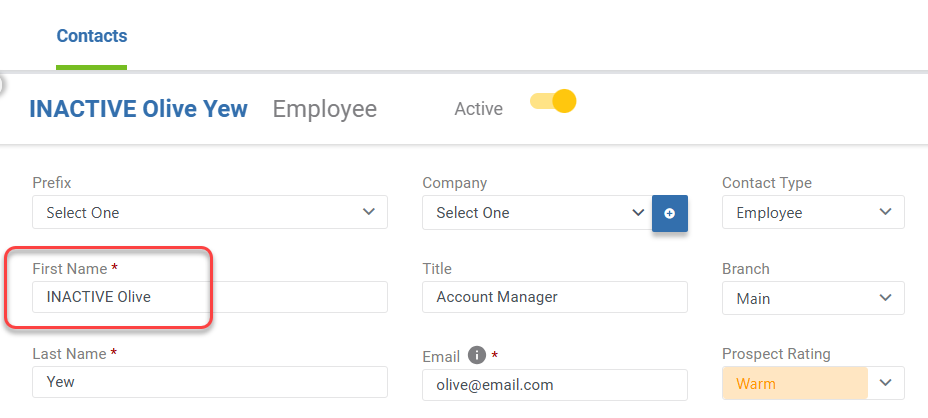
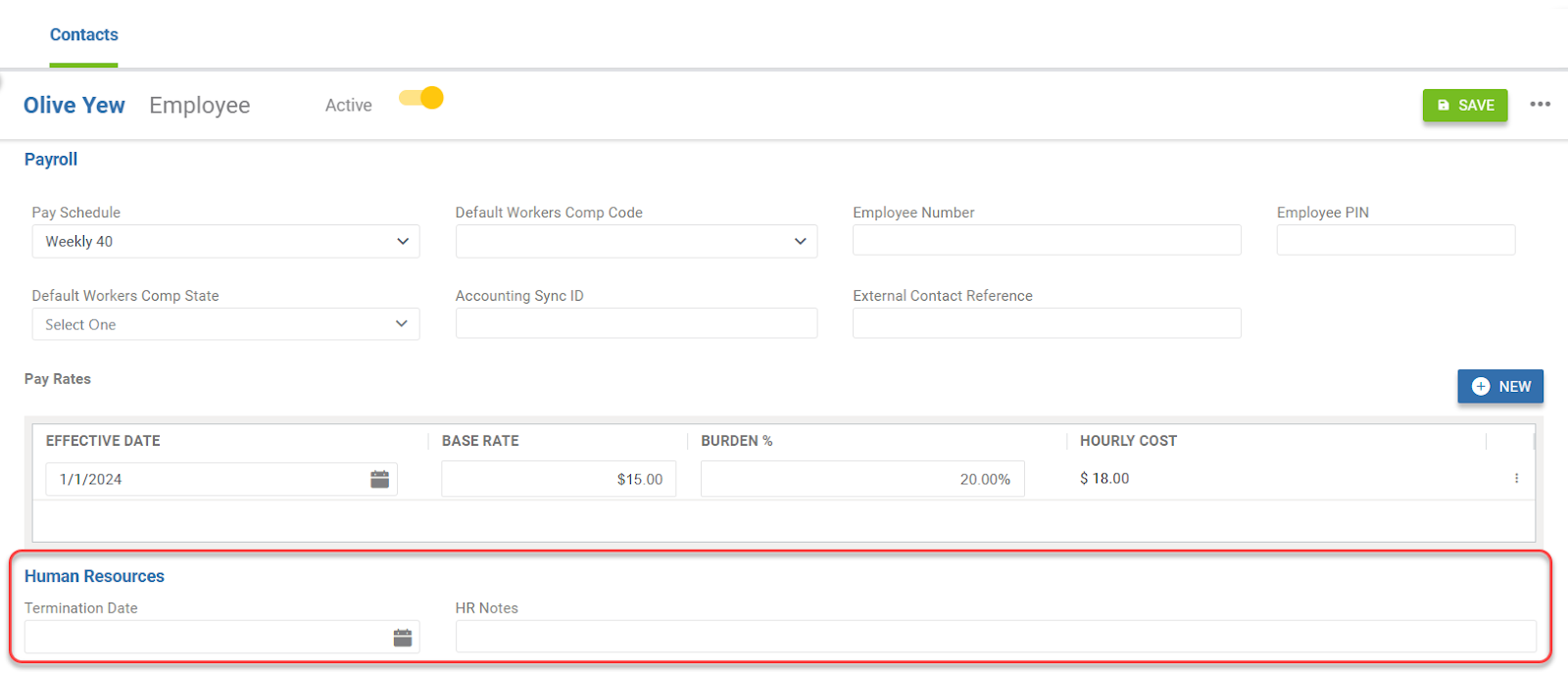
On the *Contact Record* for the employee, you have the option to add termination data and notes if you need to. This would need to be added before the *Contact Record* is deactivated. - You can add *INACTIVE* to the *First Name* field of an employee *Contact Record.* *![](https://cdn.document360.io/5942a8d7-f3b1-4919-bdfa-d477d8498fe3/Images/Documentation/offboarding-employees-in-aspire-image-zz5oyrhx.png?sv=2026-02-06&spr=https&st=2026-11-13T10%3A16%3A30Z&se=2026-11-13T11%3A16%3A30Z&sr=c&sp=r&sig=WJvC7y8MSlsKUAX7mLwuNCj2IDT7FipI5rUCy8kKytk%3D)* - If you scroll to the *Human Resources* section of the *Contact Record* for the employee, you’ll see the section to add a *Termination Date* and *HR Notes.* *![](https://cdn.document360.io/5942a8d7-f3b1-4919-bdfa-d477d8498fe3/Images/Documentation/offboarding-employees-in-aspire-image-7q6t670s.png?sv=2026-02-06&spr=https&st=2026-11-13T10%3A16%3A30Z&se=2026-11-13T11%3A16%3A30Z&sr=c&sp=r&sig=WJvC7y8MSlsKUAX7mLwuNCj2IDT7FipI5rUCy8kKytk%3D)* - When you are done updating the employee record, click *Save*!
Disabling the Employee’s Sync with Email and Calendar

The *Sync* between Aspire and the employee’s email account and calendar validates at the time of the employee’s login. If a user has not logged in for 90 days, the sync will not be authorized and will stop working. You can manually turn this off before the 90 day rule listed above when you deactivate the employee’s Aspire account. The folders that were set up during the original *Sync* will still be available in the employee’s *Gmail* folders and labels. You can choose to delete them or hide them if you don’t want them showing in the former employee’s email account.

Updating Settings in Administration

Changing Workflows Tied to the Employee

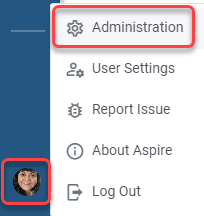
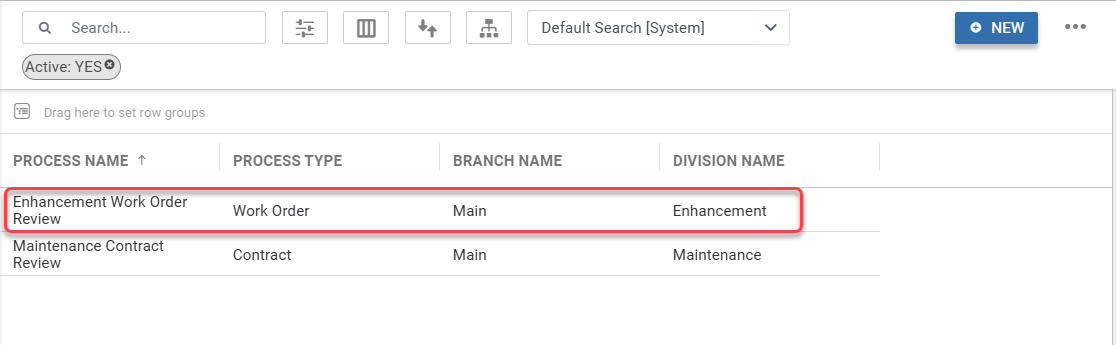
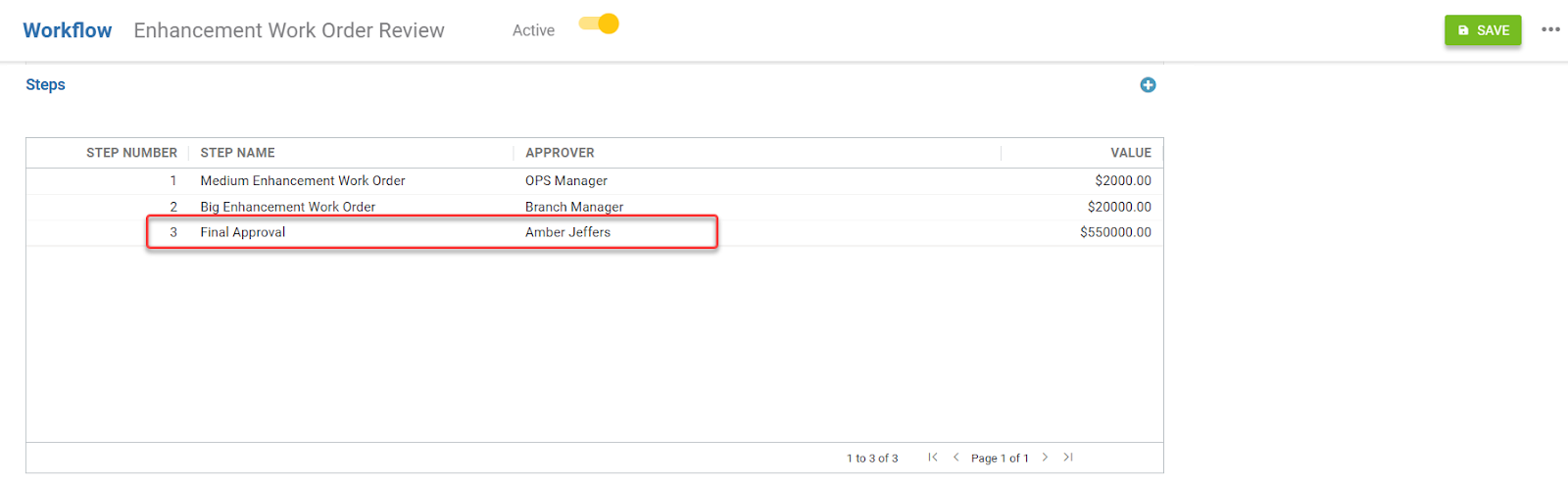
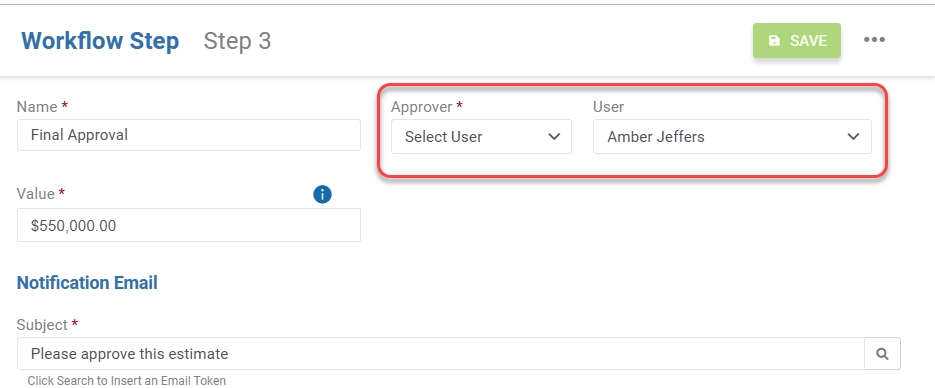
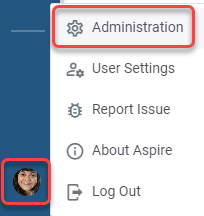
Next, if your organization uses *Workflows,* those would have to be reviewed. For employees that are deactivated and still assigned to receive approval emails, those would continue to be sent, so the *Workflow* would need to be updated with a new approver. 📌Note: If you have updated the *Ops Manager* and *Account Owner* assignments for the property and are using the *Roles* setting instead of *Users* to approve your workflows, you can skip this step. - Click your *Profile Icon* at the bottom of the blue side menu, then click *Administration.* *![](https://cdn.document360.io/5942a8d7-f3b1-4919-bdfa-d477d8498fe3/Images/Documentation/offboarding-employees-in-aspire-image-gpfjsxdk.png?sv=2026-02-06&spr=https&st=2026-11-13T10%3A16%3A30Z&se=2026-11-13T11%3A16%3A30Z&sr=c&sp=r&sig=WJvC7y8MSlsKUAX7mLwuNCj2IDT7FipI5rUCy8kKytk%3D)* - Click the *Estimating*tab - Then, click on the *Workflow* subtab. ![](https://cdn.document360.io/5942a8d7-f3b1-4919-bdfa-d477d8498fe3/Images/Documentation/offboarding-employees-in-aspire-image-b3h63u4t.png?sv=2026-02-06&spr=https&st=2026-11-13T10%3A16%3A30Z&se=2026-11-13T11%3A16%3A30Z&sr=c&sp=r&sig=WJvC7y8MSlsKUAX7mLwuNCj2IDT7FipI5rUCy8kKytk%3D) - Select the *Workflow* that your employee is tied to. ![](https://cdn.document360.io/5942a8d7-f3b1-4919-bdfa-d477d8498fe3/Images/Documentation/offboarding-employees-in-aspire-image-0en1yetn.png?sv=2026-02-06&spr=https&st=2026-11-13T10%3A16%3A30Z&se=2026-11-13T11%3A16%3A30Z&sr=c&sp=r&sig=WJvC7y8MSlsKUAX7mLwuNCj2IDT7FipI5rUCy8kKytk%3D) - Scroll to the *Steps* section of the Workflow. - Click on the line that the employee is tied to. ![](https://cdn.document360.io/5942a8d7-f3b1-4919-bdfa-d477d8498fe3/Images/Documentation/offboarding-employees-in-aspire-image-2i21so75.png?sv=2026-02-06&spr=https&st=2026-11-13T10%3A16%3A30Z&se=2026-11-13T11%3A16%3A30Z&sr=c&sp=r&sig=WJvC7y8MSlsKUAX7mLwuNCj2IDT7FipI5rUCy8kKytk%3D) - Update the *Approver Use*r to a different employee and save the Workflow step! ![](https://cdn.document360.io/5942a8d7-f3b1-4919-bdfa-d477d8498fe3/Images/Documentation/offboarding-employees-in-aspire-image-3h8rjr8s.png?sv=2026-02-06&spr=https&st=2026-11-13T10%3A16%3A30Z&se=2026-11-13T11%3A16%3A30Z&sr=c&sp=r&sig=WJvC7y8MSlsKUAX7mLwuNCj2IDT7FipI5rUCy8kKytk%3D)

Reassigning Invoice Email Contacts

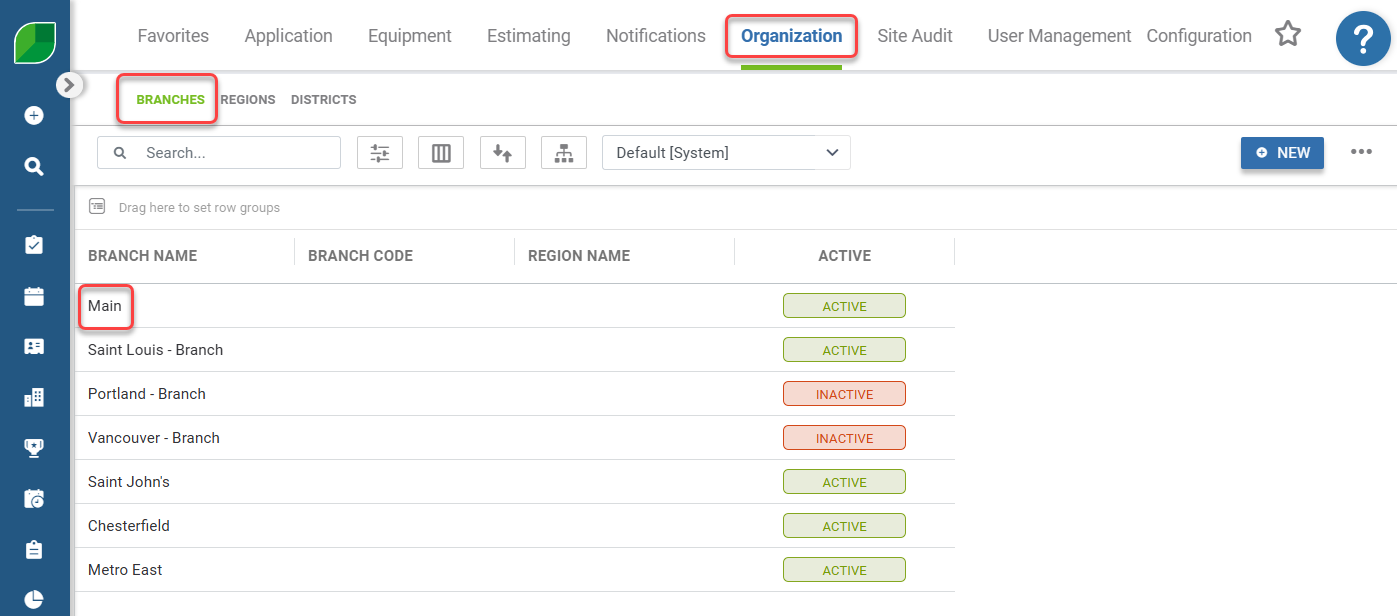
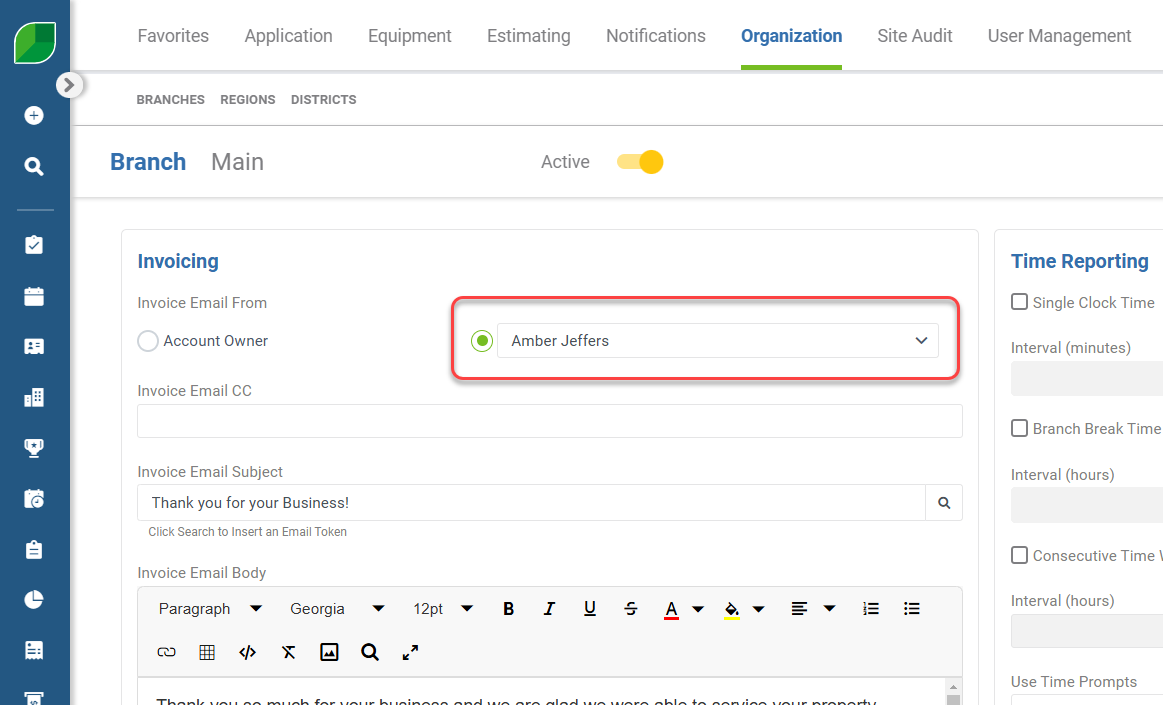
If your employee was assigned as an *Invoice Email Sender*, then you’d need to review and reassign this role. 🧠If you are using the *Invoice Email From Account Owner* setting, you can skip this step. ![](https://cdn.document360.io/5942a8d7-f3b1-4919-bdfa-d477d8498fe3/Images/Documentation/offboarding-employees-in-aspire-image-ck49doah.png?sv=2026-02-06&spr=https&st=2026-11-13T10%3A16%3A30Z&se=2026-11-13T11%3A16%3A30Z&sr=c&sp=r&sig=WJvC7y8MSlsKUAX7mLwuNCj2IDT7FipI5rUCy8kKytk%3D) - Click your *Profile Icon* at the bottom of the blue side menu, then click *Administration.* - Select the *Organization* tab, the *Branches* sub tab, and then select the *Branch* you need to update the *Invoice Sender* for. In this example, we have selected the *Main* branch: ![](https://cdn.document360.io/5942a8d7-f3b1-4919-bdfa-d477d8498fe3/Images/Documentation/offboarding-employees-in-aspire-image-yazvjxzz.png?sv=2026-02-06&spr=https&st=2026-11-13T10%3A16%3A30Z&se=2026-11-13T11%3A16%3A30Z&sr=c&sp=r&sig=WJvC7y8MSlsKUAX7mLwuNCj2IDT7FipI5rUCy8kKytk%3D) - Scrolling to the *Invoicing* section, you’d want to reassign the sender to another user’s email address that is still working for your organization. ![](https://cdn.document360.io/5942a8d7-f3b1-4919-bdfa-d477d8498fe3/Images/Documentation/offboarding-employees-in-aspire-image-gun50e0b.png?sv=2026-02-06&spr=https&st=2026-11-13T10%3A16%3A30Z&se=2026-11-13T11%3A16%3A30Z&sr=c&sp=r&sig=WJvC7y8MSlsKUAX7mLwuNCj2IDT7FipI5rUCy8kKytk%3D)
Deactivating the Employee’s User Account

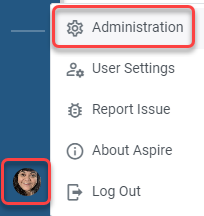
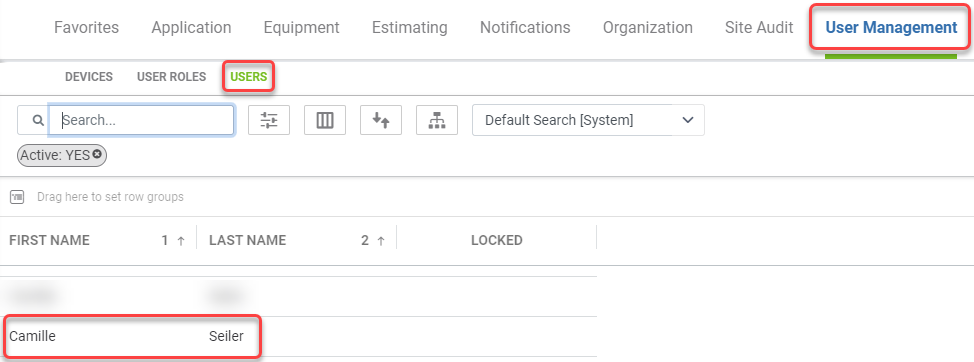
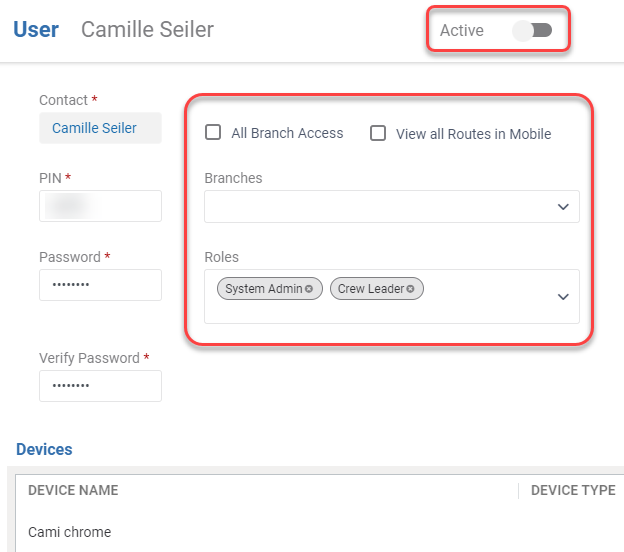
After your front end actions are completed for the *Employee*, you’ll need to deactivate their *User Record.* - Click your *Profile Icon* at the bottom of the blue side menu, then click *Administration.* *![](https://cdn.document360.io/5942a8d7-f3b1-4919-bdfa-d477d8498fe3/Images/Documentation/offboarding-employees-in-aspire-image-hlgvfs9u.png?sv=2026-02-06&spr=https&st=2026-11-13T10%3A16%3A30Z&se=2026-11-13T11%3A16%3A30Z&sr=c&sp=r&sig=WJvC7y8MSlsKUAX7mLwuNCj2IDT7FipI5rUCy8kKytk%3D)* - Then, go to the *User Management* tab*.* - Click *Users*. - Select the name of the employee to be deactivated. ![](https://cdn.document360.io/5942a8d7-f3b1-4919-bdfa-d477d8498fe3/Images/Documentation/offboarding-employees-in-aspire-image-gejl9okv.png?sv=2026-02-06&spr=https&st=2026-11-13T10%3A16%3A30Z&se=2026-11-13T11%3A16%3A30Z&sr=c&sp=r&sig=WJvC7y8MSlsKUAX7mLwuNCj2IDT7FipI5rUCy8kKytk%3D) - Slide the *Active* bar to the left so it turns gray. - Delete any *Branches* and uncheck the *All Branch Access* box. - Remove the user's role from the *Roles* field. - If you need the extra security, feel free to change the deactivated user’s *Pin* and *Password*. - Click *Save*. ![](https://cdn.document360.io/5942a8d7-f3b1-4919-bdfa-d477d8498fe3/Images/Documentation/offboarding-employees-in-aspire-image-dj99zeng.png?sv=2026-02-06&spr=https&st=2026-11-13T10%3A16%3A30Z&se=2026-11-13T11%3A16%3A30Z&sr=c&sp=r&sig=WJvC7y8MSlsKUAX7mLwuNCj2IDT7FipI5rUCy8kKytk%3D) 📌Note: Once the *User* is saved, the *Employee’s Contact Record* will automatically be changed to *Inactive.*
Removing Device Access

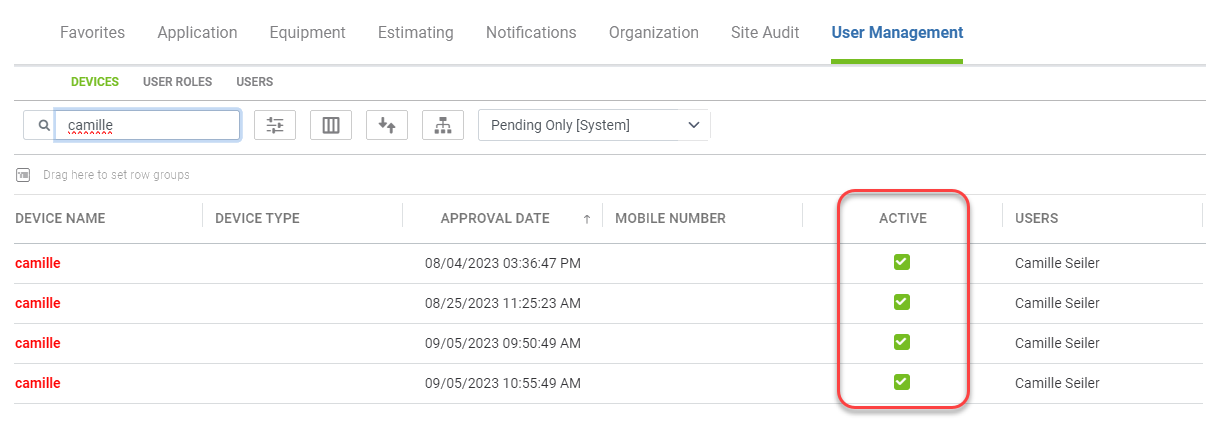
You can remove device access as well under the *Devices* tab found under *User Management.* Simply search the user's name or group by *Users* to find all devices that have access that employee has used, and uncheck the *Active* checkbox: ![](https://cdn.document360.io/5942a8d7-f3b1-4919-bdfa-d477d8498fe3/Images/Documentation/offboarding-employees-in-aspire-image-w33eg88e.png?sv=2026-02-06&spr=https&st=2026-11-13T10%3A16%3A30Z&se=2026-11-13T11%3A16%3A30Z&sr=c&sp=r&sig=WJvC7y8MSlsKUAX7mLwuNCj2IDT7FipI5rUCy8kKytk%3D)
Deactivating a Crew Member’s Contact Record

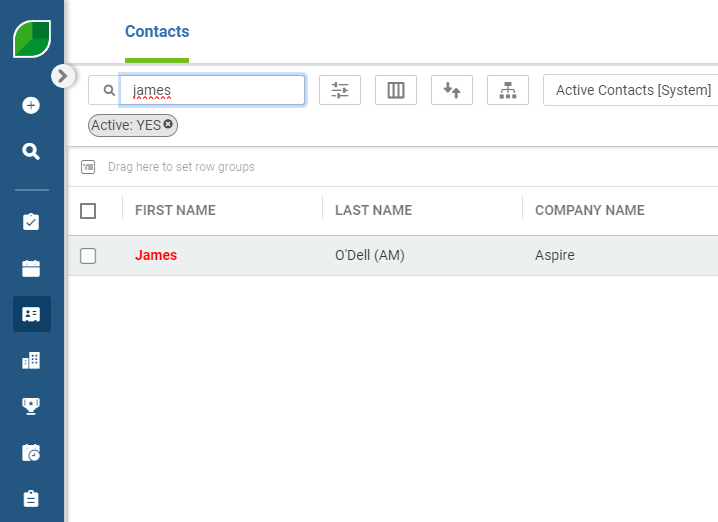
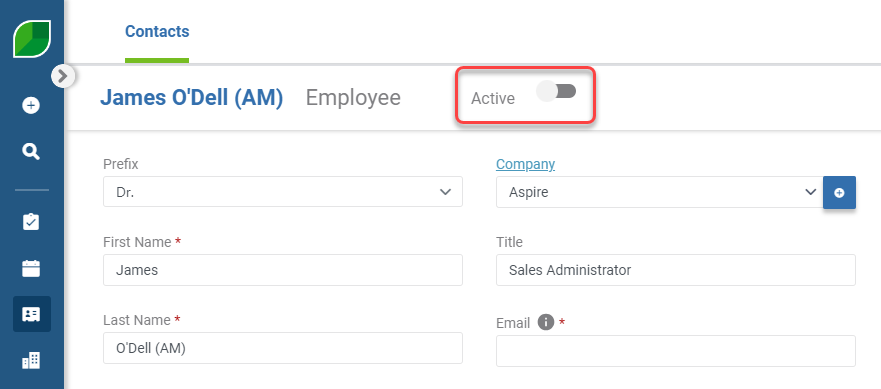
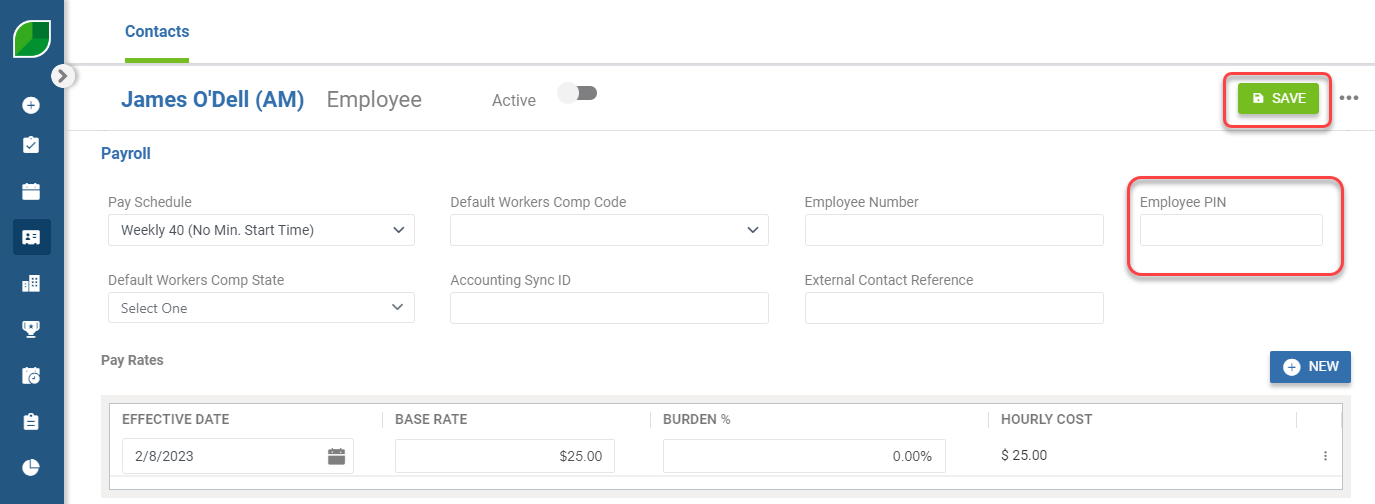
*📌 Note: Crew Members* log in with a *PIN* and do not have a user account. While you can do all of the steps in the previous section for your other *Employee Contacts*, if your *Crew Member Employee Contacts* need to be deactivated, follow these steps: ![](https://cdn.document360.io/5942a8d7-f3b1-4919-bdfa-d477d8498fe3/Images/Documentation/offboarding-employees-in-aspire-image-2hvcn7fo.png?sv=2026-02-06&spr=https&st=2026-11-13T10%3A16%3A30Z&se=2026-11-13T11%3A16%3A30Z&sr=c&sp=r&sig=WJvC7y8MSlsKUAX7mLwuNCj2IDT7FipI5rUCy8kKytk%3D) - Go to the crew member’s contact record in *Contacts:* *![](https://cdn.document360.io/5942a8d7-f3b1-4919-bdfa-d477d8498fe3/Images/Documentation/offboarding-employees-in-aspire-image-r3p229qx.png?sv=2026-02-06&spr=https&st=2026-11-13T10%3A16%3A30Z&se=2026-11-13T11%3A16%3A30Z&sr=c&sp=r&sig=WJvC7y8MSlsKUAX7mLwuNCj2IDT7FipI5rUCy8kKytk%3D)* - Select the *Active* slide. This will turn to gray when inactive. ![](https://cdn.document360.io/5942a8d7-f3b1-4919-bdfa-d477d8498fe3/Images/Documentation/offboarding-employees-in-aspire-image-6ib7o8hb.png?sv=2026-02-06&spr=https&st=2026-11-13T10%3A16%3A30Z&se=2026-11-13T11%3A16%3A30Z&sr=c&sp=r&sig=WJvC7y8MSlsKUAX7mLwuNCj2IDT7FipI5rUCy8kKytk%3D) - Scroll down to the *Payroll* section and delete the *Employee PIN*. ![](https://cdn.document360.io/5942a8d7-f3b1-4919-bdfa-d477d8498fe3/Images/Documentation/offboarding-employees-in-aspire-image-kmzef9t5.png?sv=2026-02-06&spr=https&st=2026-11-13T10%3A16%3A30Z&se=2026-11-13T11%3A16%3A30Z&sr=c&sp=r&sig=WJvC7y8MSlsKUAX7mLwuNCj2IDT7FipI5rUCy8kKytk%3D) - Click *Save*.