---
title: "Override Pay Code Set Up"
slug: "override-pay-code-set-up"
tags: ["Language - English", "Area - Administration", "Area - Estimating", "Industry - Landscaping", "Type - Task (How-To)", "Role - System Admin", "Role - Branch Admin", "Skill Level - 2 (Intermediate)"]
updated: 2025-11-17T16:49:39Z
published: 2025-11-17T16:49:39Z
canonical: "guide.youraspire.com/override-pay-code-set-up"
---
> ## Documentation Index
> Fetch the complete documentation index at: https://guide.youraspire.com/llms.txt
> Use this file to discover all available pages before exploring further.
# Override Pay Code Set Up
Purpose
An *Override Pay Code* is useful any time you have an employee that needs to be paid something outside of their base rate. *Base Rates* are **set** on the *Employee Contact Record.*
*Override Pay Codes* allow you to set up multiple employee pay structures for estimating based on *Services* you offer!
Aspire has many ways to use *Override Pay Codes* to account for the pay rate changes that occur. Using *Override Pay Codes* allows multiple pay structures based on job-specific rates, makes sure there is accurate costing and payroll, time entry is submitted correctly, and supports manual adjustments when necessary!
---
Requirements
✅ You’ve set up your *Pay Codes* in *Administration* under *Lists.*
✅ You’ve set up *Pay Schedules* for your Employees in their *Contact Record.*
---
Setting Pay Codes in Administration
Before you are able to use *Pay Code Overrides*, you’ll need to make sure your *Pay Codes* are set up in Administration.
Setting up *Pay Codes* is part of your initial accounting configuration, so depending on the system you use for Payroll, make sure this is completed first!
Setting *Pay Codes* makes sure your *Pay Rates* are consistent across all employees within the pay schedule.
- Premium Dollars over base rate
- Premium % over base rate
- Fixed rate (same for all employees)
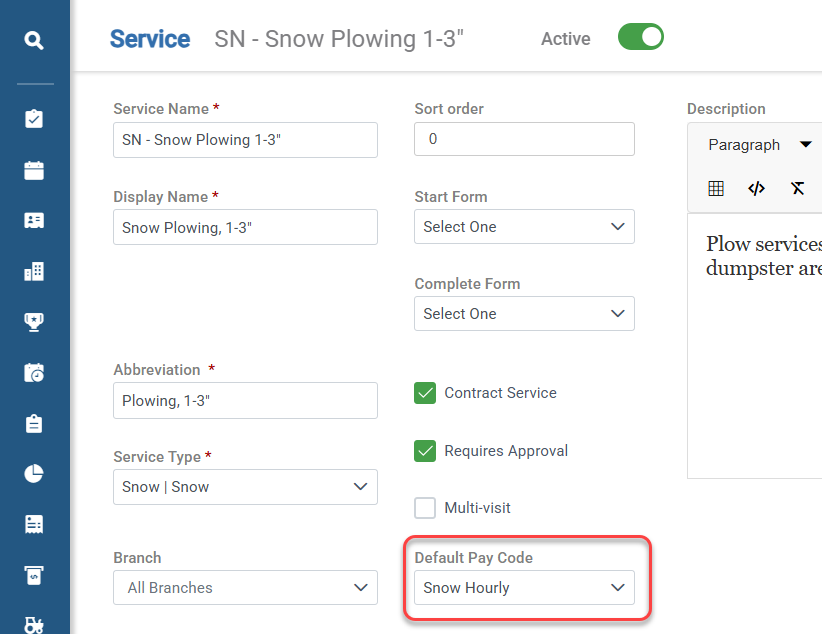
💡You can also assign a *Default Pay Code* at the *Service* or *Opportunity* level.
---
Setting Pay Codes on an Employee’s Contact Record
The *Pay Rate* for your employees can be different within a *Pay Schedule*, because you can **set up** multiple *Override Pay Codes* for every employee!
This is helpful when you have an employee that will need a different *Pay Rate* for different types of work.
The *Override Pay Codes* **set** on an *Employee’s Contact Record* is the first override pay code **used** even if there are overrides set in other places of Aspire.
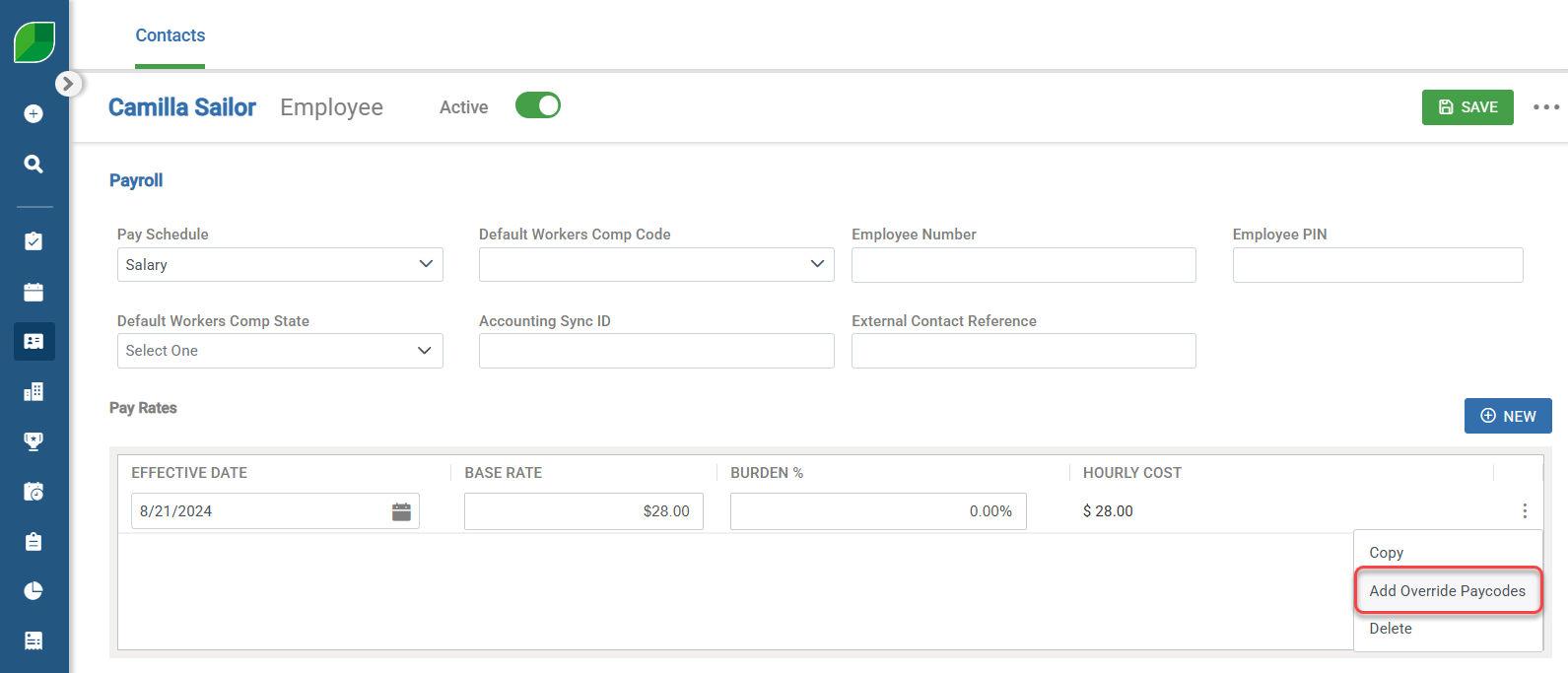
Aspire checks if there's a *Pay Code Override* and *Pay Rate* set on the employee's *Contact Record* first. If one is found, that rate is used for job costing and for your payroll export.
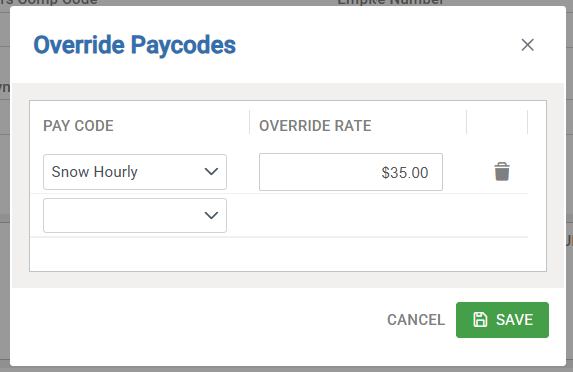
If there isn't a *Pay Code Override* for the employee, Aspire will look for any *Pay Code Overrides* **set** on either the *Service* level or in the *Service Details* screen on an estimate. Finally, *Pay Code Overrides* can be **manually added** in *Time Entry* if need be.
If five employees all work on a service for snow removal but have five different pay rates for that activity, you can **use** an individual *Snow Override Pay Code* with unique rates set on each employee’s *Contact Records*.
🧠You’d want to make sure that the *Snow Pay Code* is also set as the default on the *Service* so employees are recorded with their individual override when they clock into a ticket for the service. More on *Service* level *Pay Codes* in the next section!
This makes sure that each employee is **paid** their correct individual rate when they clock into a Service that uses the *Pay Code* for *Snow.*
📑To **learn more** about setting up *Employee Contact Records,* **read** [this article.](https://guide.youraspire.com/docs/creating-an-employee-contact-in-aspire)
---
Adding Pay Codes on Services in Administration
You can **set** a *Default Pay Code* to be used automatically by adding it to a *Service’s Details Screen.*
Because all *Pay Codes* in *Administration* have been **added** into *Administration,* you can also go into the *Service Catalog* and in the *Service Details Screen* of a specific service, and **set** a *Default Pay Code*.
This tells Aspire that whenever this service is used in an estimate, you are **using** an *Override* *Pay Code* than what is set as the Employee's regular *Pay Rate!*
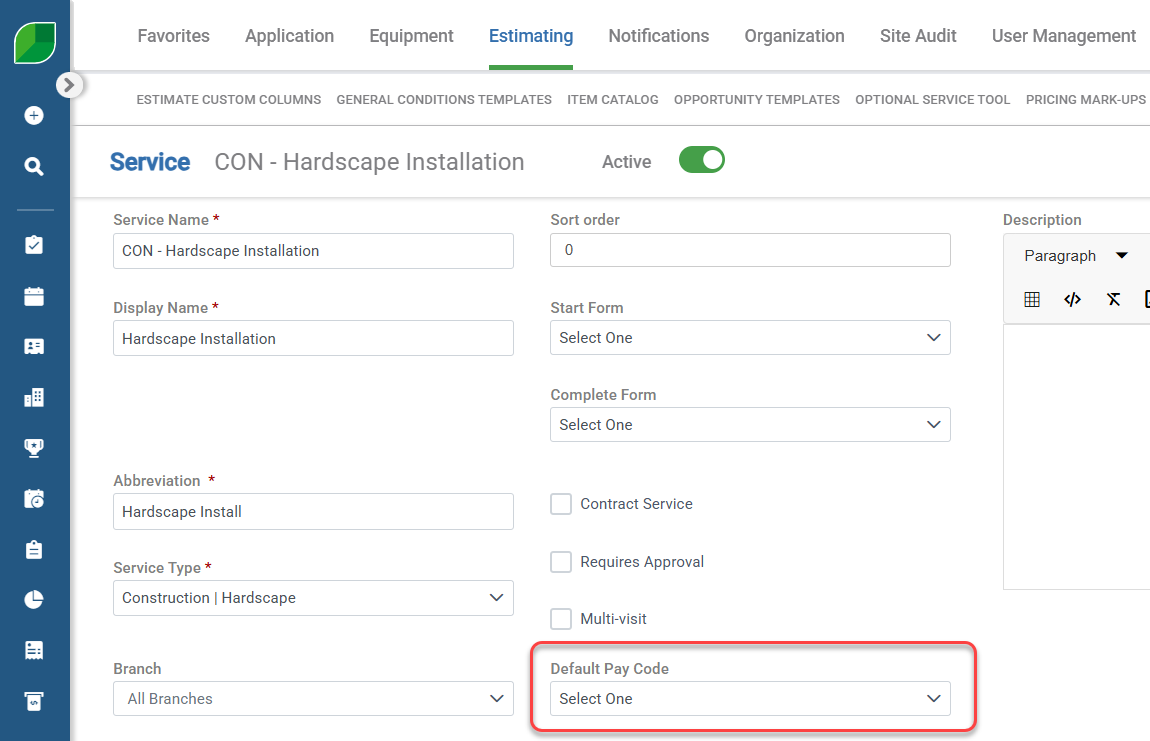
When you **set** *Pay Codes* on the *Service* level, this tells *Aspire* and *Aspire Mobile* which *Pay Code* to use for the service when it is added to an estimate.
For each service that requires an *Override Pay Code,* you can set a *Default Pay Code*. This tells the system how to **automatically calculate** an employee's pay when they clock in on their mobile phone for that job.
Aspire **uses** the pay code rules you’ve set up in *Administration* to decide which pay rate to **apply**, regardless if you use *Premium Dollars, Premium Percent*, or a *Fixed Rate Pay Code*.
But! **Remember,** if there is an *Override Pay Code* **set up** on the employee’s *Contact Record*, Aspire will always pay the employee at this rate.
If you have crews that work multiple seasons, and they make $5 more per hour than their base rate in *Snow* season, you'd **set** the *Premium Dollars* on the *Snow Pay Code* in *Administration* to be *5*.
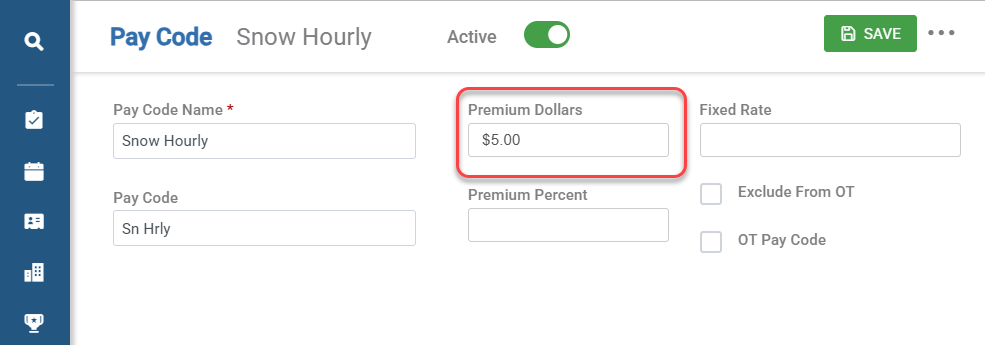
Then, you would **add** that *Snow Pay Code* as the *Default Pay Code* on the *Snow* service to **account** for the difference in pay!
For job-specific rate differences, especially in *Prevailing Wage* scenarios, you'll need to **use** an even more detailed version of Aspire’s *Pay Code Override* settings, which is in the *Service Details* screen inside of an individual *Opportunity’s Estimate,* which we will discuss next!
---
Using Pay Code Overrides on the Service Details Screen During Estimating
**Using** *Pay Code Overrides* on the service level during estimating allows for job specific rates, and also allows Crew Leaders to make a selection of the correct code for their crew members in *Aspire Mobile!*
You can **use** *Override Pay Codes* for services by **clicking** into the *Service Name* that has been added to your estimate.
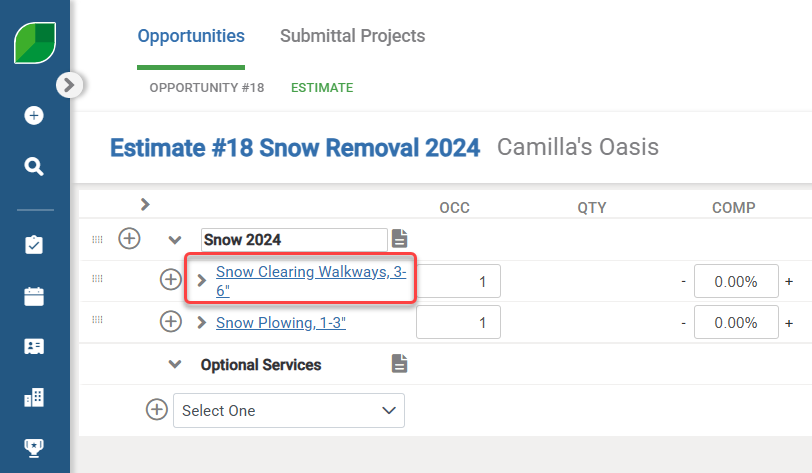
This will bring up the *Service Detail Screen*, which allows you to **set** a *Pay Code* in the *Pay Code Override* section.
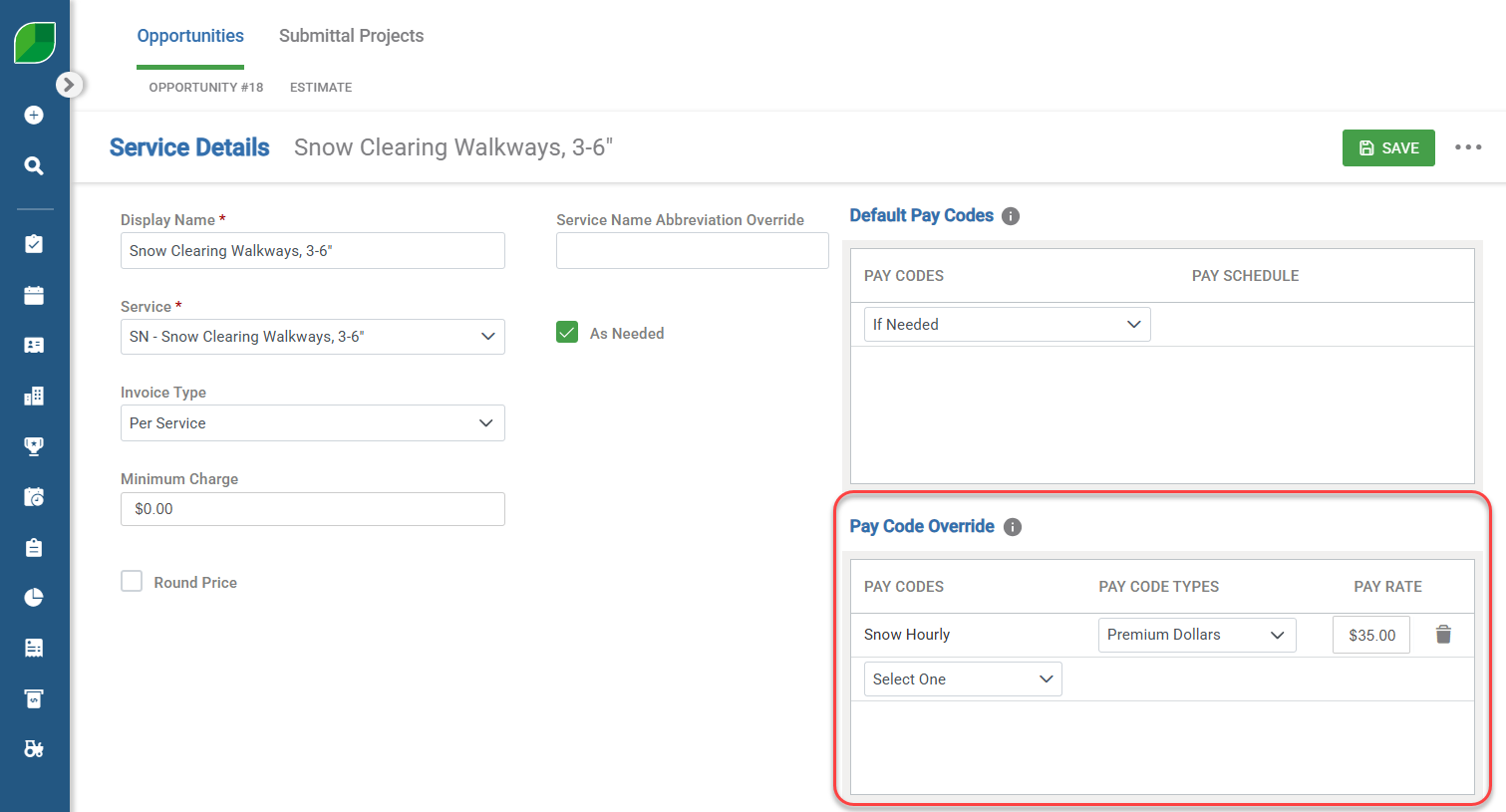
🧠It's important to note that you wouldn't typically add a regular hourly code as the default here; this should be set in the employee’s *Contact Record*. Instead, on this screen, you would **select** an *Override Pay Code.*
📑To **learn more** about *Pay Code Overrides* in *Opportunities,* **read** [this article.](https://guide.youraspire.com/docs/tracking-time-with-multiple-pay-codes-in-aspire-mobile#using-pay-code-overrides-in-opportunity-estimates)
By going into the service details on an estimate, your Estimators can set *Override Pay Code* based on different *Prevailing Wages* of the crew members working on the job that will have time recorded in *Aspire Mobile.*
You could **add** three different overrides to the *Pay Code Override* section. One for your laborer, one for your foreman, and one for your operator. This would **allow** your crew leader to use the multiple pay codes for each employee when they **record** time in *Aspire Mobile!*
Because *Prevailing Wage* rates can change often, *Service* specific overrides are really helpful!
### **More on Multiple Pay Codes in Aspire Mobile**
- When a work ticket with multiple pay codes is ready to be worked on, the crew leader will tap *Start* to begin tracking time.
- *Aspire Mobile* then shows the *Select Pay Code* screen so the crew leader can pick the appropriate code for each employee.
Using multiple pay codes improves labor tracking and job costing because there can be time recorded with different pay codes for each employee on a single ticket!
📑To **learn more** about *Tracking Time with Multiple* *Pay Codes* in *Aspire Mobile*, **read** [this article.](https://guide.youraspire.com/docs/tracking-time-with-multiple-pay-codes-in-aspire-mobile#using-pay-code-overrides-in-opportunity-estimates)
---
Using Pay Code Overrides on the Time Entry screen
Finally, you always have the option to **set** *Pay Codes* in the *Time Entry* screen. This is helpful for making any last adjustments before finalizing payroll.
When you are **reviewing** *Time Entry* for your Employees, you can set different pay codes if you need to override the *Default Pay Code.*
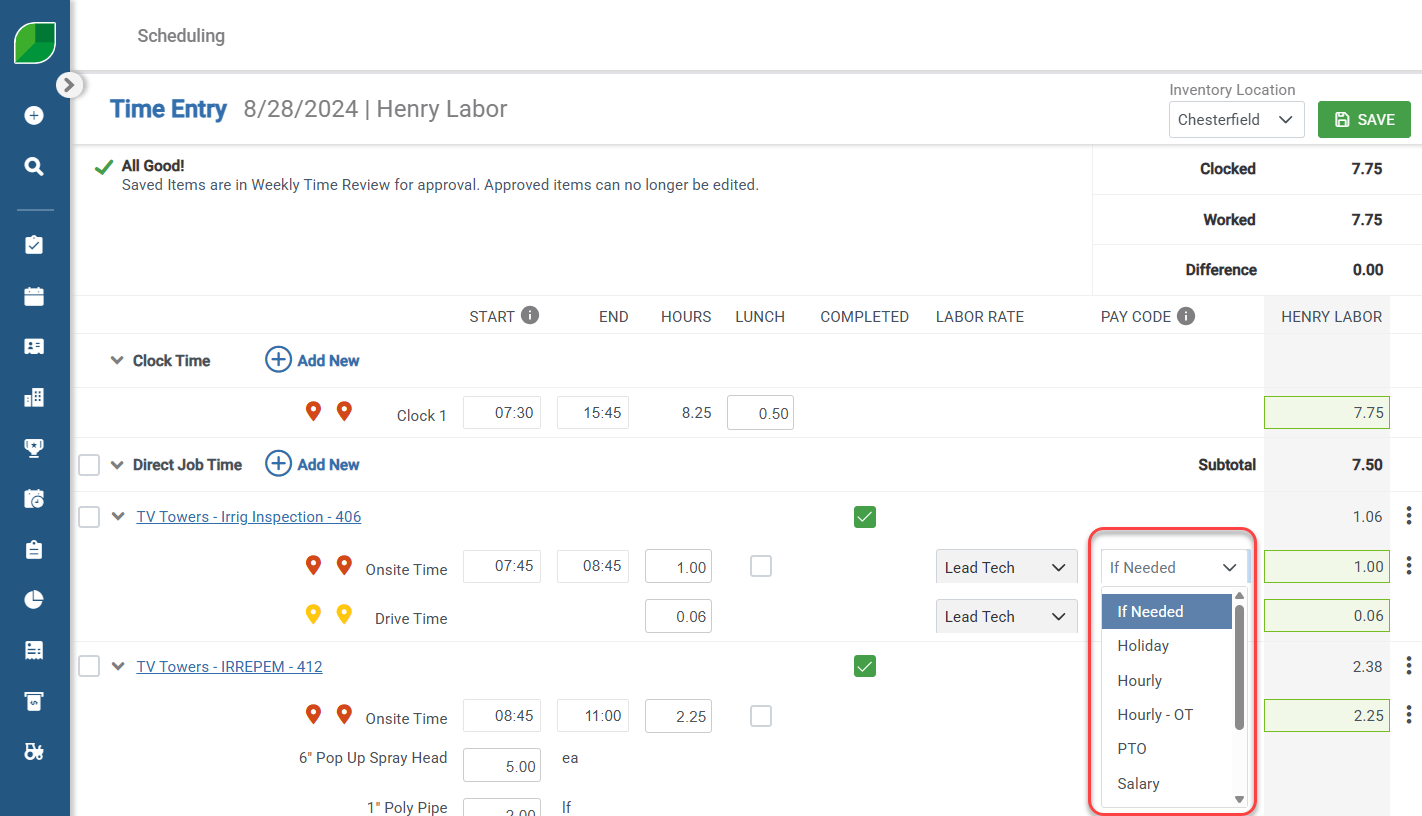
💡If no selection is made in the *Pay Code* field, then the employee's pay code on their **assigned** pay schedule is **applied.** Any selection made in this field will **override** the pay code set for their pay schedule.
The reason the *Pay Code* in Time Entry appears as *If Needed* is because you **should only use it when you really need to!**
You **should** **not** be changing this to the *Default Pay Code* of the Employee, otherwise Aspire will treat the time as if it had an override **applied** to it and will be **flagged** as an *OT Paycode Exception*, which in reality, it is not an *OT Paycode Exception!*
📑 For more information on the *OT Paycode Exception Warning*, **read** [this article.](https://guide.youraspire.com/docs/approving-weekly-time-review-hours#ot-paycode-exception-warning)
**Let’s think about a few examples when a *Time Entry Override Pay Code* would be used:**
- If your crew leader **incorrectly selects** a pay code, you can **fix** this by selecting the correct pay code in *Time Entry.*
- Sometimes, unique situations arise where an employee needs to be paid a different rate for their hours that weren't planned or set up through other override methods in Aspire.
- The *Time Entry* screen allows you to handle these hours manually!
- If there is *Overtime* in a work week where *Pay Code Overrides* were used, you can use Weekly Time Review to make adjustments if necessary, which helps you make sure you are using the appropriate rate.
📌**Note**: Aspire **does not automatically calculate** overtime based on override pay codes because it would be using a different *base rate.*
You still need to **manually manage** and allocate *Overtime* to the appropriate *Override Pay Codes* in *Time Review.*
**💡Remember**: When you **select** an override pay code in Time Entry, Aspire will always look at the *Pay Codes* set up in *Administration*, but if there is a different rate set on the employee's *Contact Record*, the employee’s pay rate set in the *Contact Record* will be used.
## Training Video
[Override Pay Code Set Up Video](https://fast.wistia.net/embed/iframe/hisz7tr7nv?web_component=true&seo=false&videoFoam=false)