---
title: "Using the Sales Pipeline Insight KPI"
slug: "using-the-sales-pipeline-insight-kpi"
tags: ["Language - English", "Industry - Landscaping", "Type - Concept", "Role - Executive", "Skill Level - 1 (Beginner)"]
updated: 2025-10-29T20:22:08Z
published: 2025-10-29T20:22:08Z
canonical: "guide.youraspire.com/using-the-sales-pipeline-insight-kpi"
---
> ## Documentation Index
> Fetch the complete documentation index at: https://guide.youraspire.com/llms.txt
> Use this file to discover all available pages before exploring further.
# Using the Sales Pipeline Insight KPI
The Salespipline KPI provides an overview of your sales progress based on the current status of your opportunities. Selecting one of the stages in the widget directs you to an auto-filtered Opportunities advanced search screen so you can view more information.
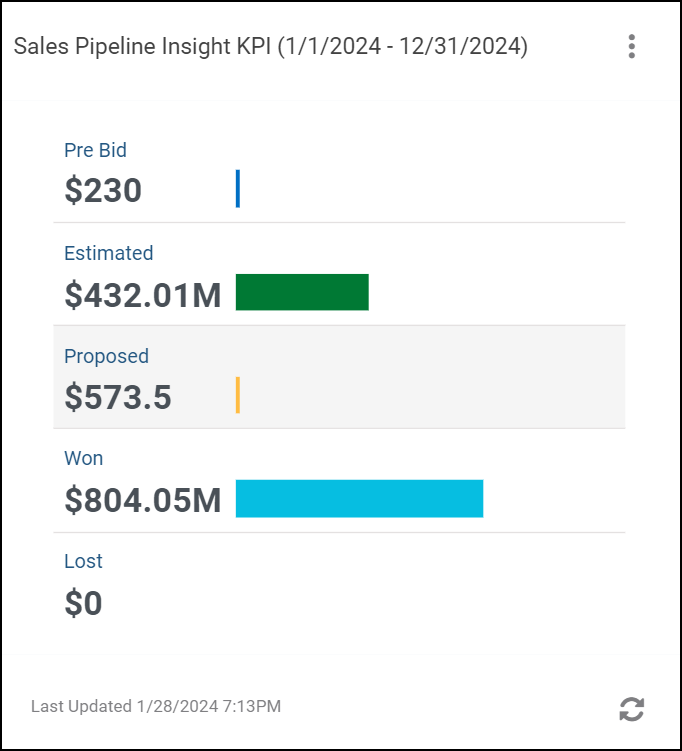
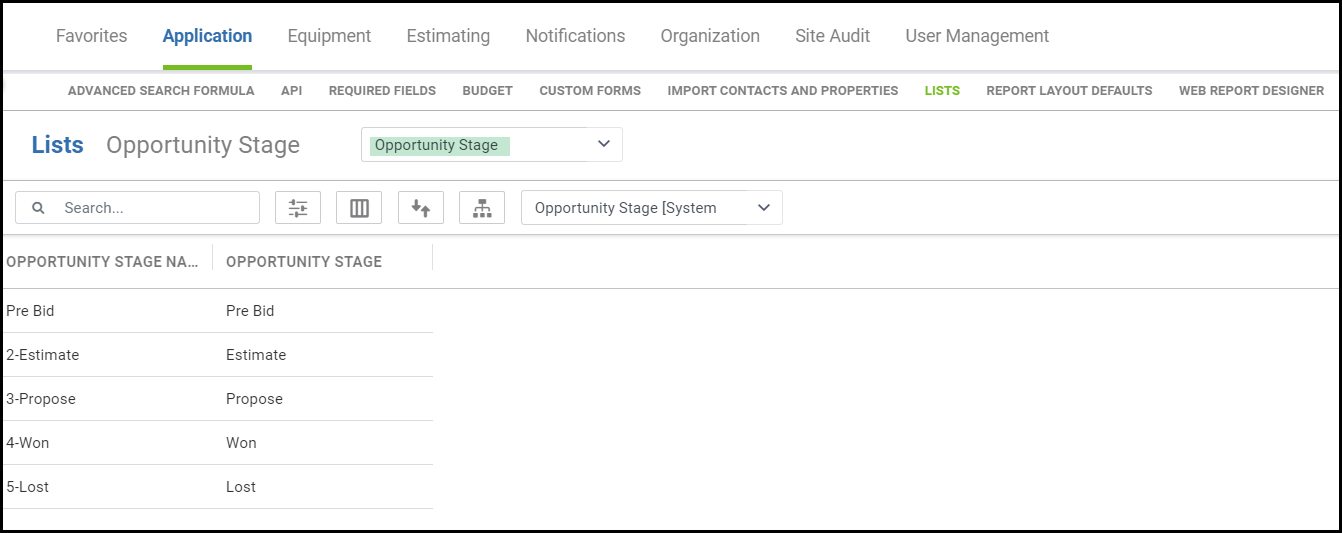
The pipeline widget displays opportunity **stages** instead of opportunity **status**. These are the five available opportunity stages:
Note:Admins can customize the name of each stage from the **Lists** subsection of the Administration menu, but keep in mind that the KPI will only pull in the fixed opportunity stage name.
1. **Pre-bid** - a value has been entered in the **Estimated$** or **Budgeted$** field on the **Opportunity** screen.
1. The actual calculated value of an opportunity estimate will replace the original value entered in the **Estimated$** field.
2. **Estimated** - opportunity estimate completed.
3. **Proposed** - estimate proposal delivered via the printing or email method.
4. **Won** - opportunity marked as won.
5. **Lost** - opportunity marked as lost.
Configuring the *Sales Pipeline* Widget
- You must have *Sales Pipeline Insight* permission assigned to the user role under your Aspire account to view and configure this insight widget.
- Be sure that the *KPI and Insights* option is checked for a column on the *Dashboard*.
- Go to the **Dashboard** and select **New** on the kebab menu of an existing **KPI or Insight** widget. Select **Sales Pipeline Insigh**t from the **KPI** or **Insight Type** menu. 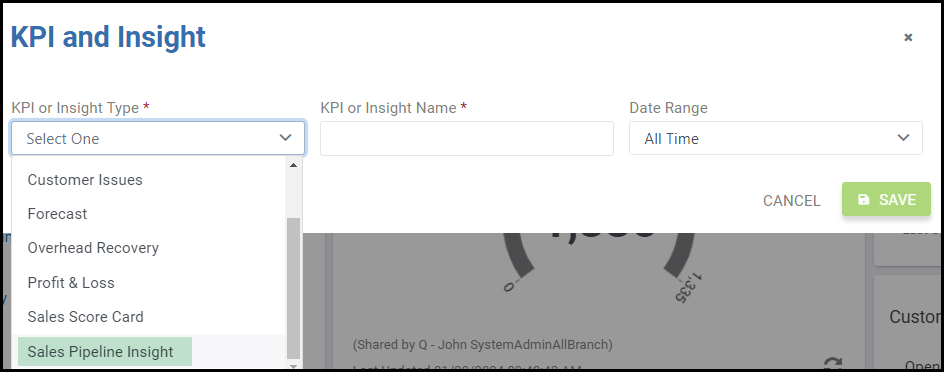
Fill in the required and desired optional fields. Select **Save,** and the insight widget should appear on your **Dashboard**. Optional fields left blank will return all data available within the field. 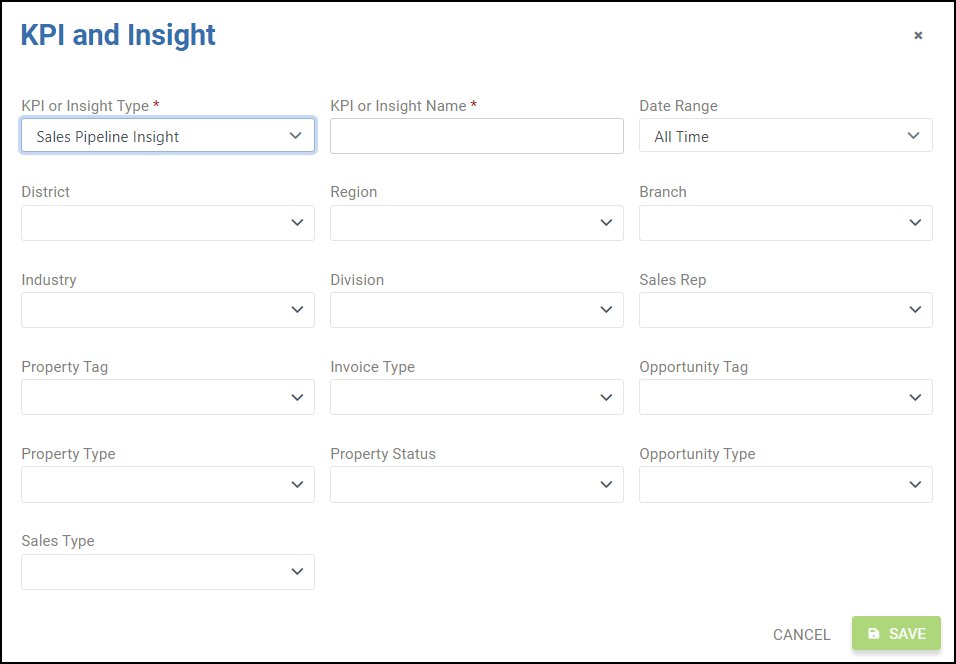
- **Branch** - only branches assigned to you will appear if enhanced branch security is checked.
- **Date Range -** defaults to **All Time**
- **Division -** all divisions to which your signed-in account has access.
- **District** - only the districts associated with the branch assignments of the logged-in account are available.
- **Industry** - displays Industries from the administration industry list. Multiple industries can be added within this field. All industries are included in the insight if this field is undefined.
- **KPI or Insight Name** - create a name.
- **KPI or Insight Type** - select **Sales Pipeline Insight**
- **P****roperty Status** pulls the property status administration list. You can add more than one property status. If this field is undefined, all property statuses will be included.
- **Region** - only regions associated with the branch assignments of the logged-in account are available.
- **Sales Rep -** contacts with a sales rep contact record.
- **Sales Type** - pulls from a list within the **Administration** menu.