---
title: "Sales Pipeline Widget"
slug: "sales-pipeline-widget"
tags: ["Language - English", "Industry - Landscaping", "Type - Concept", "Role - Executive", "Skill Level - 1 (Beginner)"]
updated: 2025-10-27T14:53:15Z
published: 2025-10-27T14:53:15Z
canonical: "guide.youraspire.com/sales-pipeline-widget"
---
> ## Documentation Index
> Fetch the complete documentation index at: https://guide.youraspire.com/llms.txt
> Use this file to discover all available pages before exploring further.
# Sales Pipeline Insight KPI Widget
##
Add and configure a **Sales Pipeline** widget to the **Dashboard** for an overview of your sales progress based on the current status of your opportunities. Selecting one of the stages in the widget directs you to an auto-filtered Opportunities advanced search screen so you can view more information. 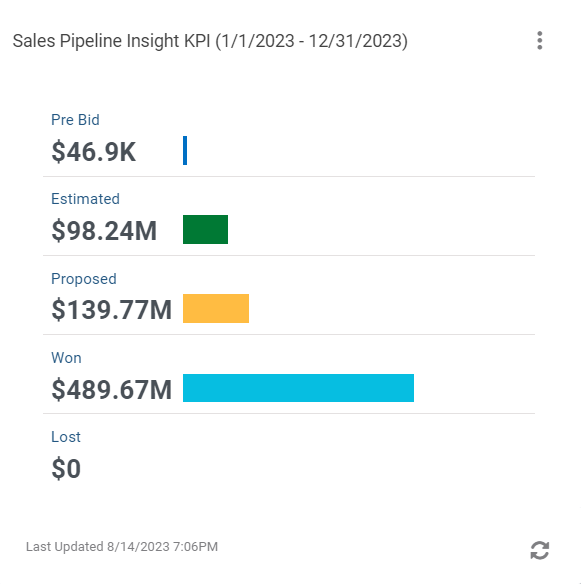
Default Opportunity Stages
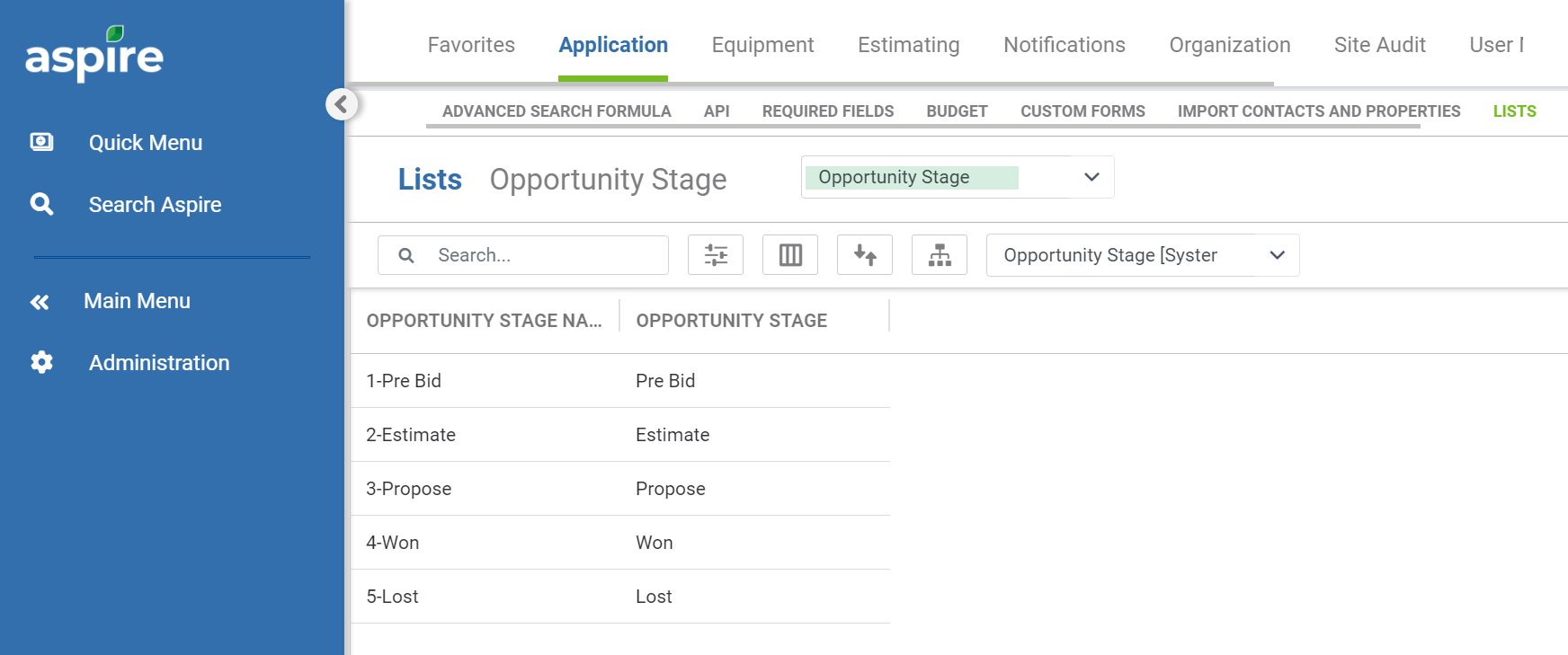
The pipeline widget displays opportunity **stages** instead of opportunity **status**. The five available opportunity stages are the following:
1. **Pre-bid** - a value has been entered in the **Estimated $** or **Budgeted$** field on the **Opportunity** screen.
1. The actual calculated value of an opportunity estimate will replace the original value entered in the **Estimated$** field.
2. **Estimated** - opportunity estimate is completed.
3. **Proposed** - estimate proposal is delivered via the printing or email method.
4. **Won** - opportunity marked as won.
5. **Lost** - opportunity is marked as lost.
Configuring the *Sales Pipeline* Widget
- You must have Sales Pipeline Insight permission assigned to the user role under your Aspire account to view and configure this insight widget.
- Be sure that the KPI and Insights option is checked for a column on the *Dashboard*.
- Go to the **Dashboard** and select **New** on the kebab menu of an existing **KPI or Insight** widget. Select **Sales Pipeline Insigh**t from the **KPI** or **Insight Type** menu. 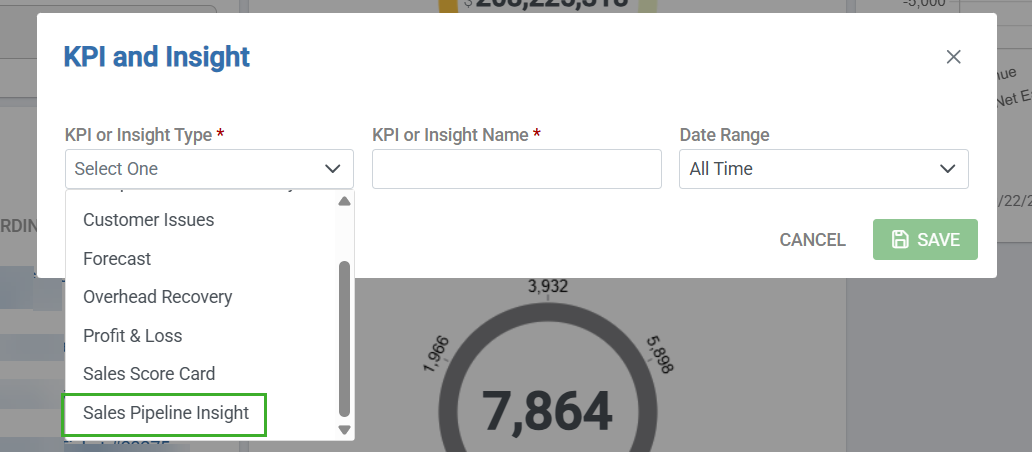
Fill in the required and desired optional fields. Select **Save,** and the insight widget should appear on your **Dashboard**. Optional fields left blank will return all data available within the field. 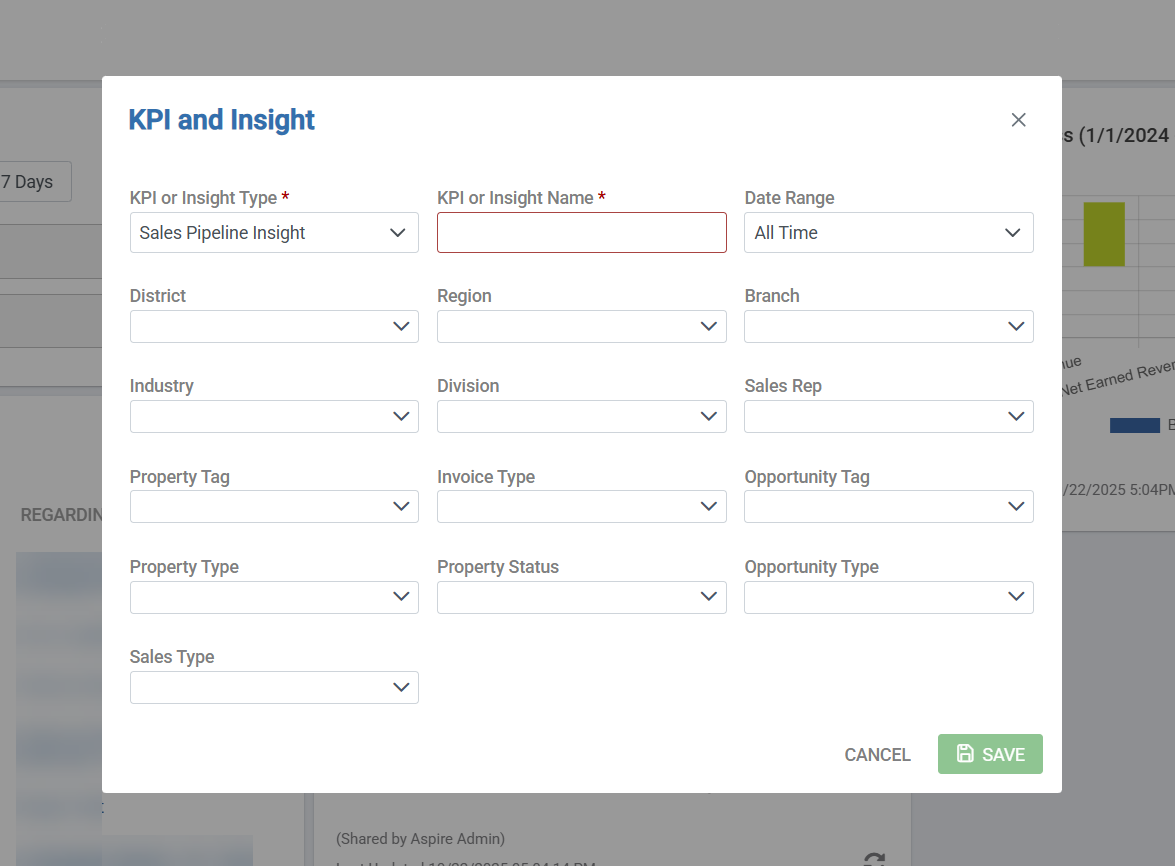
- **KPI or Insight Type** - select **Sales Pipeline Insight**
- **KPI or Insight Name** - create a name.
- **Date Range -** defaults to **All Time**
- **District** - only the districts associated with the branch assignments of the logged-in account are available.
- **Region** - only regions associated with the branch assignments of the logged-in account are available.
- **Branch** - only branches assigned to you will appear if enhanced branch security is checked.
- **Division -** all divisions to which your signed-in account has access.
- **Sales Rep -** contacts with a sales rep contact record.