---
title: "Swapping Work Ticket Costs"
slug: "swapping-work-ticket-costs"
tags: ["Language - English", "Area - Work Tickets", "Industry - Landscaping", "Type - Task (How-To)", "Role - Account Manager", "Role - Branch Manager", "Role - Project Manager", "Role - Operations Manager", "Role - System Admin", "Role - Branch Admin", "Role - Sales Rep", "Skill Level - 1 (Beginner)"]
updated: 2025-12-02T18:35:04Z
published: 2025-12-02T18:35:04Z
canonical: "guide.youraspire.com/swapping-work-ticket-costs"
---
> ## Documentation Index
> Fetch the complete documentation index at: https://guide.youraspire.com/llms.txt
> Use this file to discover all available pages before exploring further.
# Swapping Work Ticket Costs
Purpose
If you need to swap work ticket costs in Aspire*,* this removes time and materials from one ticket and adds them to another ticket.
🧠 Here is an example why a work ticket swap for costs, like time and materials, might need to happen:
- If hours on a job were estimated for a particular service, like mulch, and those hours on that work ticket were accidentally allocated to a different *Mulch* ticket, the hours would need to be swapped to the work ticket that was estimated for job.
This article also covers how to uncomplete work tickets to finish a work ticket swap.
Permissions Needed to Swap Work Ticket Costs
Let's start with making sure you have the correct permissions for the user role that will be swapping work ticket costs.
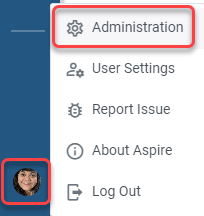
- From the *Home Screen*, navigate to your *Profile Icon* and select *Administration*.
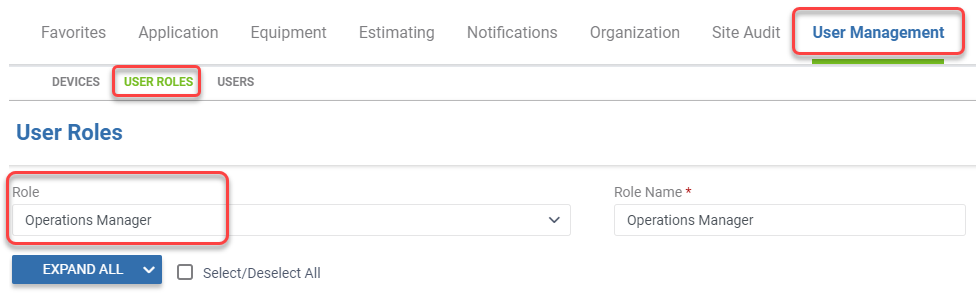
- Then, click the *User Management* tab.
- Select *User Roles subsection*.
- Pick the user role from the drop down you want to add the permissions to swap work ticket costs.
- Check *Full Access to Schedule Board* or *Read Only Access to Schedule Board.*
- Check *Swap Work Ticket Costs.*
*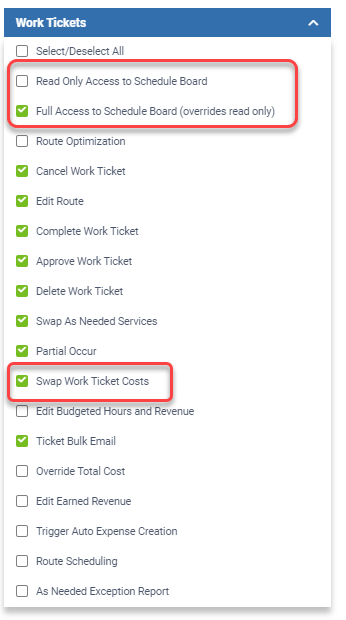*
- With these permissions checked for the needed user role, select the green *Save* icon.

Swapping Ticket Costs
There are two places you can swap work ticket costs:
1. On the *Time Entry* screen in the *Scheduling* module
2. The *Work Ticket* screen in the *Work Tickets* module
**Note:** Work Tickets that will be swapped can have statuses of Open, Scheduled or Pending Approval. Time Entry work ticket swapping can only occur on Scheduled tickets.
Additional information on Swapping Work Ticket Costs:
- You cannot swap *Work Ticket Costs* to *Internal Tickets*.
- You cannot swap *Work Ticket Costs* if any of the costs allocated to the work ticket are in a closed month.
- You can swap *Work Ticket Costs* back to the *Work Ticket* you are swapping from; make sure to remember the original *Work Ticket* number.
- If the status of the ticket is *Complete*, you'd need to uncomplete it before you swap costs. Learn how to do that [here.](/user-guide/docs/swapping-work-ticket-costs#uncompleting-a-work-ticket-in-complete-status)
From the Time Entry Screen
The first option to swap work ticket costs is located on the *Time Entry* screen in the *Scheduling* module.
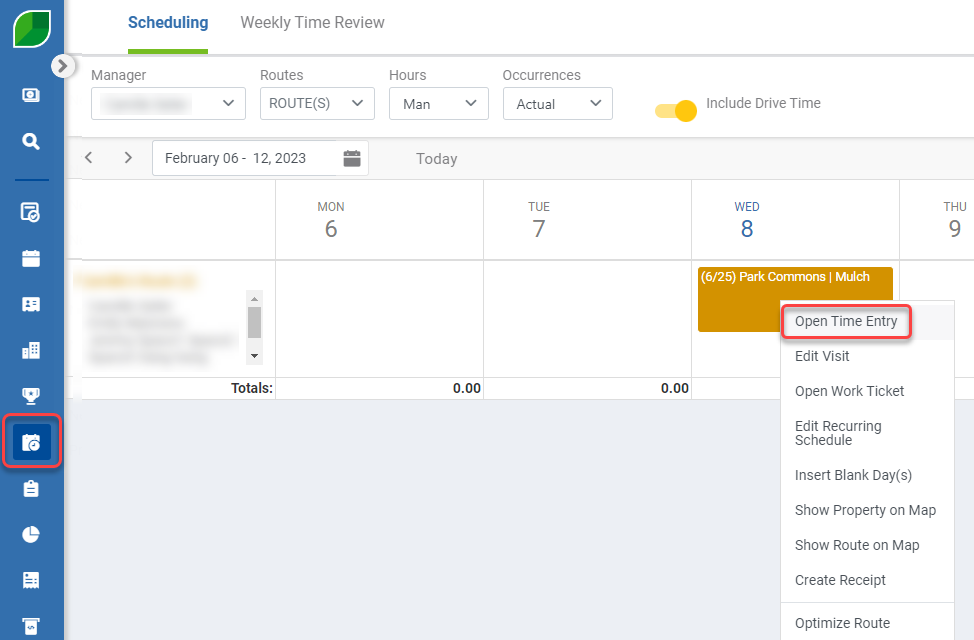
- Select the *Scheduling* icon in the blue side menu. Right click on the *Work Ticket*, then *Open Time Entry*.
- *Time Entry* for the *Work Ticket* appears. On the *Direct Job Time* of the *Work Ticket,* select *Swap Work Ticket Costs* under the vertical 3 dots.
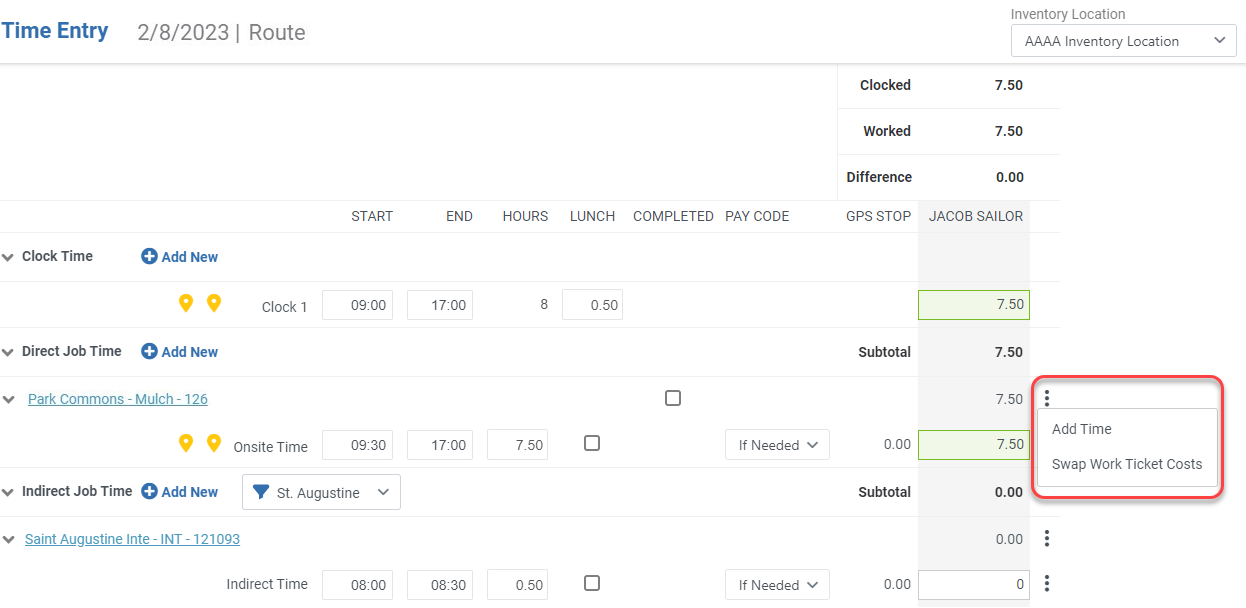
- The Swap Work Ticket Costs window opens directly from Time Entry.
- Search for yourwork ticket that you want the costs to be moved to.
- This ticket also must have a status of Scheduled.
*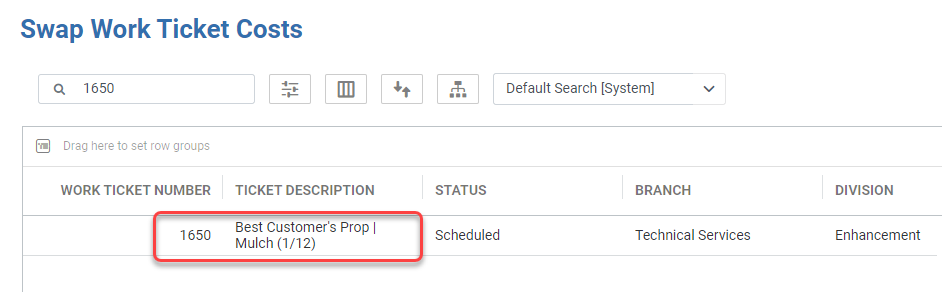*
- The *Work Ticket Costs* will be swapped immediately.
- A notification appears at the top of *Time Entry* to confirm this swap was successful.
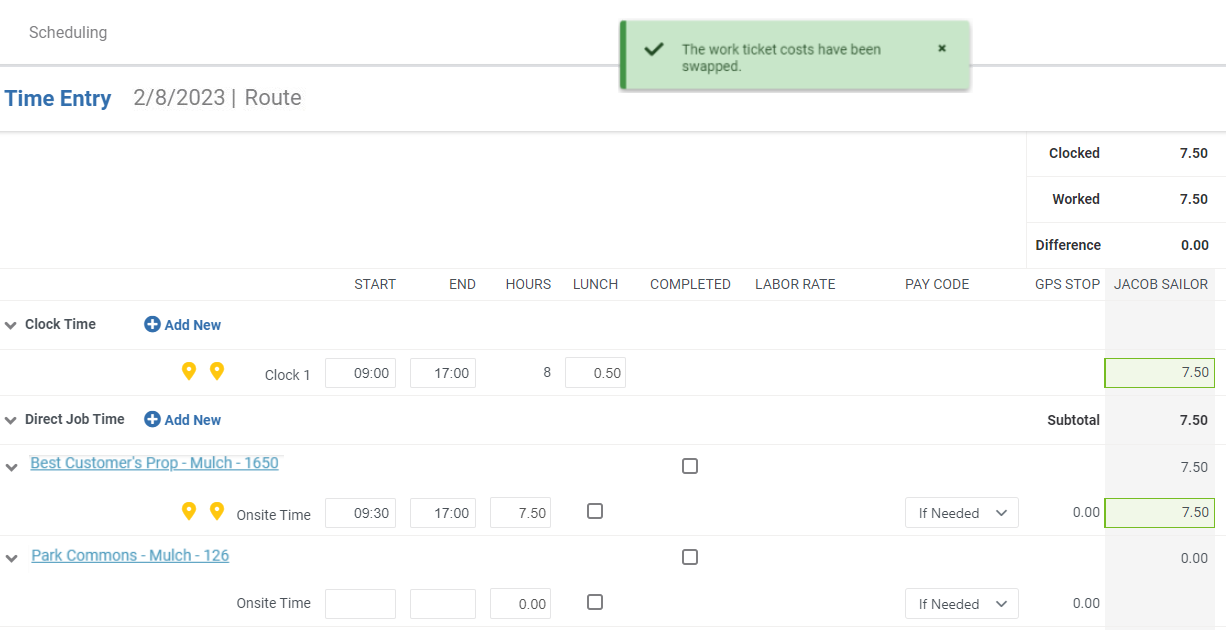
📌 Note: You will see the original work ticket on *Time Entry* that the costs were moved from *only* if you're swapping ticket costs from two tickets from the same day.
From the Work Ticket Screen
- Select the *Work Tickets* module in the blue side menu.

- To search for the exact Work Ticket that you want to use to *Swap Work Ticket Costs,* click the *Filter* icon *and* select:
- *Work Ticket #* for *Field Name,*
- *Equals* for *Filter Type,*
- and then the work ticket number for *Value.*
- Click *Apply*. [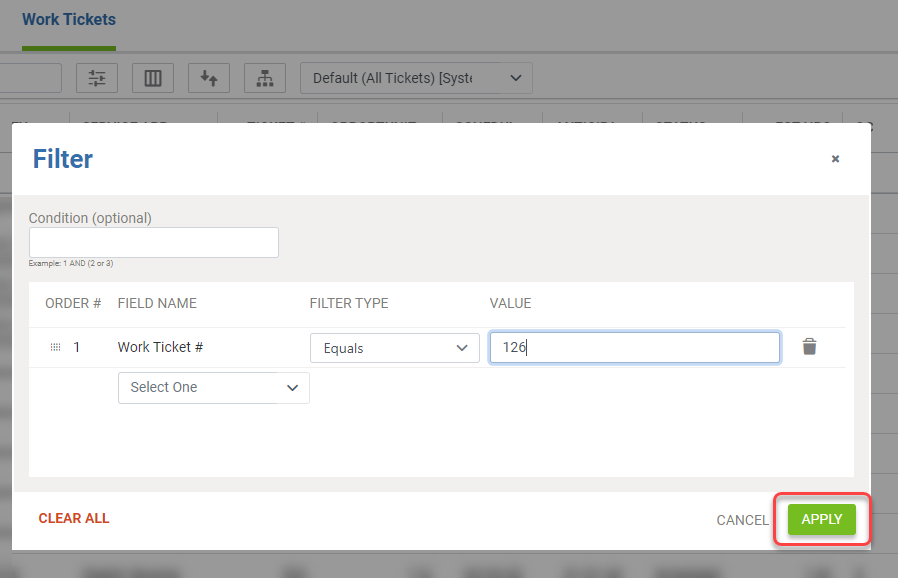](https://downloads.intercomcdn.com/i/o/673280750/d43b5a1aa0c780d044eaaee2/image.png?expires=1757965500&signature=90264d114786539d09faa25dbbf6b6f780230c68acd0488bd6cb3807b0d7f55a&req=cickFMF%2BmoRfFb4f3HP0gE98fLHcLeNHo2r22SDA2WRVPZIHTQWavvvQOmdN%0A3WE%3D%0A)
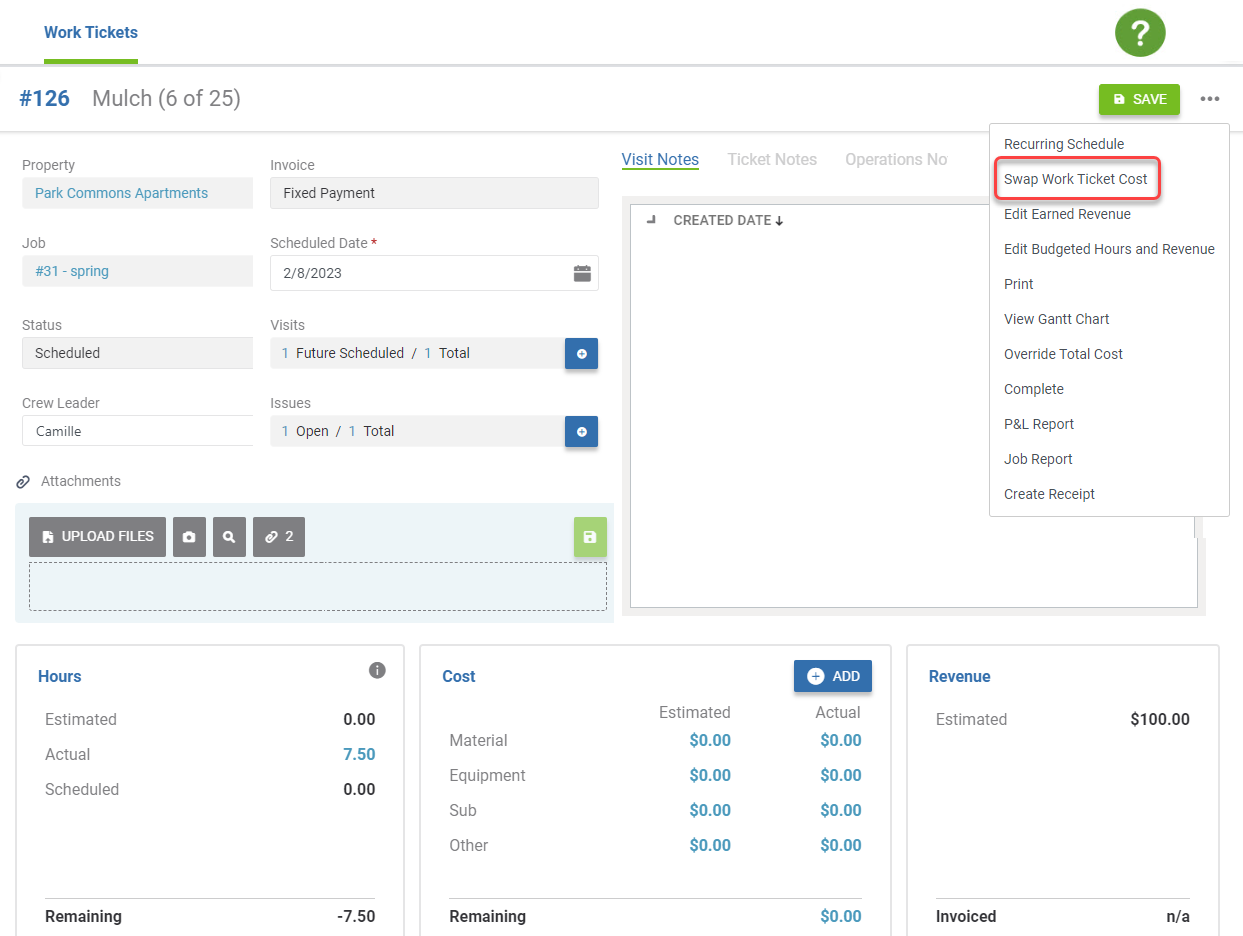
- Click on the *Work Ticket* you need. The *Work Ticket* detail screen appears. Click on the three dot menu, and then select *Swap Work Ticket Cost*.
- The *Swap Work Ticket Costs* window appears. Locate the Work Ticket that you want to swap the costs to. This ticket also must have a status of *Open*, *Scheduled,* or *Pending Approval.* [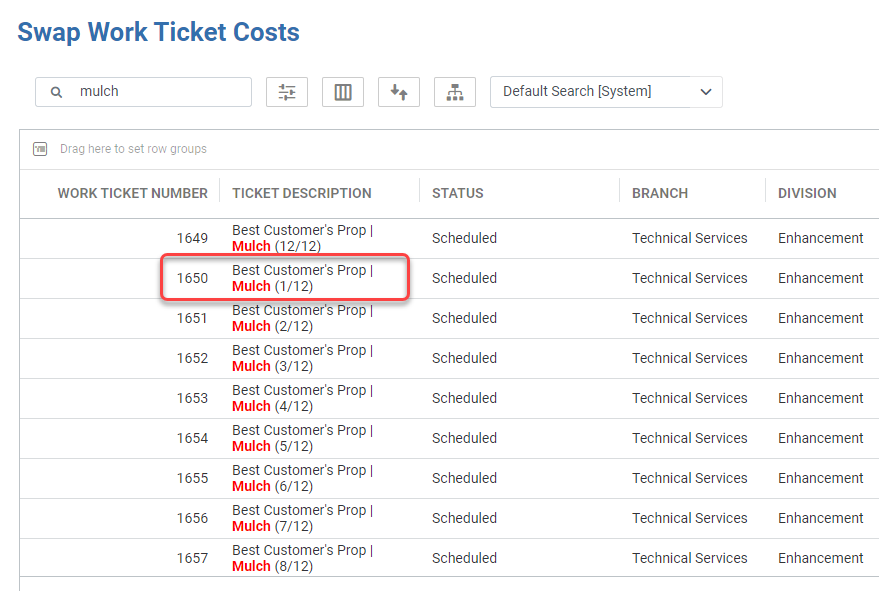](https://downloads.intercomcdn.com/i/o/668796543/6c793e3e6f9e5c6c0cd18869/image.png?expires=1757965500&signature=be4d66df24f88da1bd94a1bf7e8161f08465aa5b5d75b3a46f86e7f0df17f324&req=ciYvEcB4mIVcFb4f3HP0gHnvUDIqzCGzHL5hfs4cJr3Pk9H%2FnPteWoFancEq%0AvGs%3D%0A)
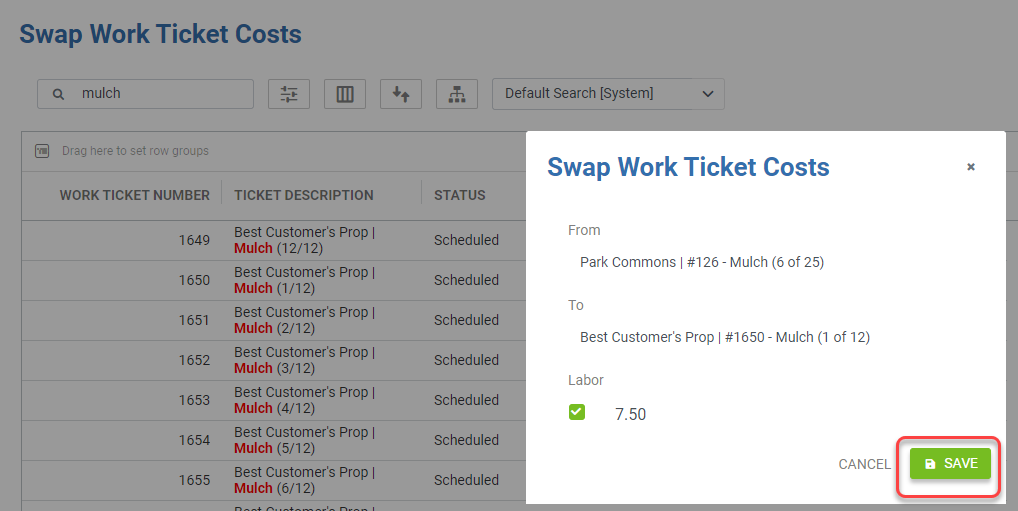
- Once selected, an additional window will appear for you to confirm the swap of time and materials. Press the green *Save* icon to finish your steps on this screen.
- The page will reload to the original *work ticket*, with a notification at the top that the *work ticket costs* have successfully been swapped.
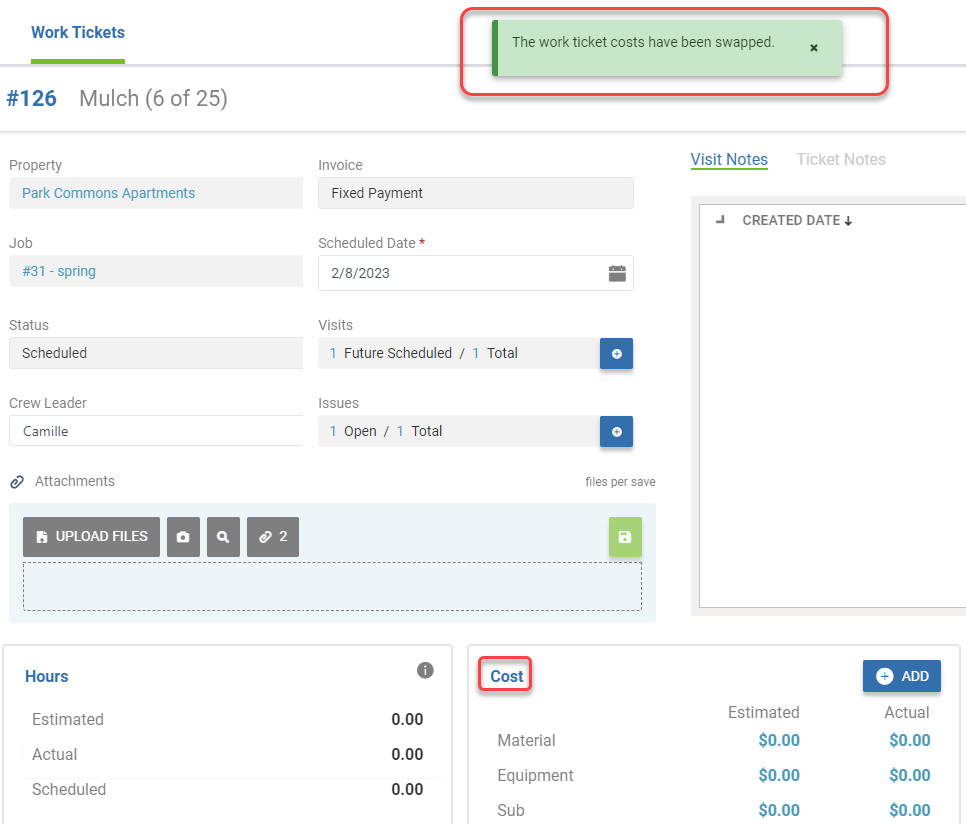
🧠 You can further confirm this is completed by reviewing the *Cost* section of the work ticket, where everything should be listed for 0 in the Actual columns, as shown above.
Uncompleting a Work Ticket in Complete Status
If there is a work ticket that has been completed, but you still need to swap the time and materials to another work ticket, you can uncomplete the ticket.
⚠️ Things to know about uncompleting work tickets:
- A ticket cannot be uncompleted in a closed month!
- A ticket cannot be uncompleted if the work ticket has been invoiced.
- To uncomplete tickets, the *Complete Work Ticket Permission* must be enabled in your *User Role Permissions*.
To uncomplete the ticket:
- Search for the work ticket you are wanting to uncomplete in the *Work Tickets* module. Then, click on the work ticket in the search list.
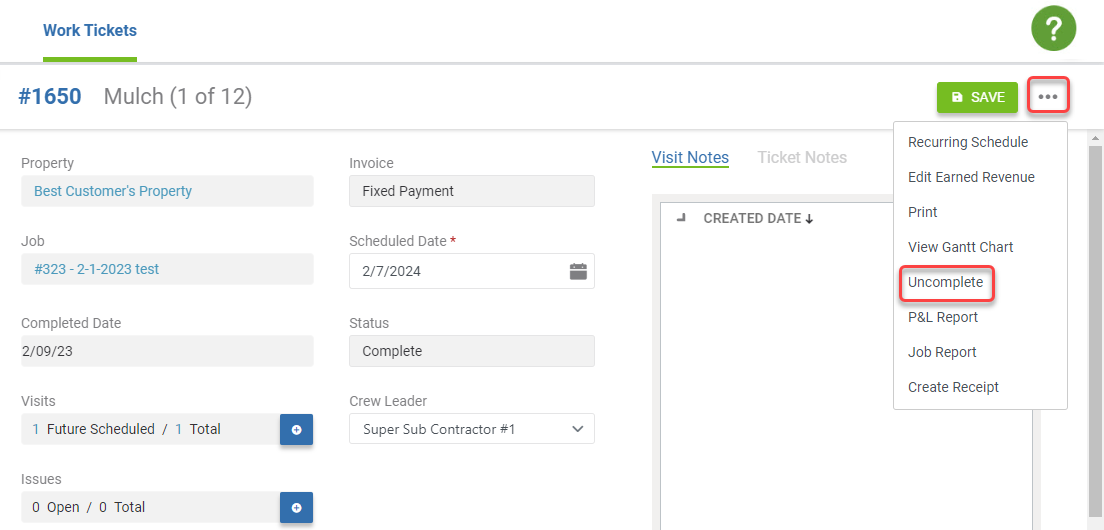
- From the *Work Ticket* screen, select the three dot menu and then select *Uncomplete*. Once the ticket has been moved from *Complete* status back to *Scheduled* or *Pending Approval*, then press the *Save* icon.
- You could then use this work ticket when *Swapping Work Ticket Costs* following the options in the previous sections!