Overview
Structuring a snow opportunity helps you set up snow contracts so revenue, scheduling, and reporting line up with your snow season. It lets you decide how snow sits alongside your green season work, which dates the contract covers, and how revenue is recognized so you can see one season's snow numbers together and keep work available to crews whenever a storm hits.
Make these decisions before you build your first snow estimate. They're hard to change once an opportunity is won and work tickets exist.
Things to know
Keep snow on its own contract opportunity in the Snow division, separate from your green season contracts. You don't have to, but it makes revenue, scheduling, and distributing drive time to snow services in time entry work the way you expect.
Your opportunity's start and end dates control when snow work tickets can be pulled or scheduled. Set them wide enough to cover early and late storms, but keep the contract to 12 months or less.
How snow revenue lands in your reports depends on whether your company uses Earned Revenue or Invoiced Revenue. If you're not sure which one you use, check with your accounting team before you set up your contracts.
One snow opportunity can hold more than one invoice type. A seasonal (Fixed Payment) contract can also include As Needed T&M or Per Service services for overage, blizzard, or hauling work.
Snow is always set up on contract opportunities, never work orders.
Requirements
To view opportunities, users must have the View Only My Opportunities or View Opportunities permission.
To create an opportunity from a property, users must have the Add Opportunity permission.
To create or edit opportunity estimates, users must have the Edit My Opportunities or Edit All Opportunities permission.
To save an opportunity as a template, users must have the Edit Templates permission.
To renew contracts in bulk, users must have the Annual Renewals permission.
To change a contract mid-season, users must have the Change Contract Opportunity permission.
How it works
Three choices shape every snow opportunity: whether snow shares an opportunity with green season work, which dates the contract covers, and how your company recognizes revenue. Each one affects the others.
Key terms
Term | What it means |
|---|---|
Earned Revenue | A revenue recognition method that recognizes revenue as work is performed and costed. |
Invoiced Revenue | A revenue recognition method that recognizes revenue when you invoice. |
Blended opportunity | A single opportunity that holds both green season and snow services. The term can also mean an opportunity with services of more than one invoice type. |
Payment schedule | The months and amounts a Fixed Payment contract bills, set on the estimate. |
Revenue variance | A difference between invoiced revenue and earned revenue on a Fixed Payment contract once it's complete. |
Rules that shape a snow opportunity
When a service is in the Snow division → the service appears in Aspire Mobile while Snow Mode is on, even if the opportunity is in another division, such as Maintenance.
When the opportunity's division is Snow → a snowflake displays next to drive time in time entry, which makes it easier to distribute drive time to snow services. The snowflake comes from the opportunity's division, not the service's, so it doesn't display on opportunities in other divisions.
When today's date falls between the opportunity's start and end dates → crews and subs can pull As Needed tickets, and the opportunity's services show on the Schedule an Event screen. Outside those dates, they don't.
When an As Needed service's opportunity passes its end date → no more tickets can be pulled for it. Work after that date needs a new contract opportunity.
When the invoice type is Fixed Payment → the payment schedule, not the start and end dates, decides which months you bill. You can bill only in the months you choose while the contract dates stay wide.
When your company uses Earned Revenue → snow revenue is earned as work is performed and costed on the work ticket.
When your company uses Invoiced Revenue and snow shares a year-round opportunity with maintenance → snow revenue is recognized in the Snow division in every month you invoice, including summer months. Aspire can't limit invoiced revenue to snow months on a blended opportunity.
When a contract runs longer than 12 months → it can't be renewed in bulk with the Renew action.
Keep snow on its own opportunity
Many companies sell snow and green season work together, often as one 12-month contract. In Aspire, putting both on one opportunity causes problems that a separate snow opportunity avoids:
If snow shares an opportunity with maintenance | With a separate snow opportunity |
|---|---|
The snowflake that marks drive time in time entry doesn't appear, because it comes from the opportunity's division. | The snowflake displays in time entry, so it's easier to distribute drive time to snow services and separate snow time from green season time. |
With Invoiced Revenue, snow revenue lands in every invoiced month, including summer. | Snow revenue lands only in the months you invoice the snow contract. |
The contract dates follow the maintenance year, which can split one snow season in two. | The dates cover exactly one snow season. |
Per Service and T&M snow can't follow their own season dates. | Use any dates that capture your season. Per Service and T&M snow always go on a snow opportunity, separate from maintenance. |
Tip: If your customer wants one bill for snow and maintenance, you can still keep the opportunities separate. Clear the Separate Invoices checkbox on the property, then select both opportunities' invoices together when you bill each month. Aspire puts them on the same invoice.
Revenue recognition
Earned Revenue → you earn snow revenue only as services are used. On a seasonal contract, revenue on the season's work ticket builds as time, equipment, and materials are costed to it. This keeps snow revenue in the months it actually snowed.
Invoiced Revenue → revenue is recognized when you invoice. To keep snow revenue in snow months, put snow on its own opportunity and set its payment schedule to the months you want the revenue in. Your maintenance and snow invoice amounts will then differ from season to season.
Important: When you generate Fixed Payment invoices, the invoice date decides the month the invoiced revenue is recognized. Backdate the invoice if you're billing a prior month.
Contract start and end dates
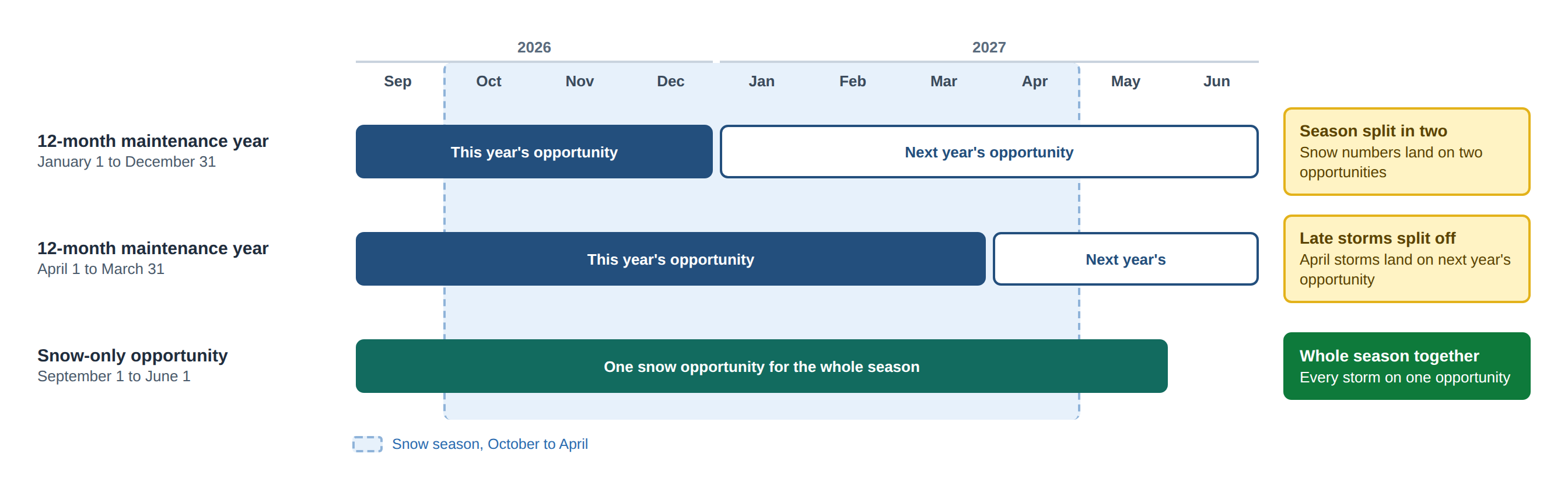
Set dates that cover the whole snow season, with room on both ends. A common range is September 1 through June 1. You can’t extend the end date after the opportunity is won, so set it before you win the contract. Contact Aspire Support if you need to extend it. The dates matter for three reasons:
Route preparation → tickets have to exist before you can route or schedule them, and none are available until the start date. You also can’t set default routes on the opportunity’s services until the start date, which is another reason to start early.
Early storms → tickets are ready to dispatch if snow comes before you expect it.
Late storms → As Needed tickets aren't available after the end date, and running seasonal tickets past it creates a revenue variance.
If your contracts follow a 12-month maintenance year, the start date decides where your snow season breaks:
January 1 to December 31 → every snow season is split across two opportunities, so you can't see one season's snow numbers together.
April 1 to March 31 → late-season storms land on the next year's opportunity and aren't counted with the rest of their season.
Tip: To test snow scheduling before the season, set the start date on or before today. If the start date is November 1 and you test in October, the opportunity's tickets won't show on the Schedule Board or the Schedule an Event screen.
One seasonal ticket or one per month
A seasonal (Fixed Payment) service creates its work tickets when the opportunity is won. You decide how many by the occurrences on the service:
One ticket for the season → enter one occurrence and the full season price. Crews or subs report every visit to the same ticket, which stays open all season because the service is marked Multi-visit. Most companies use this setup.
One ticket per month → enter one occurrence for each snow month, such as seven for October through April, and divide the season price across them. You complete each month's ticket at month end, which makes it easier to review what happened in a given month. The service still needs Multi-visit.
Important: If your company uses Earned Revenue, a ticket earns revenue as costs post to it, and completing it earns all of its remaining revenue. A monthly ticket earns its full share of the season price when you complete it at month end, even if no work was costed to it that month. A single season ticket earns revenue as costs post, and any revenue left over is earned when you complete it at the end of the season.
Mixing invoice types on one snow opportunity
Build one snow contract per property and add every service you might need to it, rather than creating a new opportunity each time a cap is reached or extra work comes up. For example, a seasonal contract can include:
Seasonal services with the Fixed Payment invoice type, which make up the payment schedule.
An As Needed T&M overage service that takes over when a capped seasonal service reaches its visit or date limit.
As Needed T&M or Per Service services for blizzard charges, hauling, or extra equipment, such as a skid steer or snow dump fee.
Only the Fixed Payment services are included in the payment schedule. As Needed tickets are ready to invoice once they’re complete and, if the service requires it, approved. Keeping them on the same opportunity keeps the season's reporting in one place.
Note: If you cap a seasonal service by Contract End Date, set a T&M End Date on the linked T&M service that's later than the contract end date. Otherwise, the T&M service expires when it becomes available.
Naming, templates, and tags
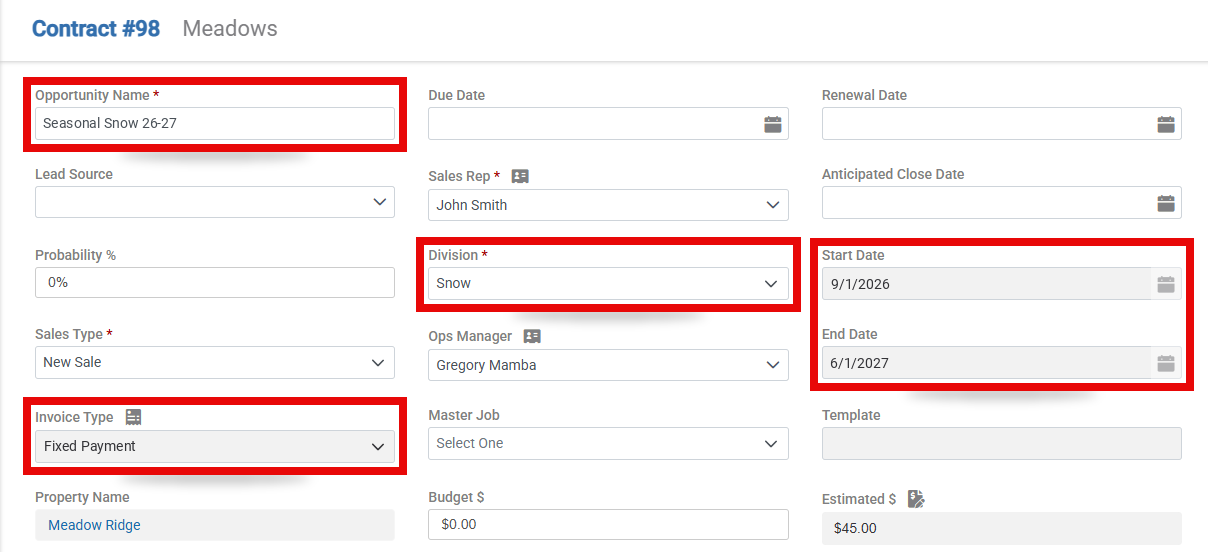
Opportunity name → include the billing arrangement and the season years, such as "Seasonal Snow 26-27". The season years make old contracts easy to tell apart years later without opening their dates.
Templates → when an opportunity's dates, naming, and services are right, save it as a template so everyone who builds snow contracts starts from the same structure. Templates are available to the branches you assign. They can't be deleted, only retired by removing their branches.
Tags → use property tags, such as trigger depth, priority, or service area, to filter properties when you schedule an event. Property tags stay with the property when you copy a snow opportunity or build one from a template. Use opportunity tags for details about the contract, such as the invoice type or the season. Opportunity tags carry over only through a renewal, so re-add them if you copy an opportunity or build it from a template. Both types of tags can be used to filter or add display columns on the Schedule an Event list screen.
Workflow / lifecycle
A snow opportunity moves through these stages each season:
Structure → decide on a separate snow opportunity, the season dates, and one seasonal ticket or one per month. Start from your snow template if you have one.
Estimate and win → build the estimate and payment schedule, then win the contract. Seasonal services create their work tickets now. As Needed services don't create tickets yet.
Active season → between the start and end dates, crews and subs pull As Needed tickets or work scheduled visits. Revenue posts as work is done or as you invoice, depending on whether your company uses Earned Revenue or Invoiced Revenue.
End date passes → As Needed tickets can't be pulled anymore. Complete any open seasonal tickets so the contract can reach Complete status. For more information, visit Closing Out the Snow Season.
Renew → renew the contract for next season, or copy it or build from your template with the new season's dates and name.
Changing a snow contract mid-season
Customers sometimes add or drop services, change a price, or cancel partway through the season. Use the standard contract tools for the steps, and keep these snow-specific points in mind:
Adding, removing, or repricing services → use a contract change. On a Fixed Payment contract, Aspire prompts you to update the payment schedule when you win the change. For more information, visit How to Change Contracts in Aspire.
More visits than a capped seasonal service allows → don't change the cap or the occurrences. Schedule the extra visits on the linked T&M service instead. For more information, visit Estimating Snow Contracts.
Canceling a contract → invoice the customer for work done before the cancellation date, then cancel the opportunity. Before you cancel, complete or cancel every ticket scheduled before the cancellation date. A seasonal ticket with time, equipment, or materials on it should be completed, not canceled. For more information, visit Performing a Mid-Year Contract Cancellation.
Caution: Do not change the number of occurrences on a service through a contract change. If a contract needs a different occurrence count, cancel it and create a new contract to replace it.
Behavior notes / exceptions
Edge case: Contracts set up during implementation → if your Fixed Payment contracts were built during implementation with a placeholder snow service, use a contract change to replace it with your real snow services once they're set up. For more information, visit How to Change Contracts in Aspire.
Edge case: Testing before the season → As Needed tickets you pull while testing can be deleted if they have no time, equipment, or materials on them.
How this displays in Aspire
The opportunity's Division, Start Date, and End Date display on the Opportunity screen.
In time entry, a snowflake displays next to drive time on opportunities in the Snow division.
If the opportunity was built from a template, the template name displays as a link in the Template field on the Opportunity screen.
Fixed Payment invoices for the snow contract display in the Invoicing Assistant in the months set on the payment schedule.